

In This Article
- What Windows LAPS does
- Why a shared admin password puts every device at risk
- Windows LAPS vs. legacy Microsoft LAPS
- Is Windows LAPS included in Microsoft 365 Business Premium?
- Which Windows LAPS settings to change
- How to deploy Windows LAPS with Microsoft Intune
- Who can read a LAPS password, and what gets logged
- What examiners ask about local admin access
- How ABT helps
- Frequently Asked Questions
A loan officer's laptop stops accepting domain sign-ins on a Friday afternoon, and the help desk needs local administrator rights to bring it back. If the fix is a password that opens every workstation in the building, that same password lets an attacker move from one compromised laptop to the next. Windows LAPS gets the help desk back into that laptop with a password that opens that laptop alone.
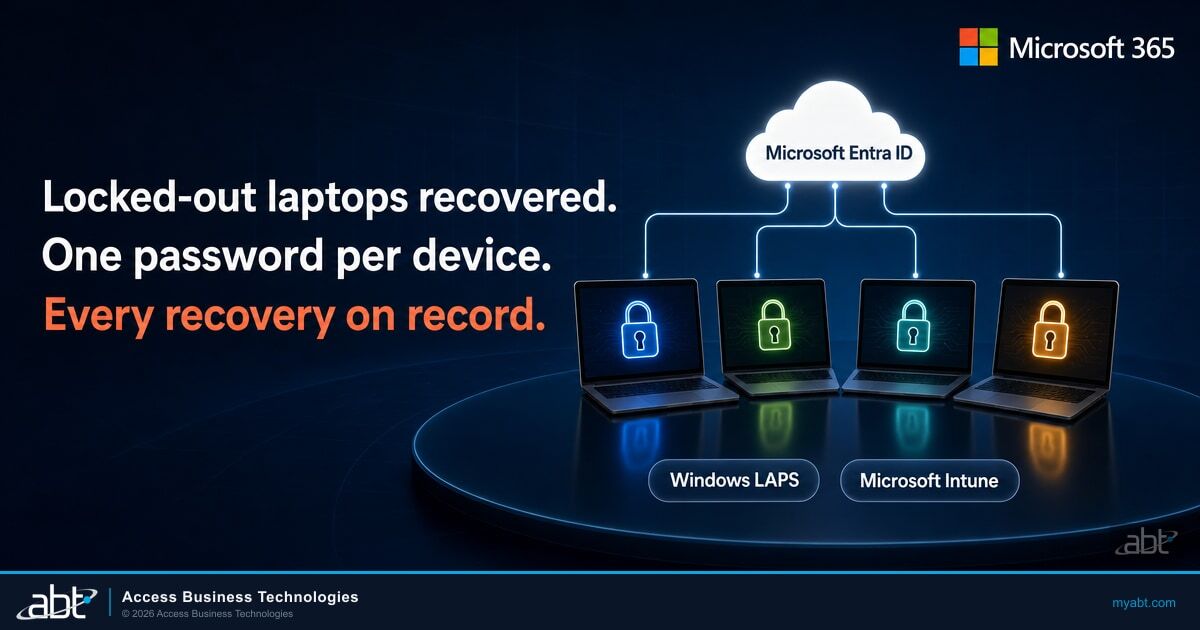
Windows Local Administrator Password Solution (Windows LAPS) is built into Windows and Windows Server. It gives each device's local administrator account its own password, rotates that password on a schedule, and backs it up to Microsoft Entra ID or Windows Server Active Directory, where only the administrators you authorize can read it. Microsoft states the problem in one sentence: "Local administrator accounts often share the same password across many devices, which bad actors can exploit to move laterally across your environment."
This guide comes from ABT, a Tier-1 Microsoft Cloud Solution Provider serving more than 750 financial institutions. It shows how to roll out Windows LAPS with Microsoft Intune, and two dates set the timeline. The joint government Active Directory guide revised in September 2026 asks for local administrator passwords more than twice as long as Microsoft's default. Legacy Microsoft LAPS support on Windows Server 2016 ends with the operating system on January 12, 2027.
What Windows LAPS does
Every Windows device has a built-in local administrator account. Microsoft's Intune documentation describes it as an account "that can't be deleted, and which has full permissions to the device." Windows LAPS manages the password on that account, or on one custom account you name, and it handles four jobs:
- It sets a complex, random password for the managed account on each device.
- It rotates that password on a schedule, every 30 days by default.
- It backs the password up to Microsoft Entra ID or Windows Server Active Directory.
- It lets authorized administrators read the password to sign in to or recover the device, and after someone signs in with it, resets it when a grace period ends (24 hours by default).
Microsoft lists the payoff as "Protection against pass-the-hash and lateral-traversal attacks", safer remote help desk work, and a way to sign in to devices that are otherwise inaccessible. Pass-the-hash is an attack that reuses a stolen password hash to sign in to another computer without ever cracking the password. Windows LAPS manages one local administrator account per device.
Where the password goes depends on how the device is joined. A device joined only to Microsoft Entra ID backs up to Entra ID, and a device joined only to Active Directory backs up to Active Directory. A hybrid-joined device, joined to both, can use either one, and Microsoft is explicit that "You can't back up passwords to both Microsoft Entra ID and Windows Server Active Directory." Personal devices that are only registered (workplace-joined) with Entra ID fall outside Windows LAPS.

Why a shared admin password puts every device at risk
The Cybersecurity and Infrastructure Security Agency (CISA) and the U.S. Coast Guard ran a proactive threat hunt at a U.S. critical infrastructure organization. Their advisory lists the key findings in order of risk, and the first is "Shared Local Admin Accounts with Non-Unique Passwords Stored as Plaintext." The passwords were identical and set never to expire, and they sat in plain text inside the batch scripts that created the accounts.
During a controlled security validation exercise, run with the organization's permission, CISA used credentials found in one of those scripts to sign in to the local admin account on a workstation. Then it opened a Remote Desktop Protocol (RDP) connection to another workstation. The advisory's fix: provision unique, complex passwords for each account "using tools like Microsoft's Local Administrator Password Solution (LAPS)."
The September 2026 revision of the joint Active Directory guide from the Australian Signals Directorate (ASD), CISA, the National Security Agency (NSA), and allied cyber agencies sets the bar higher. It asks for local administrator passwords that are "long (30-character minimum), unique, unpredictable and managed", and it names Microsoft's LAPS as a way to get there. The guide applies the same wording to the local administrator accounts on Active Directory Federation Services (AD FS) and Microsoft Entra Connect servers, the identity servers our guide to Microsoft Defender for Identity treats as Tier 0.
Anyone who reads it from one workstation, a setup script, or a help desk note can sign in as administrator on every device that shares it. Changing it means touching every one of those devices.
Each device has its own password. A password read from one laptop opens that laptop only. It rotates on a schedule, and after someone signs in with it, Windows LAPS resets it when a grace period ends (24 hours by default).
Windows LAPS vs. legacy Microsoft LAPS
Microsoft has shipped two products under the LAPS name. Legacy Microsoft LAPS is a separate download that stores passwords in Active Directory in clear text. Windows LAPS is a separate implementation that has been part of Windows since the April 11, 2023 Windows updates.
Legacy Microsoft LAPS
- Separate download, deprecated on Windows 11 23H2 and later
- Backs up to Windows Server Active Directory only
- Stores passwords in Active Directory in clear text
- Keeps only the current password
Windows LAPS
- Built into supported Windows 10 and Windows 11 clients and Windows Server 2019 and later
- Backs up to Microsoft Entra ID or Windows Server Active Directory
- Encrypts passwords in Active Directory at the Windows Server 2016 domain functional level or higher, and can keep up to 12 previous passwords there
- Managed by Microsoft Intune policy, with on-demand rotation
Windows Server 2016 is where the two collide. Windows LAPS starts at Windows Server 2019, so a 2016 server can't run it. That server's legacy Microsoft LAPS support ends with the operating system on January 12, 2027. Plan the upgrade or replacement of those servers with their local administrator passwords on the list.
Moving off the legacy product is a supported path. Windows LAPS can run in a legacy emulation mode that honors your existing Group Policy settings, though Microsoft calls it a temporary step because it keeps the clear-text storage. Microsoft "recommends migrating from legacy LAPS to Windows LAPS" and removing the legacy software once each device has made the move.
Is Windows LAPS included in Microsoft 365 Business Premium?
Business Premium covers everything Windows LAPS needs. The feature itself costs nothing: "The Windows LAPS feature is available at no cost on all supported Windows platforms." Backing passwords up to Active Directory needs no other license, and backing them up to Microsoft Entra ID needs Microsoft Entra ID Free or higher.
Managing Windows LAPS from Microsoft Intune takes Intune Plan 1, and Microsoft's Intune documentation adds that "With Microsoft Entra ID Free, you can use all the features of LAPS." The controls around it are licensed separately. Microsoft notes that "Other related features like administrative units, custom roles, Conditional Access, and Intune have other licensing requirements," and the custom roles that hand password recovery to a smaller group need Microsoft Entra ID P1 or P2.
Microsoft 365 Business Premium, which supports up to 300 users, includes Intune Plan 1 and Microsoft Entra ID P1. Larger institutions on Microsoft 365 E3 or E5 have Intune Plan 1 as well.
If your institution already owns Business Premium, you can buy the same licenses through ABT at Microsoft's price, quoted on their own line. When your licenses run through ABT, Guardian Foundation, the hardened tenant baseline, is included at no additional charge. It covers Zero Trust identity and device baselines (verify every user and device) and Microsoft Intune device compliance. Our comparison of Microsoft 365 E3, E5, and Business Premium walks through the license decision.
Where does your device fleet stand today?
ABT's free Microsoft 365 Security Assessment reviews admin account hygiene and device compliance, including Intune enrollment status, and compares your results with a benchmark from more than 750 financial institution tenants.
Which Windows LAPS settings to change
Windows LAPS arrives switched off. Its BackupDirectory setting "defaults to 0 (Disabled)", and while it's disabled every other setting is ignored, so nothing happens until a policy tells each device where to back up its password. After that, Microsoft's defaults are a sound starting point.
Two settings deserve a change at a financial institution: password length and the account the policy manages. One more deserves a check. Active Directory password encryption is on by default and takes effect only when the domain runs at the Windows Server 2016 domain functional level or higher.
| Setting | Microsoft default | What to set | Why |
|---|---|---|---|
| Backup directory | Disabled | Microsoft Entra ID for Entra-joined devices; Active Directory for domain-joined devices | Windows LAPS manages nothing until this is set |
| Password length | 14 characters | 30 or more (maximum 64) | The September 2026 joint guide's 30-character minimum |
| Password complexity | 4: uppercase, lowercase, numbers, special characters | Keep 4, so the 30-character length applies; passphrase options on Windows 11 24H2 and Windows Server 2025 count length in words instead | Microsoft recommends 4 or higher |
| Password age | 30 days | Keep 30 days, or shorten it (7-day minimum with Entra ID) | Limits how long a stolen password keeps working |
| Action after someone signs in with the account | Reset the password and sign the account out when a 24-hour grace period ends | Keep, or shorten the grace period | Limits how long a retrieved password stays valid |
| Active Directory password encryption | On, at the Windows Server 2016 domain functional level or higher | Keep it on, and confirm the domain functional level | Below that level, the password is stored in clear text |
| Automatic account management | Off | On, managing a custom account, with the built-in Administrator disabled (Windows 11 24H2, Windows Server 2025) | Microsoft's recommended mode |
Test the 30-character setting on a pilot group first. Microsoft warns that a length the device's local password policy can't accept makes Windows LAPS fail to create a new password. The failure appears as event 10027 in the Windows LAPS event log.
On Windows 11 24H2 and Windows Server 2025, automatic account management can create the managed account itself, randomize its name, and keep it disabled until an administrator needs it. In Microsoft's words, a disabled managed account "completely eliminates any chance that the account can be the target of a password spray or similar attack," the same technique behind the password spray that found forgotten service accounts.
How to deploy Windows LAPS with Microsoft Intune
Microsoft's own advice is direct: "We recommend organizations manage Windows LAPS using Microsoft Intune." Intune policy also settles any conflict with Group Policy Objects (GPOs), because it "overrides all other sources of LAPS policy, such as from GPOs or a configuration from Legacy Microsoft LAPS."
Windows LAPS Deployment Path in Microsoft Intune
Entra-joined devices back up to Microsoft Entra ID, domain-joined devices to Active Directory, and hybrid-joined devices to one of the two.
Before any device can back up its password to Microsoft Entra ID, a Cloud Device Administrator sets Enable Local Administrator Password Solution (LAPS) to Yes in the Entra device settings.
In the Intune admin center, go to Endpoint security, then Account protection, then Create Policy, and choose the Windows profile Local admin password solution (Windows LAPS).
Choose the backup directory that matches the join state, a length of 30 characters or more, complexity 4, and a rotation schedule.
Assign the policy to a pilot group, confirm each pilot device has backed up its password to its directory, then widen the assignment.
Create a custom Intune role with the Rotate Local Admin Password permission for the people who need on-demand rotation.
Remove the legacy policy and software once Windows LAPS manages each device.
One permission trips teams up. Intune's Rotate Local Admin Password remote task "isn't included by any Intune built-in role or the Microsoft Entra built-in role of Intune Administrator," so even your Intune administrators need a custom Intune role before they can rotate a password on demand. Creating and editing the LAPS policy itself sits in the built-in Endpoint Security Manager role.
Windows LAPS works alongside the device compliance policies in our guide to risk-based device compliance with Microsoft Intune. Compliance decides which devices can reach company data; Windows LAPS rotates the local administrator password on each one, and recovery permissions decide who can retrieve it.
Behind those seven steps are decisions about your own fleet: which join state each device is in, whether a 30-character password fits each device's local password policy, who holds the rotate role, and when the Windows Server 2016 machines get upgraded or replaced. Work through them with an ABT Microsoft 365 specialist before the pilot starts.

Who can read a LAPS password, and what gets logged
A LAPS password is a key to one device, so the list of people who can read it deserves the same care as any other privileged access. In Microsoft Entra ID, the built-in Cloud Device Administrator and Intune Administrator roles can recover passwords. Helpdesk Administrator, Security Administrator, and Security Reader can see when a password last rotated and when it rotates next, without seeing the password itself.
- Narrow the readers. A custom role, or a role assigned to an administrative unit of devices, can give recovery to a smaller group. These features carry their own Microsoft Entra ID license requirements.
- Protect recovery with Conditional Access. Policies can be scoped to the built-in roles that recover passwords (Microsoft supports this scoping for built-in roles only). For example, a policy can require multifactor authentication (MFA) for administrators, the same pattern as the admin protections in our Conditional Access best practices.
- Review the audit trail. Microsoft Entra audit logs record two activities: Update device local administrator password and Recover device local administrator password.
- Watch device deletions. When a device is deleted in Microsoft Entra ID, its LAPS password is deleted with it, and Entra ID has no way to recover it.
The principle behind just-in-time admin access applies here too: fewer people with permanent read access, and for passwords stored in Microsoft Entra ID, every recovery on record.
What examiners ask about local admin access
The rules examiners work from describe access control in general terms and leave the method to the institution. For banks, the Interagency Guidelines put access controls first among the security measures each institution must consider:
Access controls on customer information systems, including controls to authenticate and permit access only to authorized individuals ...
Federally insured credit unions work from the same structure in the National Credit Union Administration (NCUA) rules at Part 748, Appendix A, which names "Access controls on member information systems." For mortgage companies and other non-bank financial institutions, the Federal Trade Commission (FTC) Safeguards Rule at 16 CFR 314.4(c)(1) calls for "Implementing and periodically reviewing access controls," and 314.4(c)(8) adds controls "designed to monitor and log the activity of authorized users."
A shared local administrator password is hard to defend under any of these. Everyone who holds it is the administrator on every device that shares it, and CISA's own advice is to "Avoid using shared administrator accounts to improve accountability and auditability." Windows LAPS gives each device its own credential, limits who can read it, and records each recovery of a password stored in Microsoft Entra ID, so you can show an examiner who retrieved each device's administrator password and when.
How ABT helps
ABT is a Tier-1 Microsoft Cloud Solution Provider serving more than 750 financial institutions, and ABT manages Microsoft 365 tenants for credit unions, banks, and mortgage companies. Three ways to start:
- Rollout planning. Map the Intune policy, the pilot group, the recovery roles, and the Conditional Access around them with an ABT Microsoft 365 specialist.
- Business Premium at Microsoft's price. Business Premium carries the Intune Plan 1 and Microsoft Entra ID P1 this guide relies on. ABT quotes it at Microsoft's price on its own line, with M365 Guardian's hardened tenant baseline, Guardian Foundation, included at no additional charge.
- A free Microsoft 365 Security Assessment. Through read-only access, ABT reviews six areas of your tenant, including admin account hygiene and Intune enrollment status across managed and unmanaged devices. Each area is scored and compared against ABT's benchmark from more than 750 financial institution tenants. Most assessments complete within two weeks and end in a written report with a prioritized hardening roadmap.
If your institution is buying another lender or bank, set up Windows LAPS on the acquired devices while their current device management is still in place. Our guide to linking Microsoft 365 tenants before a merger explains why that credential matters when the devices change hands.
Give each managed device its own admin password
Start with where your tenant stands today, or plan the licensing and the Intune rollout with us.
Start with a free assessment
A free, read-only review of admin account hygiene and device compliance across your Microsoft 365 tenant, delivered as a written report with a prioritized hardening roadmap.
Request a Free Microsoft 365 Security AssessmentPlan Windows LAPS on Business Premium
Talk through how Windows LAPS fits your Intune policies, Business Premium licensing at Microsoft's price, and Guardian Foundation at no additional charge.
Talk to an ABT Microsoft 365 specialistFrequently Asked Questions
Windows LAPS (Windows Local Administrator Password Solution) is a feature built into Windows and Windows Server. It gives each device's local administrator account its own password, rotates that password on a schedule, and backs it up to Microsoft Entra ID or Windows Server Active Directory, where authorized administrators can read it to sign in to or recover the device.
Yes. Microsoft says the Windows LAPS feature is available at no cost on all supported Windows platforms. Backing passwords up to Active Directory needs no other license, and backing them up to Microsoft Entra ID needs Microsoft Entra ID Free or higher. Managing Windows LAPS from Microsoft Intune requires Intune Plan 1, which Microsoft 365 Business Premium includes.
Legacy Microsoft LAPS is a separate download that stores passwords in Active Directory in clear text. Windows LAPS has been built into Windows since the April 11, 2023 updates, can back up to Microsoft Entra ID, and can encrypt passwords in Active Directory. Microsoft deprecated legacy Microsoft LAPS on Windows 11 23H2 and later.
Open the device in the Microsoft Intune admin center and select Local admin password under Monitor. Intune shows only passwords backed up to Microsoft Entra ID. Viewing one in the Intune admin center takes a Microsoft Entra role that can read LAPS passwords, such as Cloud Device Administrator or Intune Administrator, plus a custom Intune role with the Rotate Local Admin Password permission.
By default, Windows LAPS rotates the password every 30 days. The setting accepts 1 to 365 days, with a seven-day minimum for Microsoft Entra ID backups. After someone signs in with the managed account, Windows LAPS resets the password when the grace period ends (24 hours by default). Administrators with the right role can rotate it on demand from Intune.
Windows LAPS starts at Windows Server 2019, so Windows Server 2016 is outside its platform list. Legacy Microsoft LAPS support on Windows Server 2016 lasts until the operating system reaches end of support on January 12, 2027. Plan an upgrade or replacement for those servers, with their local administrator passwords on the list.