

In This Article
- Why Device Compliance Is a Board-Level Concern
- What Microsoft Intune Device Compliance Actually Does
- Building a Risk-Based Intune Policy: The Executive Playbook
- What Changed in 2026: Intune's Expanding Capabilities
- The Microsoft 365 Security Stack: Intune, Entra ID, and Defender Working Together
- M365 Guardian: ABT's Productized Device-Compliance Baseline
- Implementation Realities: What Financial Institutions Actually Face
- The Bottom Line for Financial Institution Leaders
- Frequently Asked Questions
A loan officer's personal laptop gets stolen at an airport. A credit union teller plugs a personal USB drive into a branch workstation. A bank executive checks email from an unpatched tablet at a hotel. Each of these scenarios happens every week across financial services, and each one represents an endpoint your organization either controls or doesn't.
Unmanaged devices are a recurring root cause in credential-based incidents at financial institutions, and that pattern is the reason endpoint management has moved from the IT backlog to the board agenda. Regulators, cyber insurers, and auditors now ask specific questions about device posture, and a written policy alone is not the answer they want to see.
Microsoft Intune device compliance is how you close that gap inside the Microsoft 365 ecosystem. Not as an afterthought. As the enforcement layer that determines which devices touch your data and which ones get stopped at the door. Access Business Technologies operates the Microsoft 365 tenants behind 750+ financial institutions, and Intune is the device-side foundation of every one of those deployments.
Why Device Compliance Is a Board-Level Concern
Endpoint security used to live in the IT department's backlog. That era ended when regulators, cyber insurers, and auditors started asking specific questions about device posture.
Here's what changed:
- Regulatory pressure is concrete. FFIEC examiners expect documented endpoint controls. NCUA auditors ask credit unions how they manage mobile devices. State regulators want evidence that devices accessing borrower data meet encryption baselines. NYDFS finalized its latest cybersecurity requirements in November 2025, adding strict access controls, complete asset inventories, and universal multi-factor authentication to its examination checklist. A verbal assurance that "we have policies" no longer satisfies anyone.
- Cyber insurance underwriters check device management. Carriers now ask whether you enforce BitLocker encryption, require minimum operating system versions, and block jailbroken devices. Gaps in device compliance translate directly to higher premiums or denied claims.
- Breach costs punish the unprepared. Organizations with mature zero-trust postures (which depend on enforced device compliance) consistently report lower per-incident costs than those without. For a financial institution handling nonpublic personal information, a single unmanaged laptop can turn a three-million-dollar incident into a five-million-dollar one. For deeper context on how unmanaged endpoints undermine your security investment, see our companion article on the zero-trust blind spot.
The question for CIOs and CISOs isn't whether to enforce device compliance. It's how quickly you can get there without disrupting operations.
What Microsoft Intune Device Compliance Actually Does
Microsoft Intune is Microsoft's cloud-based endpoint management platform, included in Microsoft 365 Business Premium and Enterprise E3/E5 licenses. It handles two jobs: Mobile Device Management (MDM) for company-owned hardware and Mobile Application Management (MAM) for personal devices.
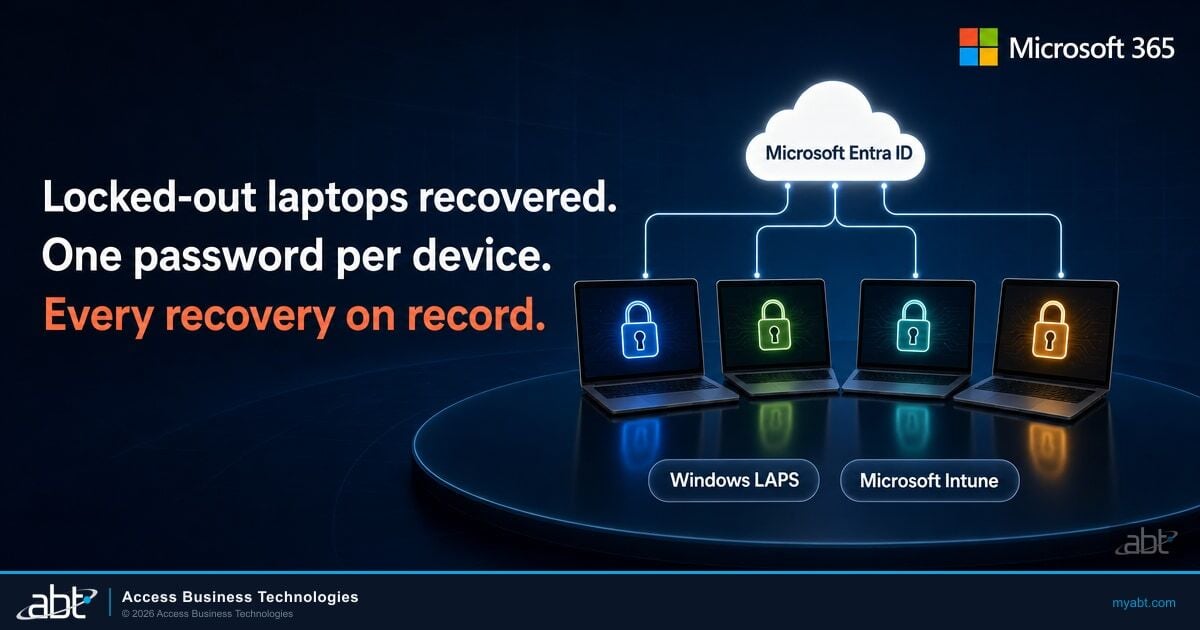
An Intune compliance policy defines what a healthy device looks like. Think of it as a health check that runs continuously, not just at enrollment. Devices that pass get marked compliant. Devices that fail get flagged and can be blocked from accessing corporate resources through Microsoft Entra ID Conditional Access.
Baseline compliance checks include:
- BitLocker encryption: Is the hard drive encrypted? For any device handling nonpublic personal information, this is non-negotiable.
- OS version: Is the operating system current and receiving security patches?
- Password/PIN strength: Does the device require a PIN, password, or biometric unlock that meets your policy?
- Jailbreak/root detection: Has the device been tampered with in ways that bypass built-in security?
- Threat level: When integrated with Microsoft Defender for Endpoint, Intune can read the device's active threat level and block access when risk is elevated.
What makes this powerful for financial institutions: every compliance check generates an auditable record. When an NCUA examiner asks how you manage endpoints, you can pull a report showing encryption status, operating system versions, and compliance rates across your entire fleet.
How Does Your Endpoint Security Stack Up?
ABT's free Security Grade Assessment measures your Microsoft 365 environment against the device compliance standards regulators expect. Get a scored report in minutes, not weeks.
Building a Risk-Based Intune Policy: The Executive Playbook
A one-size-fits-all compliance policy creates problems. A branch teller's workstation has different risk characteristics than a loan officer's personal phone. A risk-based approach treats devices differently based on what they access and the threat they represent.
Step 1: Define Your Compliance Baseline
Start with the minimum standard every device must meet before touching corporate data. For most financial institutions, that baseline includes BitLocker encryption on Windows devices, a minimum operating system version no more than one major release behind current, a device PIN or biometric, and active antivirus with cloud-delivered protection enabled.
A mortgage company processing loan applications and a community bank running hybrid branch operations will both need these minimums. The details differ by platform (separate policies for Windows, iOS, Android, and macOS), but the principle holds.
Step 2: Configure Policies and Non-Compliance Actions
In the Microsoft Intune admin center, you create compliance policies per platform. The critical decision: what happens when a device fails?
Options range from sending the user a notification email to immediately marking the device non-compliant. For regulated organizations, most compliance frameworks expect prompt flagging rather than a week-long grace period. A credit union with 300 employees might allow 24 hours for an operating system update before blocking access. A bank processing wire transfers might allow zero grace period for missing encryption.
The FFIEC Information Security Booklet requires institutions to manage all data exit points, including removable media and portable devices. OCC Bulletin 2023-22 specifically evaluates processes to manage removable media and portable devices, alongside data disposal and device sanitization procedures. Examiners expect documented policies, automated enforcement, and auditable evidence. If your compliance policies exist only in a Word document and not as automated Intune rules, the examiner will note the gap.
Step 3: Enforce Through Microsoft Entra ID Conditional Access
A compliance policy alone just checks devices. Microsoft Entra ID Conditional Access is the enforcement mechanism that acts on those checks. You create a Conditional Access rule that says: if Intune marks a device non-compliant, block access to Microsoft 365 resources from that device.
This creates a closed loop. Intune flags a device. Conditional Access in Microsoft Entra ID blocks that specific device. The user's other compliant devices keep working. The loan officer whose laptop missed a security update loses access on that one machine until the update installs. No phone calls to IT. No tickets. The system handles it. For a deeper look at how these policies work together, see our guide on Conditional Access rules every financial institution needs.
Step 4: Test in Report-Only Mode Before Enforcement
Deploy Conditional Access policies in Report-Only mode first. This shows you who would be blocked without actually stopping anyone from working. A credit union running this pilot might discover 40 devices on outdated operating system versions that need attention before going live. A mortgage company might find that half their loan officers are using personal tablets that haven't been enrolled.
Two weeks of report-only data prevents the scream test where you flip a switch and immediately lock out half the organization.
What Changed in 2026: Intune's Expanding Capabilities
Microsoft is making significant investments in Microsoft Intune that directly benefit financial institutions on E3 and E5 licenses:
- Advanced Analytics: AI-assisted anomaly detection that proactively identifies device health issues. Instead of waiting for a compliance failure, Intune surfaces emerging problems before they trigger an incident. For a CISO managing hundreds of endpoints, this shifts the posture from reactive to proactive.
- Endpoint Privilege Management: Lets organizations adopt least-privilege access at the device level. Users get elevated access only for approved applications, with just-in-time elevation that maintains productivity without granting standing admin rights. This directly addresses the regulatory expectation for least-privilege controls. Copilot in Intune now provides risk assessments based on Microsoft Defender threat intelligence before IT approves an elevation request.
- Cloud PKI: Certificate-based authentication managed entirely from the cloud. No on-premises infrastructure required. For financial institutions still running hybrid environments, this simplifies a historically painful deployment.
- Android Strong Integrity enforcement: Intune now enforces Google's updated Strong Integrity definition for Android 13+ devices, requiring hardware-backed security signals. A device that can't prove its integrity at the hardware level gets blocked.
These additions reinforce a trend: Microsoft is building Intune into a comprehensive endpoint security platform, not just a device management tool. Intune is positioned as the default for any organization already inside the Microsoft ecosystem.
The Microsoft 365 Security Stack: Intune, Entra ID, and Defender Working Together
One of the most common mistakes financial institutions make: buying Microsoft 365 for email and ignoring the security engine underneath. Intune is one piece of an integrated stack, and the value shows up when the pieces actually talk to each other.
Microsoft Intune writes the compliance policies that define what a healthy device looks like. BitLocker encryption on. Operating system within one major version of current. Active Microsoft Defender Antivirus. PIN or biometric set. Jailbreak or root detection clean. Every device the institution owns or enrolls under mobile application management gets graded against that policy, continuously, and the result is a compliant or non-compliant flag that the rest of the stack reads. Microsoft Entra ID Conditional Access ties that compliance flag directly to access. A device that drops out of compliance loses access to Microsoft 365 resources at that device, while the user's other compliant devices keep working. That is what risk-based access actually means in practice: the access decision is calculated from device state, identity state, and sign-in risk together, every time a user reaches for Outlook, Teams, SharePoint, or any other Microsoft 365 surface. Microsoft Defender for Endpoint closes the loop by feeding live threat signals back to Intune. When Defender sees an active threat on a device, it raises the machine risk level. Intune reads that risk level inside its compliance policy and marks the device non-compliant on the spot. Conditional Access then blocks that device until the threat is remediated. The institution does not have to invent that orchestration. It is built into the platform, and it runs in the background once the policies are wired correctly.
When you treat Microsoft 365 as a platform rather than a collection of apps, you eliminate the need for separate mobile device management, antivirus, and encryption vendors. That consolidation reduces vendor complexity and IT spend, a direct return for the CFO watching the budget. For a full breakdown of how this platform approach works, see our guide to Microsoft 365 compliance for GLBA and OCC requirements.
M365 Guardian: ABT's Productized Device-Compliance Baseline
Microsoft provides the tools. Wiring those tools together into a defensible, examiner-ready baseline at a community bank, credit union, or mortgage company requires a different level of expertise. ABT's M365 Guardian operating model is the productized version of that work, built on Microsoft Intune, Microsoft Entra ID Conditional Access, and Microsoft Defender for Endpoint as a single managed stack. Guardian ships with a financial-services device-compliance baseline that maps to FFIEC, NCUA, OCC, and state examiner expectations on day one rather than week 12. The Intune compliance policies for Windows, iOS, Android, and macOS arrive pre-tuned for community banks, credit unions, and mortgage companies. The Conditional Access policies in Microsoft Entra ID arrive in grant mode (not report-only), wired to the Intune compliance signal, with location-aware and risk-based step-up logic appropriate for branch-and-headquarters operations. The Microsoft Defender for Endpoint deployment arrives with the connectors back to Intune already in place, so machine-risk-driven blocks are working from day one.
Guardian is not a one-time deployment. It is a managed operating model that ABT runs continuously on top of the Microsoft tools the institution already licenses. Compliance drift detection runs in the background, surfacing devices that fall outside the baseline before an examiner does. Policy tuning continues quarterly as Microsoft ships new capability into Intune and Entra ID and as the institution's risk profile changes. Reporting maps directly to NCUA, OCC, FFIEC, and state examiner question sets so the credit union or bank CISO walks into an audit with the evidence already pulled. As a Tier-1 Direct-Bill Microsoft Cloud Solution Provider for 750+ financial institutions, ABT manages the Microsoft 365 tenants behind the deployment under Granular Delegated Administrative Privileges, which means the institution keeps tenant ownership and the regulatory relationships while ABT carries the operational accountability for keeping the device-compliance stack configured and audit-ready. Whether you are a credit union preparing for an NCUA exam, a mortgage company meeting state licensing requirements, or a community bank responding to OCC guidance, the M365 Guardian operating model closes the gap between licensed and secured.
Implementation Realities: What Financial Institutions Actually Face
Deploying device compliance policies isn't without friction. The three challenges that surface in nearly every engagement:
BYOD pushback. Loan officers and field staff resist having company management on personal phones. The distinction between mobile application management (which protects company data) and mobile device management (which manages the whole device) matters here. Clear communication that mobile application management can wipe company emails without touching personal photos defuses most resistance. For mortgage companies where loan officers live on personal devices, leading with mobile application management before full device management is usually the right sequence.
Configuration complexity. Microsoft Intune has thousands of settings. A misconfigured policy at a credit union could lock tellers out of their core banking application mid-transaction. A policy that's too permissive at a bank might satisfy no one when the FFIEC examiner arrives. Getting the configuration right requires knowing both the technology and the regulatory expectations, which is exactly what the M365 Guardian baseline encodes.
Ongoing maintenance. Compliance isn't a one-time deployment. Operating system versions change, new threats emerge, Microsoft updates its platform, and policies need regular tuning. A policy you set correctly six months ago may have gaps today. The Guardian operating model carries that quarterly tuning work so the institution's internal IT team is not chasing Microsoft's release cadence on top of their day job.
"The attack surface has expanded with the evolution of new technologies and broadly-used remote access points, including mobile computing, smartphone applications, bring your own devices, and cellular connections."
FFIEC Authentication and Access GuidanceThe Bottom Line for Financial Institution Leaders
Every unmanaged device accessing your Microsoft 365 environment is a risk you can measure. Microsoft Intune device compliance policies, wired to Microsoft Entra ID Conditional Access and fed by Microsoft Defender for Endpoint, turn that risk into a controlled, auditable process. The tools are already in your Microsoft 365 license. The question is whether they're configured to meet the standards your regulators, insurers, and board expect, and whether someone is on the hook to keep them configured as the platform evolves.
Stop guessing about your endpoint posture. Start enforcing it.
Your Regulators Will Ask About Device Compliance. Have the Answer Ready.
ABT runs the M365 Guardian device-compliance baseline (Microsoft Intune + Microsoft Entra ID Conditional Access + Microsoft Defender for Endpoint) for banks, credit unions, and mortgage companies. One conversation maps the gap between your current posture and what examiners expect.
Frequently Asked Questions
No. When using mobile application management or bring-your-own-device enrollment, Intune isolates business data from personal data on the device. IT administrators can wipe company emails and files if an employee leaves, but they cannot access personal text messages, photos, or browsing history. This separation is a core design principle of the platform.
The response depends on your policy configuration. Typically the device receives a short grace period to resolve the issue, such as installing a required operating system update. If the device remains non-compliant after the grace period, Microsoft Entra ID Conditional Access blocks it from accessing Microsoft 365 resources like Teams, SharePoint, and OneDrive until remediation is complete.
Yes. Microsoft Intune is included in Microsoft 365 Business Premium and Enterprise E3 and E5 plans. Starting July 2026, Microsoft is expanding Intune Suite capabilities in E3 and E5 to include Advanced Analytics, Endpoint Privilege Management, and Cloud PKI at no additional cost, giving financial institutions more security tools without new licenses.
Microsoft Intune generates documented compliance reports showing encryption status, operating system versions, and device health across your entire fleet. These reports provide the audit-ready evidence that NCUA, OCC, FFIEC, and state examiners expect when they ask how your institution manages endpoint security. Policies are enforceable and logged, not just written on paper. ABT's M365 Guardian operating model arranges those reports against the specific question sets each examiner type uses.
Yes. Microsoft Intune supports full device enrollment with mobile device management for company-owned hardware and lighter mobile-application-management-only policies for personal devices. This dual approach lets financial institutions enforce strict compliance on corporate laptops and workstations while protecting business data on personal phones without overreaching into employee privacy.