

In This Article
- What Windows Autopilot does
- What changed for Windows Autopilot in 2026
- Windows Autopilot or device preparation: which path fits
- Device association: tie a laptop to your institution before it enrolls
- Who can put a device in your tenant
- Security before the desktop, and personal devices kept out
- Reset, reassign, and retire
- A rollout plan for banks, credit unions, and lenders
- The device inventory question examiners and the FTC ask
- Licensing, and how ABT helps
- Frequently Asked Questions
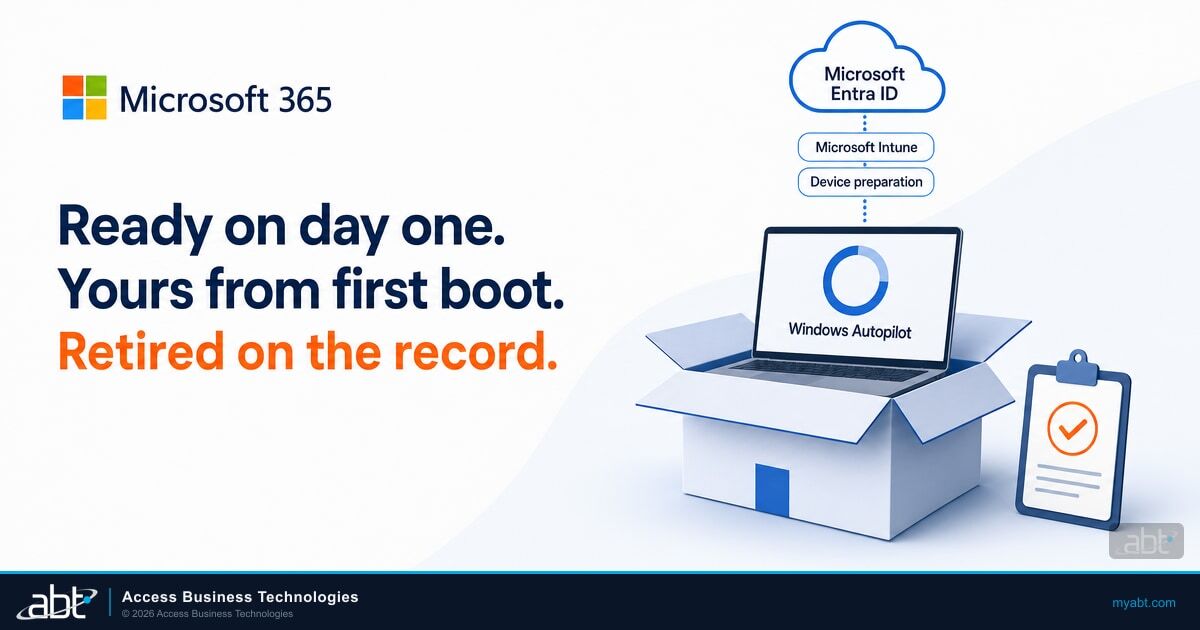
A new loan officer starts Monday at a branch two hours from the main office. The laptop arrives sealed from the reseller. She connects it to Wi-Fi, signs in with her work account, and Windows Autopilot does the rest: it joins the device to Microsoft Entra ID, enrolls it in Microsoft Intune, and installs the apps and policies your institution assigned.
Microsoft describes the end user's part as exactly that: "connect to a network and to verify their credentials. Everything beyond that is automated."
For a bank, credit union, or mortgage company with a small IT team, that means laptops ship straight to the branch and reach users already set up with your apps and settings. It also means each Windows device can start its life inside your tenant, marked as your institution's device, with your security settings delivered during setup.
The tool itself changed this fall. On September 16, 2026, Microsoft's Intune team wrote that "Autopilot device preparation is now the recommended solution for user-driven scenarios" and that future engineering investment will focus there. At ABT, a Tier-1 Microsoft Cloud Solution Provider serving more than 750 financial institutions, we read that as a planning item: the two versions run side by side, and some of your devices belong on each.
The short version for IT leaders
Pilot Windows Autopilot device preparation on corporate-owned Windows 11 laptops that join Microsoft Entra ID directly, then move them one group at a time. Keep hybrid joined, self-deploying, pre-provisioned, and co-managed devices on Windows Autopilot. Settle device ownership before you block personal devices, and retire every departing laptop from your tenant on the path it came in on.
What Windows Autopilot does
Microsoft defines Windows Autopilot as "a collection of technologies used to set up and pre-configure new devices, getting them ready for productive use." Autopilot starts from the Windows installation the manufacturer (OEM) already put on the device and transforms it in place, which retires the job of building a custom image for every laptop model. According to Microsoft, that transformation can apply settings and policies, install apps, and change the Windows edition, for example from Windows Pro to Windows Enterprise.
For a financial institution, the productivity case comes first: a new hire works on day one, wherever the branch is. The security case follows right behind it.
Intune automatically assigns corporate-owned status to devices that join Microsoft Entra ID through Windows Autopilot. Intune counts device preparation enrollments as corporate too, though a personal-device block stops them unless each device has a corporate identifier or a device association. That ownership flag is what lets you block personal Windows enrollment while your institution's laptops keep enrolling.
What changed for Windows Autopilot in 2026
Most of this year's changes landed in Windows Autopilot device preparation, the re-architected version Microsoft now recommends for user-driven setup. The dates below come from Microsoft's own device preparation release notes and the Intune team's transition post.
Device preparation can bind a physical Windows 11 device to your organization before enrollment, and associated devices are automatically marked corporate-owned.
On devices set up through device preparation, Windows now uses your admin-configured BitLocker policy; Microsoft removed the default 128-bit policy from setup. Our guide to BitLocker encryption and recovery keys covers that policy.
Microsoft's Intune team names device preparation the recommended solution for user-driven scenarios and lays out a phased transition.
Windows Autopilot or device preparation: which path fits
Microsoft's transition guidance describes a phased move. "Windows Autopilot and Windows Autopilot device preparation can coexist in the same organization." The recommended path for device preparation covers corporate-owned Windows 11 devices, user-driven Microsoft Entra join, and Windows 365. Microsoft names four scenarios that stay on Windows Autopilot: pre-provisioning, self-deploying mode, hybrid Microsoft Entra join, and Autopilot into co-management.
If your laptops join Microsoft Entra ID directly and a user signs in during setup, they're candidates for device preparation. If your devices still join on-premises Active Directory through hybrid join, or you run shared kiosks and lobby devices in self-deploying mode, they stay where they are for now.
| Question | Windows Autopilot device preparation | Windows Autopilot |
|---|---|---|
| Join types | Microsoft Entra join | Microsoft Entra join and Microsoft Entra hybrid join |
| Device registration required? | No | Yes (hardware hash or partner registration) |
| Bind a device to your tenant before enrollment | Yes, through device association | Yes, through registration |
| What setup can install | Up to 25 essential apps and up to 10 essential PowerShell scripts, device-based | Up to 100 apps, device-based and user-based |
| Progress screen | Device preparation page | Enrollment Status Page |
| Windows versions | Windows 11 (24H2 or later, or 23H2 and 22H2 with KB5035942 or later) | Supported Windows 11 and Windows 10 versions |
The rows come from Microsoft's comparison of the two versions and the September 16 transition post.
Two rows matter most for a small IT team. Device preparation needs no pre-registration, so a laptop bought at a local store can still go through a managed setup. And device preparation runs only on Windows 11, so any Windows 10 machine still in service stays on Windows Autopilot until it is replaced. Our October 2026 end-of-support guide covers the dates and options for those Windows 10 holdouts.

Device association: tie a laptop to your institution before it enrolls
Device association is the newest piece, added to device preparation on August 27, 2026. Microsoft describes it as a feature that "establishes a verifiable link between a physical device and your tenant by writing a tenant affinity marker into the device's UEFI firmware." UEFI is the firmware that starts the computer before Windows loads, so the marker stays with the device when Windows is reset.
Three benefits make association worth a look for regulated institutions. Associated devices are automatically marked as corporate-owned, so they pass a personal-device enrollment block without a separate serial number upload. Identity is checked before enrollment through what Microsoft calls "hardware-based attestation and TPM-backed cryptographic validation." And associated devices can receive device-targeted policy assignments, with a device name applied before the device enrolls.
The requirements are specific. Association needs a physical device with TPM 2.0 running Windows 11 24H2 or 25H2 with KB5120998 or later; virtual machines are not supported. For now, uploads go through Intune only: Microsoft's post says "OEM and partner pre-association scenarios aren't supported yet, but they're on the roadmap." You can pre-associate devices already in use: Microsoft says pre-association "doesn't reset the device or disrupt its current use", and the new path takes over at the device's next reset.
Who can put a device in your tenant
Classic Windows Autopilot needs each device registered before setup. Registration means the device's hardware hash, a unique hardware identity, is uploaded to the Autopilot service. Microsoft says this is ideally done by "the OEM, reseller, or distributor" from whom the devices were purchased, and it can also be done in-house by collecting the hash from a running device.
Resellers have a defined path. Microsoft's partner registration page says that resellers, distributors, and partners in the Cloud Solution Partners (CSP) program can register devices for a customer once the customer's Global Administrator approves the relationship. Two details on that page matter for a regulated institution:
- You set the scope of each approval. Microsoft states that "Windows Autopilot doesn't require delegated administrator permissions," and the approving admin can uncheck that box. Your Global Administrator can approve a reseller to register devices without granting it tenant administration rights.
- Sealed boxes stay sealed. Microsoft tells partners to register devices from the Product Key ID (PKID) on the packaging barcode, so laptops can ship to the branch unopened.
Device preparation removes the registration step for user-driven setup. That's simpler, and it's also why device association exists: it gives you the "this laptop is ours" binding that registration provides on classic Windows Autopilot, backed by the device's TPM.
Security before the desktop, and personal devices kept out
The setup screen is your first control point, and the two versions handle it differently. In classic Windows Autopilot, the Enrollment Status Page (ESP) can hold the user at setup: Microsoft says "You can configure the ESP to block device use until all required policies and applications are installed." The Enrollment Status Page can also check for and install missing monthly security updates at the end of setup. Device preparation replaces the Enrollment Status Page with its own policy, which lists up to 25 essential applications and up to 10 essential PowerShell scripts to install during setup, and by default it makes the user a standard, non-administrator user.
Use that setup window deliberately. The items a laptop should have before a loan officer opens email are the ones that protect customer data: your BitLocker policy, your Microsoft Defender settings, your compliance policy, and the apps that carry customer information. Put those apps on the blocking or essential list for the path each device takes, so a device that fails to install them shows up as a failed deployment your IT team can fix before the user starts work.
Policies such as BitLocker and Defender settings install in the background on both paths, outside what the setup screen tracks, so confirm them on your pilot devices. M365 Guardian's device compliance coverage spans Intune compliance policies, BitLocker encryption, OS security baselines, and Conditional Access gates, the settings a new laptop should carry from its first day.
The second control is ownership. Intune's personally owned devices restriction "helps prevent device users from accidentally enrolling their personal devices," and it applies to Windows.
Before you turn it on, know how each path is treated. Devices that enroll through classic Windows Autopilot are marked corporate either way. Devices that go through device preparation are different: Microsoft says that if you block personal enrollment, "you must configure either corporate identifiers or device association for each device before deployment." A Windows corporate identifier is the manufacturer, model, and serial number, uploaded to Intune ahead of time.
Ownership then feeds the controls downstream. Our guide to risk-based device compliance with Microsoft Intune shows how compliance results drive Conditional Access, and Windows LAPS gives each managed device its own local administrator password.
Reset, reassign, and retire
When a teller leaves and a laptop set up through classic Windows Autopilot goes to a new hire, Windows Autopilot Reset is the clean path. According to Microsoft, it removes personal files, apps, and settings, reapplies the device's original settings, and keeps the device's connections to Microsoft Entra ID and Intune. Intune can trigger it remotely. Three limits apply: Microsoft's comparison of the two versions lists Autopilot Reset as a Windows Autopilot capability that device preparation lacks; Autopilot Reset does not support Microsoft Entra hybrid joined devices, which need a full wipe; and the local reset from the lock screen is disabled by default so it cannot be triggered by accident.
Reset is for a device that stays. A device that leaves needs its own step, and Microsoft is direct about it: "Whenever a device permanently leaves an organization, the device should always be deregistered from Windows Autopilot." Its examples are a device sent out for repair and a device at the end of its life cycle.
Retire the record along with the hardware
Before a laptop goes to a recycler, a buyer, or a repair depot, remove it from your tenant on the path it came in on. A registered Windows Autopilot device is deleted from Intune first, then deregistered. An associated device is taken out of management first, then its association is cleared on the device itself, then it is deleted from the Device association list: Microsoft says deleting it from that list alone "doesn't clear the tenant affinity" stored in firmware. Put the right sequence for each path on your asset disposal checklist.
Microsoft gives two more details worth knowing. If an associated device is still enrolled in mobile device management (MDM) when you clear its association, "the MDM provider attempts to re-associate it on its next check-in", which is why unenrollment comes first. And a partner that deregisters a device in Partner Center removes only the Autopilot registration, so Microsoft says the partner should work with your IT administrators on the full removal. The same discipline applies to people: our Microsoft 365 employee offboarding guide covers the account side when the person leaves along with the laptop.
A rollout plan for banks, credit unions, and lenders
Microsoft's transition post recommends starting with one eligible population and expanding in waves. Here's that approach as a sequence for an institution with a small IT team.
Windows Autopilot Rollout Path in Microsoft Intune
List which devices join Microsoft Entra ID directly, which use hybrid join, which still run Windows 10, and which are shared or kiosk devices. That list decides the path for each group.
Confirm that every user who sets up a device has a license assigned. Upload corporate identifiers or plan device association for every device preparation device, then add the enrollment restriction for personally owned Windows devices.
Name the essential apps and scripts that must finish before the desktop, choose a static security group for enrollment time grouping, and add a device naming template for the devices you associate.
Use it for laptops that need automatic corporate ownership, device naming, and the TPM-backed binding, and for laptops already registered with Windows Autopilot, which keep running their classic profile until they are associated. Pre-associate a small pilot without resetting it.
Hybrid joined devices, self-deploying kiosks, pre-provisioned devices, and devices that go into co-management stay on their current profiles and Enrollment Status Page.
Check app installs, policy assignment, naming, group membership, and the deployment report before expanding to the next population.
Run the disposal sequence above for every departing device and keep the record with your asset inventory.
Two cautions from Microsoft's guidance carry into every step. Retire old deployment profiles, Enrollment Status Page profiles, and registrations only after reporting confirms no active or planned population still depends on them. And plan the pilot around association taking precedence over registration, because Microsoft says a device in both states follows the device preparation path.

The device inventory question examiners and the FTC ask
Device provisioning also answers a governance question examiners ask: which devices can reach customer information, and how do you know? For mortgage companies and other non-bank lenders, the Federal Trade Commission (FTC) Safeguards Rule names devices directly.
Identify and manage the data, personnel, devices, systems, and facilities that enable you to achieve business purposes in accordance with their relative importance to business objectives and your risk strategy;
Banks work from the Interagency Guidelines, which list measures each institution "must consider" and adopt where appropriate, starting with "Access controls on customer information systems, including controls to authenticate and permit access only to authorized individuals." Credit unions find the same measure, written for member information systems, in the National Credit Union Administration's Guidelines for Safeguarding Member Information.
A provisioning process built on Windows Autopilot produces records that support your answer to each of them. Devices enrolled through it appear in Intune with their ownership, a device name, a compliance state, and a deployment record. Personal Windows enrollment can be blocked with an Intune restriction. And a device that leaves is removed from your tenant on a documented checklist.
When an examiner asks how you manage the laptops that touch customer, member, or borrower data, you can show the inventory itself.
Three habits we recommend:
- Export the Intune device list monthly and reconcile it against your asset register.
- Keep the Windows Autopilot or device preparation deployment report with your change records.
- File each deregistration or association removal with the disposal record for that device.
Licensing, and how ABT helps
Windows Autopilot needs a supported Windows edition and a subscription that provides Microsoft Entra ID and Intune features. Microsoft's requirements page lists Microsoft 365 Business Premium among the qualifying subscriptions, alongside Microsoft 365 E3 and E5 and Entra ID P1 or P2 with Intune; device preparation lists the same set. Supported Windows 11 editions include Pro, Pro for Workstations, Enterprise, and Education.
For most community banks, credit unions, and mortgage companies under 300 users, Business Premium is the practical fit. Microsoft lists it at $22.00 per user per month, paid yearly, with Intune Plan 1 included. Our comparison of E3, E5, and Business Premium covers when an institution outgrows it.
Whichever reseller ships the laptop, the user who signs it in needs a qualifying license assigned before the device can enroll. ABT sells Microsoft 365 licensing at Microsoft's price, on its own line. When your licensing runs through ABT, M365 Guardian Foundation, the hardened tenant baseline, is included at no additional charge, and every Guardian level includes Zero Trust identity and device baselines and Microsoft Intune device compliance.
- See where you stand: the free ABT Security Assessment reviews Intune enrollment and compliance across managed and unmanaged devices before you change how new laptops arrive, with a written report in about two weeks.
- Plan the move with ABT: bring your fleet inventory to an ABT financial services IT strategist and sort which devices belong on device preparation and which stay on Windows Autopilot, before any profile is retired.
Run your Windows fleet on Business Premium and M365 Guardian
Two ways to start, depending on where your devices stand today.
See your device posture first
A written report on enrollment, compliance, patch levels, and encryption across your devices, free and read-only.
Get Your Free Security AssessmentLicense the fleet through ABT
Talk through Business Premium at Microsoft's price for every user who enrolls a laptop, Guardian Foundation included when your licensing runs through ABT, and which devices move to device preparation.
Talk to an ABT financial services IT strategistFrequently Asked Questions
Windows Autopilot is Microsoft's cloud service for setting up Windows devices without reimaging them. It turns the Windows installation that ships on a new PC into a business-ready device: joined to Microsoft Entra ID, enrolled in Microsoft Intune, with apps and policies installed. It can also reset, repurpose, and recover devices.
Device preparation is Microsoft's re-architected version of Windows Autopilot. It supports Microsoft Entra join only, needs no device registration, and runs on Windows 11. Windows Autopilot also supports hybrid join, pre-provisioning, and self-deploying mode. Since September 2026, Microsoft recommends device preparation for user-driven setup, and the two can run in the same tenant.
Windows Autopilot needs a supported Windows edition, such as Windows 11 Pro or Enterprise, and a subscription that provides Microsoft Entra ID and Intune features. Microsoft lists Microsoft 365 Business Premium, Microsoft 365 E3 and E5, and Entra ID P1 or P2 with Intune among the options. Licenses must be assigned to users who enroll devices.
Autopilot Reset removes personal files, apps, and settings, reapplies the device's original settings, and keeps its connections to Microsoft Entra ID and Intune, so the next user can sign in and work. It is a classic Windows Autopilot capability that device preparation does not include, and it does not support Microsoft Entra hybrid joined devices, which need a full wipe.
Device association, added in August 2026, binds a physical Windows 11 device to your organization before it enrolls. It verifies the device through its TPM and writes a tenant marker to the UEFI firmware, and Intune marks associated devices as corporate-owned. It needs TPM 2.0 and a recent Windows 11 update.
Microsoft says a device that permanently leaves your organization should always be deregistered from Windows Autopilot: delete it from Intune first, then deregister it. For an associated device, unenroll it, clear the association on the device itself, then delete it from the Device association list, because deleting the list entry alone leaves the tenant marker in firmware.