

In This Article
- What application allowlisting changes on a Windows device
- App Control for Business or AppLocker
- What Microsoft 365 Business Premium already includes
- How the Intune App Control policy works
- Let Intune-deployed apps run with a managed installer
- Start in audit mode
- Close the known bypasses
- A rollout plan for banks, credit unions, and lenders
- What CISA, CIS, and the FFIEC handbook say
- Licensing, and how ABT helps
- Frequently Asked Questions
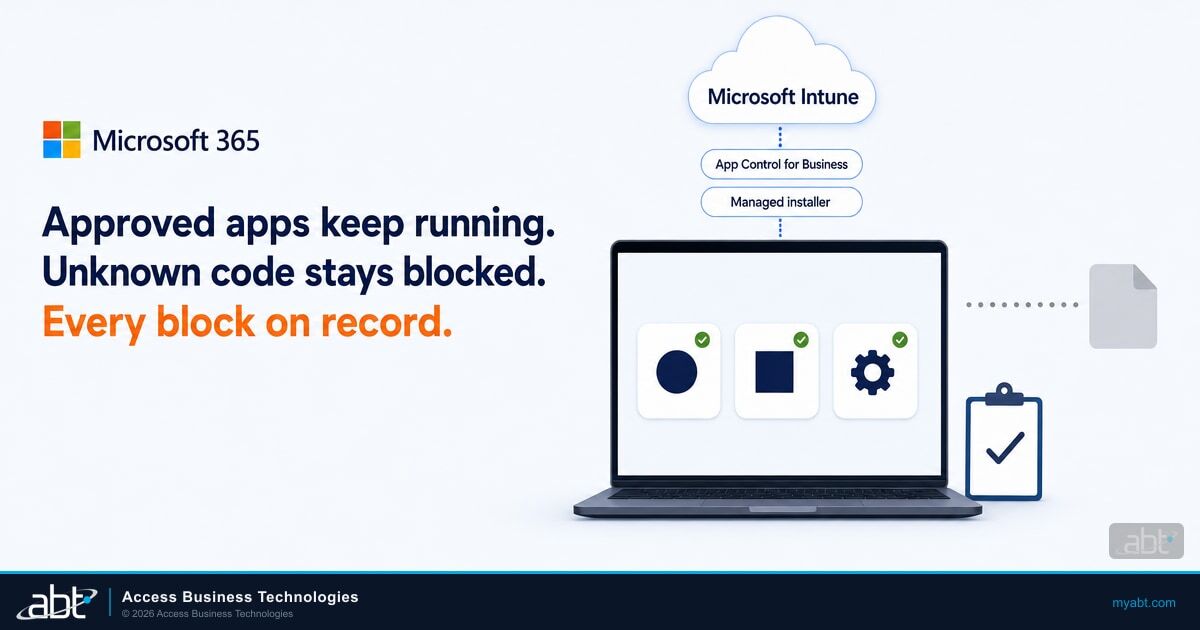
On Tuesday morning your IT team publishes an update to the loan origination desktop client in Microsoft Intune, and by lunch it's running on every processor's laptop. That afternoon, an email attachment tries to start a remote access tool nobody approved. With Microsoft App Control for Business enforcing a policy that trusts Intune's managed installer, the update runs and the remote access tool is blocked. One arrived through a source your policy trusts, and the other matches no rule in it.
That is application allowlisting, also called application whitelisting: a Windows device runs the code your policy approves and stops the rest. In Microsoft's words, application control "changes Windows from a place where all code runs unless your AV solution confidently predicts it's bad, to one where code runs only if your policy says so." The policy also covers scripts, Microsoft installer (MSI) packages, batch files, and interactive PowerShell sessions, which run in Constrained Language Mode.
Allowlisting used to mean a help desk ticket and a hand-written rule for every new application. Intune changes that. Once the Intune Management Extension is set up as a managed installer, the apps your team deploys through Intune are tagged and trusted automatically, so your staff keep getting their software the way they do today. Windows Pro carries the license entitlement, and Microsoft 365 Business Premium includes Intune Plan 1 to deploy it.
ABT, a Tier-1 Microsoft Cloud Solution Provider serving 750+ financial institutions, wrote this guide for IT teams at community banks, credit unions, and mortgage companies planning their first allowlisting policy.
What application allowlisting changes on a Windows device
Application allowlisting changes the question Windows asks before code runs, from whether antivirus flags it to whether your policy approves it. Here's the difference on a single laptop.
Windows runs any program, script, or installer a user starts unless antivirus flags it, so a new file antivirus hasn't classified yet gets to run.
Windows components, Microsoft Store apps, and the apps IT deploys through Intune run. Other code is blocked, or logged while you test in audit mode, and antivirus keeps working alongside the policy.
Microsoft calls application control "not a replacement for antivirus." The two answer different questions: antivirus asks whether a file looks malicious, and your App Control policy asks whether you approved it. Our guide to remote monitoring and management (RMM) phishing shows why that second question matters when an attacker sends legitimate remote access software.
App Control for Business or AppLocker
Windows includes two application control technologies: App Control for Business, the feature earlier guidance calls Windows Defender Application Control (WDAC), and AppLocker. Intune can deploy both.
| App Control for Business | AppLocker | |
|---|---|---|
| Security servicing | Designed as a security feature under the Microsoft Security Response Center servicing criteria | Doesn't meet the servicing criteria for a security feature |
| Who the policy covers | The whole device and every user on it | All users, or specific users and groups |
| Rules based on | Code-signing certificate, file attributes or hash, path, Intelligent Security Graph reputation, managed installer, and the launching process | Code-signing certificate, file attributes or hash, and path |
| Development | Continual improvements | Security fixes, no new features |
| Where it lives in Intune | Endpoint security > App Control for Business, using the ApplicationControl configuration service provider (CSP) | Attack surface reduction "Application control" profiles, using the AppLocker CSP |
Microsoft recommends App Control as the general choice for customers able to implement it. AppLocker still fits two cases: a mixed estate that needs the same rules on older Windows versions, and shared computers that need different rules for different users. AppLocker can also sit alongside App Control to fine-tune restrictions per user. Microsoft introduced the ApplicationControl CSP to replace the AppLocker CSP, so build new policies in the App Control for Business node.
Smart App Control is the consumer version
Smart App Control, in Windows 11 version 22H2 and later, is built on App Control. It runs signed code and code Microsoft's cloud service predicts is safe, and Microsoft says it switches off within 48 hours for enterprise managed devices unless the user turns it on first. Microsoft publishes its policy as an example to build your own on.
What Microsoft 365 Business Premium already includes
Microsoft lists App Control's license entitlement as coming with Windows Pro, Pro Education/SE, Enterprise E3 and E5, and Education A3 and A5. Microsoft 365 Business Premium, which Microsoft listed in October 2026 at $22.00 per user per month, paid yearly, includes Intune Plan 1 to deploy the policy and Microsoft Defender for Business to keep antivirus running beside it. Licensed through ABT, Business Premium carries the same Microsoft price, with M365 Guardian Foundation included at no additional charge.
Microsoft's Intune prerequisites for App Control:
- Windows Enterprise or Education: Windows 10 version 1903 or later, and Windows 11.
- Windows Professional: Windows 10 with KB5019959, Windows 11 version 22H2 with KB5019980, and Windows 11 version 21H2 with KB5019961.
- Enrollment: devices enrolled in Intune. Co-managed devices need the Endpoint Protection workload slider set to Intune.
- Roles: turning on the managed installer takes the Intune Administrator role, once. Managing App Control policies takes the App Control for Business permission, which you can grant through a narrower custom role.
If you looked at Intune Endpoint Privilege Management and stopped at the add-on price, App Control is a different case: its entitlement comes with Windows itself. Windows 10 reached end of support on October 14, 2025, and Microsoft says functionality on it can vary, so plan your policy around Windows 11. Our comparison of E3, E5, and Business Premium covers when to move up from Business Premium.
How the Intune App Control policy works
In the Intune admin center, go to Endpoint security > App Control for Business, open the App Control for Business tab, and select Create Policy. Built-in controls configure a policy without any XML, and Enter xml data takes a custom policy you've authored. App Control applies only to the device scope, so assign policies to device groups.
Built-in controls give you three settings:
- Enable trust of Windows components and store apps. Set to Enabled, the default, devices run Windows components, store apps, and whatever else the policy trusts, and block everything else. Set to Audit only, the policy logs every file it would have blocked and lets it run.
- Trust apps with a good reputation. Lets devices run apps Microsoft's Intelligent Security Graph rates as reputable.
- Trust apps from managed installers. Lets devices run the apps you deploy through Intune once the managed installer is set up.
Microsoft notes that Intune's built-in App Control support "has no option to add explicit allow or deny rules" and that in most cases customers will need a custom policy. Supplemental policies add allow rules without rebuilding everything. Deny rules go in a base policy of their own, deployed beside it, like the Microsoft recommended block rules covered below. Key terms:
Use the reputation option with care, and only on devices with regular internet access. Microsoft says the Intelligent Security Graph "is not the recommended way to allow apps that are business critical"; authorize those with explicit allow rules or a managed installer. Reputation is checked only for files your policy hasn't explicitly allowed or denied and a managed installer didn't install, and a reputation decision can change over time. An explicit deny rule always takes precedence over reputation, so a deny rule for a remote access tool outside your approved list blocks that tool whatever its reputation.

Let Intune-deployed apps run with a managed installer
The managed installer makes application allowlisting workable for a small IT team. You trust the channel your applications arrive through, and your team writes rules for the exceptions.
Endpoint security > App Control for Business > Managed installer tab. Target device groups; delivery can take up to 30 minutes.
The Intune Management Extension installs each app and tags its files as coming from a managed installer.
Turn on Trust apps from managed installers in your App Control policy, or the equivalent option in a custom policy.
App Control allows the tagged files. Code from anywhere else has to match a rule.
Microsoft notes the managed installer has no effect on devices unless you also use App Control policies that reference it. You can turn it on weeks before you enforce anything and let normal deployments build up tagged apps.
Four limits to plan around before you enforce
No retroactive tagging. Apps deployed before you enabled the managed installer aren't tagged, and Microsoft says your policy must include explicit configurations to allow these untagged apps.
Self-updating apps. Updates an app installs on its own lose the managed installer origin, so they must arrive through the managed installer or be allowed by rules.
Drivers. Neither the managed installer nor the Intelligent Security Graph authorizes kernel drivers, so the App Control policy itself must have rules that allow the drivers your printers, scanners, and docking stations need.
Existing AppLocker policies. Microsoft warns that adding the managed installer can switch on stopped or disabled AppLocker policies from Group Policy, and that an empty Not Configured AppLocker rule collection can block applications and even Windows sign-in. Clean those up first.
Microsoft also calls the managed installer a heuristic. It "doesn't provide the same security guarantees as explicit allow or deny rules", it works best where users operate as standard users, and users with administrator rights, or malware running as an administrator, may be able to get around the policy's intent. Pair allowlisting with standard user accounts. Our guide to Endpoint Privilege Management covers moving staff off local admin rights, and Windows Local Administrator Password Solution (LAPS) keeps the local administrator password unique on every managed device.
Start in audit mode
Set Enable trust of Windows components and store apps to Audit only, assign the policy to a pilot group, and let your staff work normally. The policy only logs: Windows records every file it would have stopped.
Those records land in the Applications and Services Logs\Microsoft\Windows\CodeIntegrity\Operational event log, with scripts and MSI files in the AppLocker MSI and Script log. Two event IDs matter most, per Microsoft's event ID reference:
- Event 3076 is the main audit-mode event: the file would have been blocked if the policy were enforced.
- Event 3077 is the main enforcement event: the file didn't pass your policy and was blocked.
Read the 3076 events as a to-do list. Each one is an application your institution relies on, which needs a rule, or something that shouldn't be there.
Microsoft's audit guidance shows how to turn those events into a policy to merge with your base policy or deploy as a supplemental one. The generator creates rules only for files still on disk, so run it on a pilot device that has the applications installed. Start with the managed installer limits above.
Close the known bypasses
An allowlist is only as tight as the trusted tools it leaves open. Some legitimate Windows and developer programs can run other code by design. Three additions harden any policy:
- Microsoft's recommended block rules. Unless your use cases require them, Microsoft recommends blocking applications an attacker can use to circumvent allow policies, including msbuild.exe, cscript.exe, dotnet.exe, and mshta.exe. Microsoft provides the list as a policy you can deploy as its own base policy beside your others on Windows 10 version 1903 and later, or merge into an existing one.
- The vulnerable driver blocklist. Since the Windows 11 2022 update, Microsoft's vulnerable driver blocklist is enabled by default for all devices, updated quarterly and through monthly Windows updates. Confirm it's still on in the Windows Security app. Microsoft also publishes a fuller version to add to your App Control policy, and recommends validating it in audit mode first.
- Deny rules for old versions. When a vendor fixes a vulnerability or a bypass in a new release, Microsoft recommends adding deny rules for the older, less secure versions.
A rollout plan for banks, credit unions, and lenders
Here's a rollout sequence, adapted from Microsoft's documentation, for an institution with a small IT team and most of its devices already in Intune.
Application Allowlisting Rollout with App Control for Business and Intune
Confirm which devices are enrolled in Intune and running a supported Windows edition. List the applications each department relies on, from the core or loan origination client to e-signature tools and scanner drivers, and how each was installed.
Add the managed installer to your device groups and deploy new apps and updates through Intune from then on. Clear out any empty AppLocker rule collections first.
Deploy a built-in controls policy set to Audit only to IT and one department or branch. Let them work normally and collect the 3076 events.
Build a supplemental policy that allows untagged line-of-business apps, drivers, and scripts. Put Microsoft's recommended block rules in a separate base policy deployed beside it.
Switch the pilot group to Enabled, then expand department by department. Groups still in testing stay in audit mode.
Route every new application through Intune, review 3077 block events with your help desk, and retire rules when the software they cover is retired.

Plan a support path before step 5. When a teller's scanner driver or a processor's new plugin is blocked, the help desk needs to know where to look (event 3077 on that device) and who can add a rule the same day.
What CISA, CIS, and the FFIEC handbook say
The Cybersecurity and Infrastructure Security Agency (CISA) #StopRansomware Guide tells organizations to "Use application allowlisting and/or endpoint detection and response (EDR) solutions on all assets to ensure that only authorized software is executable and all unauthorized software is blocked." For Windows, it says to "enable Windows Defender Application Control (WDAC), AppLocker, or both on all systems that support these features." The Center for Internet Security (CIS) Control 2 asks institutions to manage software "so that only authorized software is installed and can execute".
Bank and credit union examiners work from the Federal Financial Institutions Examination Council (FFIEC) IT Examination Handbook.
Management should implement defense-in-depth to protect, detect, and respond to malware.
The handbook is guidance examiners use, and it lists allowlisting among several malware controls. App Control gives you evidence for that line. We recommend keeping three records:
- Each version of your base and supplemental policies, with the reason for every rule you added.
- The audit period for each group and what its 3076 events showed before you enforced.
- A quarterly review of the approved list alongside your software inventory.
Licensing, and how ABT helps
If your devices run Windows Pro and you hold Microsoft 365 Business Premium, the licensing pieces are already in place: the App Control entitlement on the devices, plus Intune Plan 1 and Microsoft Defender for Business. Institutions on Microsoft 365 E3 or E5 have the same entitlement through Windows Enterprise.
ABT sells Microsoft 365 licensing at Microsoft's price, on its own line. When your licensing runs through ABT, M365 Guardian Foundation, the hardened tenant baseline, is included at no additional charge. Guardian covers Intune compliance policies, BitLocker encryption, operating system security baselines, and Conditional Access gates, the device foundation an allowlisting policy builds on. Our guides to risk-based device compliance with Intune, BitLocker encryption, and Windows Autopilot cover the rest of that foundation.
Two ways to start application allowlisting
Microsoft 365 licensed through ABT, at Microsoft's price, with Guardian Foundation included
See where your devices stand
The free Security Assessment shows which devices Intune manages and how they are configured, plus admin account hygiene, benchmarked against 750+ financial institutions.
Get Your Free Security AssessmentCheck your licensing with ABT
Bring your device inventory and current licenses, and confirm the Windows, Intune, and Defender licensing each device needs and what Microsoft 365 costs through ABT.
Talk to an ABT financial services IT strategistFrequently Asked Questions
Application allowlisting means a device runs only the software your policy approves and blocks the rest. On Windows, Microsoft's App Control for Business covers programs, scripts, MSI installers, and batch files, and runs interactive PowerShell sessions in Constrained Language Mode. Keep your antivirus running alongside it.
Yes. App Control for Business is the current name for the Windows feature earlier guidance calls Windows Defender Application Control (WDAC). CISA's #StopRansomware Guide still uses the WDAC name, and Intune manages it under Endpoint security > App Control for Business.
Microsoft generally recommends App Control for Business for customers able to implement it. It was designed as a security feature under Microsoft Security Response Center servicing criteria, while AppLocker receives security fixes but no new features. AppLocker still fits mixed estates with older Windows versions and shared computers that need different rules for different users.
App Control's license entitlement comes with Windows Pro, Enterprise E3 and E5, and Education A3 and A5. Business Premium includes Intune Plan 1 to deploy App Control policies and Microsoft Defender for Business for antivirus. Intune supports Windows Professional devices that have the updates Microsoft lists.
A managed installer is a trusted deployment source. Intune can set the Intune Management Extension as one, so apps deployed through Intune afterwards are tagged, and an App Control policy that trusts managed installers lets them run. Apps installed earlier need explicit rules, and self-updating apps need each update deployed through Intune or allowed by a rule.
Run the policy in audit mode first. The policy only logs, so each file it would have blocked is recorded, mainly as event 3076 in the CodeIntegrity Operational log, with scripts and MSI files in the AppLocker MSI and Script log. Turn those events into rules, then enforce for a pilot group, where the main block event is 3077.