

In This Article
- What BitLocker encryption does
- Where your BitLocker recovery keys live
- What changed for BitLocker in 2026
- TPM only, or TPM plus a startup PIN
- Who can read a BitLocker recovery key
- How to roll out BitLocker with Microsoft Intune
- Secure Boot certificates: keep recovery keys within reach
- What examiners and the FTC expect
- How ABT helps
- Frequently Asked Questions
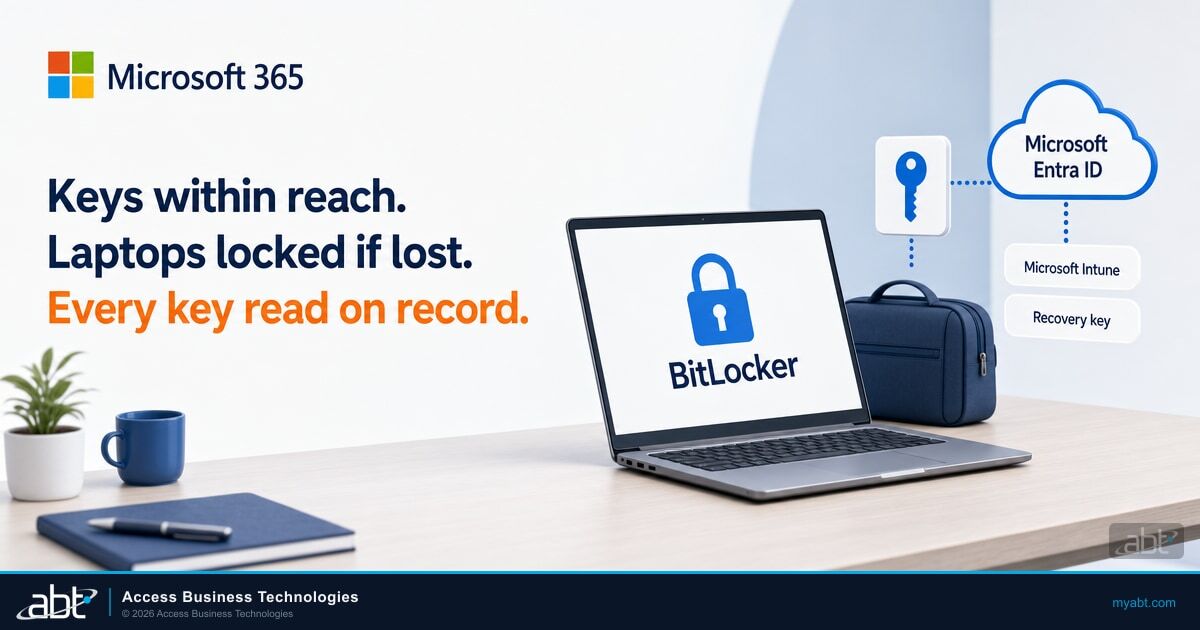
A BitLocker recovery screen asks for one thing: a 48-digit recovery password. When that number sits in your Microsoft Entra ID tenant, a branch manager who hits the screen after a firmware update is back at work as soon as the help desk confirms who is calling. When it sits in an employee's personal Microsoft account, on a sticky note, or nowhere at all, the laptop and every file on it wait.
That's the everyday side of BitLocker encryption, and it's where most of the work lives: devices that encrypt themselves without anyone clicking a button, and recovery keys that land in a place your team controls. The security side moved this year. In June and July 2026, Microsoft shipped fixes for three publicly disclosed BitLocker bypasses that work with physical access to a device. For the first of them, publicly nicknamed YellowKey, Microsoft says the bypass is not exploitable on a device that requires a startup personal identification number (PIN).
ABT, a Tier-1 Microsoft Cloud Solution Provider serving more than 750 financial institutions, manages Microsoft 365 tenants for banks, credit unions, and mortgage companies. This guide shows how to put BitLocker encryption under Microsoft Intune, keep every recovery key in your tenant, and decide which laptops need a startup PIN.
Microsoft's mitigation FAQ for YellowKey tells customers to consider the mitigations if they are concerned their devices could be compromised or stolen, for example "if your organization's employees take their work devices home or on business travel." The same page answers a second question directly: "if you are using TPM+PIN the vulnerability is not exploitable."
What BitLocker encryption does
BitLocker encrypts an entire Windows drive. At startup, the Trusted Platform Module (TPM), a security chip on the motherboard, checks the early boot components and releases the drive's key only when they match what it recorded. If Windows can't get that key, the files on the drive can't be read or changed, which is exactly what you want from a laptop left in a rideshare.
Full BitLocker management runs on Windows Pro, Enterprise, and Pro Education/SE. Device encryption, a simpler form, turns BitLocker on automatically on qualifying hardware in all Windows versions, and starting with Windows 11 version 24H2, Microsoft removed two hardware prerequisites, so more devices now qualify.
Automatic is good news for coverage and a question for custody. Microsoft's support article says: "If the device was set up, or if BitLocker was turned on, by somebody else, the recovery key might be stored in that person's Microsoft account." For a laptop holding loan files or member records, the key belongs in your tenant, whoever set the laptop up.
For the BitLocker on the disks in Microsoft's own datacenters, see our guide to Microsoft 365 encryption.
Where your BitLocker recovery keys live
Every encrypted drive has a recovery password, and that password lives wherever the device was told to put it.
| Where the key is stored | How it gets there | Who can retrieve it | What to do |
|---|---|---|---|
| Microsoft Entra ID | An Intune encryption policy, or device encryption on a Microsoft Entra joined device | The device owner (by default) and Entra roles that hold the BitLocker key read permission | Make this the home for every managed Windows device |
| Active Directory Domain Services (AD DS) | Group Policy, or device encryption when the computer joins the domain | Domain administrators and anyone delegated read access | Keep for domain-joined desktops, and add Entra ID backup as devices move to hybrid or Entra join |
| A personal Microsoft account | Device encryption on a device first set up with a personal account | Whoever controls that account | Find these devices, join them to Microsoft Entra ID and enroll them in Intune, then rotate the key so a new recovery password is stored in Entra ID |
| A file, a printout, or a USB drive | A user's choice during manual setup | Anyone holding the copy | Replace with Entra ID backup |
Intune closes the gap at the moment of encryption: its policy can make a device save its key to your tenant first and encrypt second.

What changed for BitLocker in 2026
BitLocker had a busy year. Microsoft's Security Update Guide lists eight vulnerabilities tagged Windows BitLocker released between April and September 2026. Six are security feature bypasses, four need physical access to the device, and three were publicly disclosed before a fix shipped. Microsoft marks none of the eight as exploited.
CVE-2026-45585 arrives with interim mitigation guidance after its proof of concept went public.
The June updates fix YellowKey and CVE-2026-50507, another physical-access BitLocker bypass.
CVE-2026-50661 closes in the July updates.
The last of Microsoft's 2011 Secure Boot certificates, used to sign the Windows boot loader, reaches its expiration date.
The three disclosed bypasses share one requirement: the attacker has the device in hand, which is the stolen-laptop scenario BitLocker exists for. Public reporting on YellowKey describes specially crafted files on a USB drive and a restart into the Windows Recovery Environment (WinRE). The fixes shipped in the June and July security updates, so keeping every device current on Windows updates is the first defense. Our June 2026 Patch Tuesday guide walks through that month's release.
TPM only, or TPM plus a startup PIN
Out of the box, BitLocker unlocks with the TPM alone, so the user never sees a prompt. Microsoft's countermeasures guidance is direct about the trade: "For some systems, bypassing TPM-only might require opening the case and require soldering, but can be done for a reasonable cost. Bypassing a TPM with a PIN protector would cost more, and require brute forcing the PIN."
TPM only (the default)
- No prompt at startup, and Intune can encrypt silently
- Remote restarts and overnight updates finish on their own
- Microsoft's listed defense against an opportunistic attacker
- A skilled attacker with time and tools faces a lower bar
TPM plus a startup PIN
- The drive stays locked until the user types the PIN
- Microsoft's listed defense against a skilled attacker with lengthy physical access, ideally with a long alphanumeric PIN
- Not exploitable by YellowKey, per Microsoft
- One more step at every startup, and a forgotten PIN means a recovery key call
For silent encryption in Intune, devices "must not require TPM startup PIN or startup key", and Microsoft warns that the Security baseline for Microsoft Defender can turn a startup PIN on by default, which stops silent encryption.
Our recommendation is to split the fleet. Microsoft's own YellowKey guidance points at the devices that matter: the ones employees take home or on business travel. Require a startup PIN on those laptops, and keep silent, TPM-only encryption on desktops that stay in the branch. For the laptops, Microsoft also suggests hibernate in place of sleep, because a device resuming from sleep doesn't ask for the PIN, while one resuming from hibernation does.
Who can read a BitLocker recovery key
A recovery key opens one device's drive completely, so the list of people who can read it is a privileged access list. In Microsoft Entra ID, Microsoft's built-in roles reference lists the permission to read BitLocker keys in seven roles: Cloud Device Administrator, Global Administrator, Global Reader, Helpdesk Administrator, Intune Administrator, Security Administrator, and Security Reader. Microsoft's pages for specific paths name subsets of that group, such as the five roles listed for viewing keys in the Entra admin center, and a custom role can carry the same permission. Global Reader and Security Reader are read-only roles, and reading recovery keys is within what they are allowed to do.
Device owners are on the list too. Entra's setting "Restrict non-admin users from recovering the BitLocker key(s) for their owned devices" defaults to No, which lets every user look up the keys for their own devices. Microsoft's recovery guidance says "it's recommended to enable self-service in trusted environments only, or rely on helpdesk recovery."
- Decide on self-service. Set the Entra restriction to Yes and route recovery through the help desk, or keep self-service and require a compliant device for it through Conditional Access.
- Shrink the reader list. Review who holds each role with the BitLocker read permission, the same way our guide to Entra ID access reviews handles other privileged roles. A custom role can carry only the BitLocker read permission, scoped to an administrative unit of devices.
- Verify the caller. Microsoft's help desk recovery template starts with "Verify the user's identity." Attackers already pose as IT staff in Teams help desk impersonation attacks, and a caller posing as a locked-out employee is the same trick in reverse.
- Rotate after use. With automatic rotation on, Entra joined and hybrid joined devices "automatically rotate the recovery password after the password is used to unlock the drive".
- Read the log. Each time someone selects Show Recovery Key, Entra writes an audit entry in the KeyManagement category, recorded as the activity "Read BitLocker key."
How to roll out BitLocker with Microsoft Intune
Intune's endpoint security disk encryption policy carries the BitLocker encryption and recovery key settings above, and the Intune Plan 1 it runs on comes with Microsoft 365 Business Premium.
BitLocker Rollout Path in Microsoft Intune
List which managed devices are encrypted, which are not, and which keys already sit in Entra ID. Devices outside Intune need their own inventory.
Set "Save BitLocker recovery information to Microsoft Entra ID" to Enabled and "Store recovery information in Microsoft Entra ID before enabling BitLocker" to Required.
Set "Client-driven recovery password rotation" for Entra joined and hybrid joined devices, so a used recovery password gets replaced.
Require Device Encryption, allow standard user encryption, and disallow a startup PIN for this group. Silent encryption needs an Entra joined or hybrid joined device with TPM 1.2 or later, native Unified Extensible Firmware Interface (UEFI) firmware, Secure Boot, and a working WinRE.
Use a separate policy for this group, allow alphanumeric startup PINs, prefer hibernate over sleep, and brief the help desk before the first prompts appear.
Set "Require BitLocker" in the Windows compliance policy, then require a compliant device in Conditional Access.
Apply the self-service decision, trim the roles that can read keys, and add the Read BitLocker key activity to your audit review.
Step 6 is where BitLocker encryption stops being a setting and becomes a gate. Our guide to risk-based device compliance with Microsoft Intune shows how compliance and Conditional Access work together, and Windows LAPS gives each of the same devices its own local administrator password. M365 Guardian's device compliance coverage is built from the same parts: Intune compliance policies, BitLocker encryption, and Conditional Access gates. Guardian Foundation, the hardened tenant baseline with Intune device compliance, comes at no additional charge when your Microsoft licensing runs through ABT.
Check encryption settings across your devices in one read-only review
The free Microsoft 365 Security Assessment reviews device compliance across managed and unmanaged devices:
- Intune enrollment status
- Compliance policies
- Operating system patch levels
- Encryption settings

Secure Boot certificates: keep recovery keys within reach
On October 19, 2026, the Microsoft Windows Production PCA 2011 certificate expires. It signs the Windows boot loader, and its replacement is the Windows UEFI CA 2023. Microsoft says devices without the 2023 certificates keep starting normally but stop receiving new protections for the early boot process, which "may affect scenarios that rely on Secure Boot trust, such as BitLocker hardening."
Changes to early boot components are exactly what BitLocker watches. In April, Microsoft's update notes fixed "an issue where the device might enter BitLocker Recovery after the Secure Boot updates" and listed devices with one Group Policy configuration that might need their recovery key at the first restart. Microsoft's June update addressed that known issue by holding back the 2023-signed Windows Boot Manager on those devices until that Group Policy configuration is removed. Three checks keep the transition quiet:
- Confirm every key is in Entra ID. Any device whose key is missing from Entra ID is the one that turns a recovery prompt into a lost day.
- Audit the platform validation policy. Microsoft recommends that enterprises "audit their BitLocker group policies for explicit PCR7 inclusion" and check each device's PCR7 binding status in System Information (msinfo32.exe). PCR7 is the TPM platform configuration register (PCR) that measures the state of Secure Boot.
- Suspend BitLocker for planned firmware work. BIOS and UEFI firmware upgrades can trigger recovery, and Microsoft's answer for planned updates is to suspend BitLocker temporarily. While you're in the policy, add your help desk number and a short message to the BitLocker recovery screen.
What examiners and the FTC expect
For mortgage companies and other non-bank lenders, the Federal Trade Commission (FTC) Safeguards Rule is specific. Section 314.4(c)(3) requires you to "Protect by encryption all customer information held or transmitted by you both in transit over external networks and at rest", with compensating controls approved by your Qualified Individual where encryption is infeasible. The rule's definition of a reportable event then ties encryption to the key:
Customer information is considered unencrypted for this purpose if the encryption key was accessed by an unauthorized person.
A notification event involving at least 500 consumers must be reported to the FTC no later than 30 days after discovery. Whether anyone reached the key becomes part of the analysis. A key held in your tenant, read by only a short list of administrators with every read logged, is far easier to account for than one stored in a former employee's personal account. Key custody is part of the encryption control, and our Microsoft 365 incident response plan guide covers how to build and run an incident response plan.
Banks and credit unions work from the Interagency Guidelines, which list encryption among the measures each institution "must consider" and adopt where appropriate: "Encryption of electronic customer information, including while in transit or in storage on networks or systems to which unauthorized individuals may have access." The Office of the Comptroller of the Currency (OCC) version sits at 12 CFR Part 30, Appendix B, and the National Credit Union Administration (NCUA) applies the same measure to member information in Part 748, Appendix A. The same section asks for controls that stop employees from giving customer information to people who "may seek to obtain this information through fraudulent means," a close match for a stranger talking the help desk into reading out a recovery key.
How ABT helps
Where ABT comes in on BitLocker and recovery key custody:
- A hardened device baseline. M365 Guardian covers device compliance with Intune compliance policies, BitLocker encryption, and Conditional Access gates, and every level includes the hardened tenant baseline with Intune device compliance. Guardian Foundation comes at no additional charge when your Microsoft licensing runs through ABT.
- The licenses this guide runs on. Microsoft 365 Business Premium includes Microsoft Intune and Microsoft Entra ID P1, and ABT quotes it at Microsoft's price on its own line, beside Guardian.
- A free encryption review. ABT's Microsoft 365 Security Assessment reviews encryption settings and Intune enrollment through a read-only connection and compares them with a benchmark from more than 750 financial institution tenants. Most finish within two weeks.
Put every recovery key where your help desk can reach it
The free assessment reviews encryption settings and Intune compliance across your managed and unmanaged devices.
Frequently Asked Questions
BitLocker is the full-drive encryption built into Windows. It encrypts a device's drives and uses the Trusted Platform Module (TPM) chip to release the key only when the startup components are unchanged. Without the key, the data on the drive cannot be read. Organizations manage it with Microsoft Intune and back up recovery keys to Microsoft Entra ID.
On a device managed by your organization, the recovery key is usually backed up to Microsoft Entra ID. Users may be able to see it at aka.ms/aadrecoverykey or in the Company Portal app if self-service is allowed. Otherwise, the help desk retrieves it in the Microsoft Intune or Entra admin center after verifying the caller.
Microsoft lists the BitLocker key read permission in seven built-in Microsoft Entra ID roles: Cloud Device Administrator, Global Administrator, Global Reader, Helpdesk Administrator, Intune Administrator, Security Administrator, and Security Reader. Custom roles can hold it too. Device owners can read keys for their own devices unless an administrator restricts it, and Microsoft says every recovery key access is audited.
For laptops that leave the building, yes. Microsoft lists a TPM plus PIN protector as the defense against a skilled attacker with physical access, and says devices using TPM plus PIN were not exploitable by the 2026 YellowKey bypass. Desktops that stay in a branch can keep silent, TPM-only encryption.
For mortgage companies and other non-bank lenders under the rule, yes. It requires encrypting all customer information at rest, laptops included, and in transit over external networks, with compensating controls approved by the Qualified Individual where encryption is infeasible. For breach notification, the rule also treats encrypted information as unencrypted if an unauthorized person accessed the encryption key.
BitLocker itself is part of Windows Pro, Enterprise, and Pro Education. Managing it centrally, with policies, compliance checks, and recovery keys in Microsoft Entra ID, uses Microsoft Intune. Business Premium includes Intune Plan 1, so a Business Premium tenant has what it needs to enforce BitLocker across the Windows Pro and Enterprise devices it manages.