

In This Article
- What Microsoft Changed
- What a User Can and Cannot Do
- Why It Matters When a File Does Not Reach the Service
- This Reaches Your Synced SharePoint Libraries Too
- The Two Policies, and Which One You Probably Want
- The October 5 Change That Is Not the Same Change
- What to Do Before the Rollout Finishes
- Frequently Asked Questions
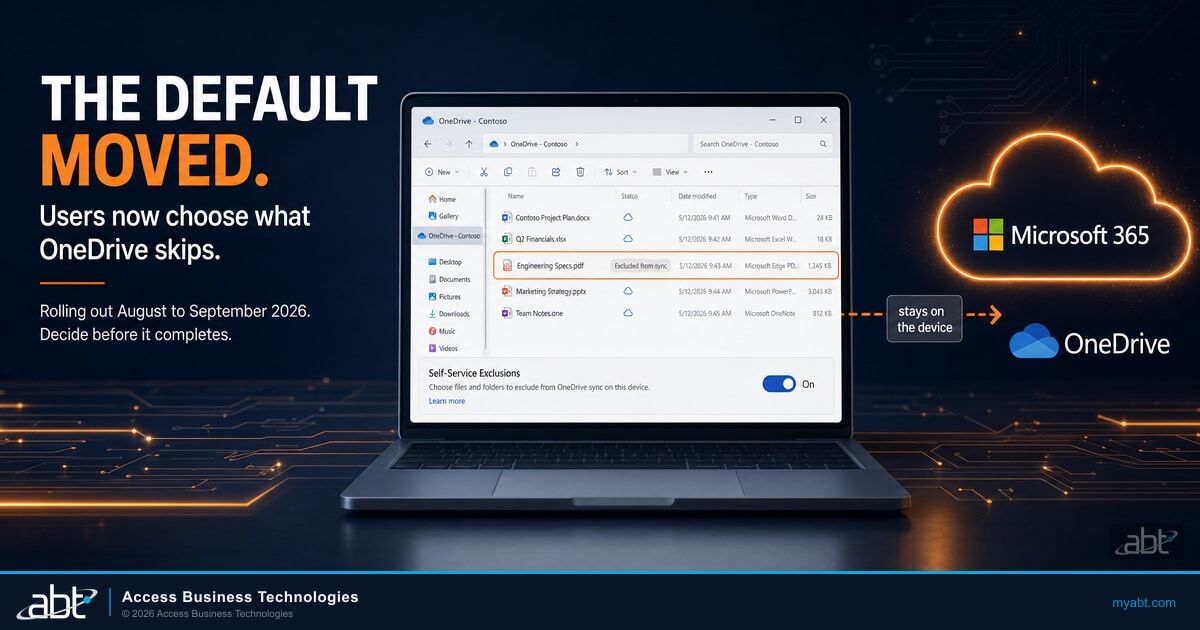
Microsoft is handing your users a small, genuinely useful piece of control. Starting in early August 2026, people in your organization can decide for themselves which files OneDrive should skip when it syncs. No help desk ticket, no waiting on a Group Policy change, no explaining to IT why the 4 GB scratch file from a loan origination export does not need to live in the cloud.
That is a reasonable feature, and for most of the commercial world it will be a quiet improvement. For a bank, credit union, or mortgage company, it is worth ten minutes of attention, because the setting arrives switched on and nobody has to approve it for your users to have it.
The change is not hidden. Microsoft published it in Message Center post MC1457838 on August 19, 2026, and the rollout is already underway. But default-on changes have a way of completing before anyone reads the notice, and this one touches the boundary between what sits on a laptop and what sits in the service where your retention, discovery, and backup controls actually operate.
What Microsoft Changed
OneDrive has always supported file-level sync exclusions. Administrators could publish a list of patterns, and the sync client would skip anything matching them. Until now, that list was yours. Users could look at it. They could not touch it.
That is the part that moved. Microsoft states the before and after plainly:
"Today, commercial users can view file exclusions configured by their organization, but they cannot add or remove exclusions. After this rollout, users will be able to manage their own file-level exclusions by default."
Two new policies ship alongside it. DisableChangesToODIgnoreList prevents users from managing file-level exclusions and hides the self-service experience, which restores the behavior you have today. DisableDefaultODIgnoreList does something different and almost opposite: it turns off Microsoft's own built-in exclusion list, for organizations that need a file type Microsoft excludes by default to sync anyway.
The change covers OneDrive on Windows and on macOS. If you run a mixed fleet, both halves are in scope.
One practical wrinkle worth knowing before you go looking
As of its August 19, 2026 revision, Microsoft's OneDrive policy reference page does not list either new policy yet. The Message Center post's own "Learn more" section says an update is expected later in the launch. If you send someone to the documentation to look these up today, they will not find them there.
What a User Can and Cannot Do
This is where the change is narrower than it first sounds, and the limits matter more than the headline.
A user can add their own exclusion patterns, and remove exclusions they added themselves. That is the whole of the new capability. Microsoft is explicit that it stops there:
"Users will not be able to remove exclusions configured by administrators through Group Policy or other policy management methods."
So nobody can strip out the exclusions you deployed. The risk here is additive, not subtractive. Your list stays intact, and users can now put things next to it.
Folder-level self-service is also not part of this release. Microsoft says it will be communicated separately, which makes it the thing to watch for next rather than something to plan around now.
| Capability | Before this rollout | After this rollout | Governance impact |
|---|---|---|---|
| View organization exclusions | Yes | Yes | None |
| Add a personal file exclusion | No | Yes, by default | Review |
| Remove a personal file exclusion | No | Yes, by default | None |
| Remove an administrator exclusion | No | No | None |
| Exclude an entire folder | Administrator only | Administrator only | None in this release |

Why It Matters When a File Does Not Reach the Service
Here is the mechanism, and it is worth being precise about because the loose version of this claim is wrong in a way that will get you corrected in a meeting.
When the sync client honors an exclusion, it does not upload the matching file. Microsoft's documentation describes the behavior directly: the sync app "doesn't upload new files that match the keywords you specified. No errors appear for the skipped files, and the files remain in the local OneDrive folder." The file shows an "Excluded from sync" icon in the File Explorer status column, so it is visible to the person sitting at the machine.
A processor adds an exclusion for a working file pattern, then saves borrower correspondence matching it into their OneDrive folder. The sync client skips it. No error is raised.
That copy of that file, by that path, is not in OneDrive or SharePoint. Controls that act on content stored in the service have nothing to act on for it, because there is nothing there yet.
The controls in that second column are the ones you probably bought deliberately: Microsoft Purview eDiscovery searching OneDrive and SharePoint, service-side data loss prevention inspecting stored content, retention policies, sensitivity auto-labeling, and backup of what lives in the service. They all share one assumption: the content is in the service.
Now the three limits, because without them the paragraph above becomes an overstatement.
What this does NOT mean
It is not a claim about the file everywhere. Another copy may already be in the service from a sync that predates the exclusion, or may arrive by a completely different route: a colleague's copy, an email attachment, a different device, another workflow. An exclusion on one laptop says nothing about the rest of your tenant.
It is not a permanent barrier. Microsoft documents that a user can still browse to OneDrive in a web browser and upload an excluded file by hand. At that point it is in the service and in scope like anything else.
It is not an endpoint-control bypass. Controls that read the local file system, including Microsoft Defender for Endpoint and Purview endpoint data loss prevention on a managed device, still see the file where it sits. A sync exclusion does not make a file invisible to them.
What is left after those three subtractions is still worth your attention. It is narrower and more defensible: a user can now decide, without asking anyone, that a particular working file stays off the service where most of your governance tooling looks. Multiply that by a few hundred people who are trying to be helpful about disk space and sync noise, and it becomes a question you would rather answer on purpose.
Key Takeaway
The exposure is not that files vanish. It is that the decision about which working files reach your governed environment quietly moves from your policy to individual judgment, across every synced endpoint, during a four-week window.
This Reaches Your Synced SharePoint Libraries Too
Easy to miss, and it widens the picture considerably. The exclusion mechanism belongs to the sync client, not to OneDrive as a storage location. Microsoft's policy reference describes the setting as preventing the OneDrive sync app "from uploading certain files to OneDrive or SharePoint."
If your loan files, board materials, or vendor documentation live in a SharePoint document library that people sync to their desktops, that library is reached by the same mechanism. The shared, governed, permissioned library is exactly the kind of place where an unsynced working copy is least convenient to discover later.
The Two Policies, and Which One You Probably Want
The names are similar enough to be genuinely confusing, and they do close to opposite things.
| Policy | What Microsoft says it does | Who it is for |
|---|---|---|
| DisableChangesToODIgnoreList | "Prevents users from managing file-level exclusions and hides the self-service experience." | Organizations that want to keep the administrator-managed behavior they have today. For most regulated institutions this is the one. |
| DisableDefaultODIgnoreList | "Disables Microsoft's built-in default file exclusion list when organizations require excluded file types to sync." | Organizations with an application or workload that depends on a file type Microsoft excludes by default. A narrower case. |
Setting the first one is a decision, not a formality, and it is worth making deliberately rather than reflexively. Turning off self-service removes one way a working file can be kept off the service. It does not make your retention, discovery, or backup coverage complete, and it does not satisfy any particular regulatory requirement on its own. What it does is keep the exclusion list where you can see it and describe it.
There is a real argument on the other side. Users excluding genuinely transient junk reduces sync noise and storage churn, and a team that has been waiting weeks for IT to add a pattern has a legitimate complaint. The honest version of this decision weighs that against how much you need to be able to state, plainly, what your exclusion list contains.
This is the ordinary shape of managing a Microsoft 365 tenant in a regulated business. Microsoft ships defaults built for the whole commercial market, a handful of them land somewhere that matters more to a bank than to a design agency, and somebody has to notice within the rollout window and make a call. Our M365 Guardian managed service exists for that recurring work: maintaining the configuration baseline for each institution's tenant and reviewing it on a cadence, so a default that moves becomes a decision on a list rather than a discovery during an audit.
Not sure what your OneDrive baseline actually says today?
ABT manages Microsoft 365 for more than 750 banks, credit unions, and mortgage companies, which means default-on changes like this one land across a lot of tenants at once. If you want a second set of eyes on your current sync and data governance baseline before the rollout finishes, we can walk it with you.
The October 5 Change That Is Not the Same Change
The same Message Center post carries a second, separate item that is easy to blend into the first one. They are unrelated and the distinction matters.
Beginning October 5, 2026, Microsoft adds the .db-wal file type to OneDrive's default exclusion list. These are write-ahead log files that some applications generate next to a database, they change constantly, and they are generally useful only alongside the database they belong to. Excluding them cuts pointless sync traffic.
Two things keep this from being alarming. It applies only to newly created files, so anything already syncing continues to sync. And if you have a workload that genuinely needs new .db-wal files in the cloud, DisableDefaultODIgnoreList is the lever that keeps them flowing.
Do not conflate the two dates
The self-service exclusion default is rolling out now and finishes in early September 2026. The .db-wal addition is a separate change dated October 5, 2026, and it affects newly created files only. Different mechanisms, different decisions, different policies.
What to Do Before the Rollout Finishes
None of this is an emergency. It is a short, finite piece of work with a natural deadline, which is the rollout completing in early September.
- Read the Message Center post yourself. MC1457838 is the primary source and it is short. Everything in this article traces back to it or to Microsoft's OneDrive policy reference.
- Decide the self-service question on purpose. Either you want users managing their own exclusions or you do not. Both are defensible. Inheriting the answer because a rollout completed is the outcome worth avoiding.
- If you want the current behavior, plan DisableChangesToODIgnoreList. Microsoft's guidance is to enable it before the rollout reaches you. Note that the configuration reference for the new policies is not published yet, so confirm the deployment mechanism against Microsoft's documentation when it lands rather than assuming it matches the existing exclusion setting.
- Check whether any workload needs
.db-walfiles. If yes, that is a separate decision with an October 5 deadline and a different policy. - Include your synced SharePoint libraries in the review. The scope is the sync client, so shared document libraries are in it, not just personal OneDrive.
- Write down what you decided and why. The useful artifact is not the setting. It is being able to say, when someone asks, what your exclusion posture is and who chose it.

One caveat on that last point, and it is a real gap rather than a rhetorical one. Microsoft's announcement does not describe a reporting surface for exclusions that users create. Plan your review around what you can configure and document, and treat per-user visibility as an open question to raise with Microsoft rather than something to assume you have. The broader habit here is the same one behind audit log retention: the default is a starting position, not a decision, and the difference shows up when somebody asks you to explain it.
Frequently Asked Questions
No. A sync exclusion stops a matching file from being uploaded going forward. It does not remove or alter anything already stored in OneDrive or SharePoint. Excluded files stay in the local folder and show an "Excluded from sync" icon in the File Explorer status column.
No. Microsoft states that users will not be able to remove exclusions configured by administrators through Group Policy or other policy management methods. The self-service capability applies only to exclusions the user created. Your existing list stays intact.
DisableChangesToODIgnoreList. Microsoft describes it as preventing users from managing file-level exclusions and hiding the self-service experience. The similarly named DisableDefaultODIgnoreList does something different: it turns off Microsoft's own built-in exclusion list so that file types Microsoft excludes by default will sync.
Not exactly, and the distinction matters. eDiscovery searches content stored in the service, so a copy that was never uploaded is not there to be found by that route. Three limits apply: another copy may already be in the service or arrive by a different path, a user can still upload an excluded file manually through the OneDrive web interface, and endpoint-side controls that read the local file system are unaffected.
Microsoft adds the .db-wal file type to OneDrive's default exclusion list. These are temporary write-ahead log files that change frequently and are generally useful only with their associated database. The change applies to newly created files only, so existing .db-wal files that already sync are not affected. Organizations that need new ones to sync can enable DisableDefaultODIgnoreList.
No. Microsoft states that folder-level self-service exclusion controls are not included in this release and will be communicated separately. Folder exclusions remain administrator-configured. This is worth tracking, since folder-level self-service would be a materially larger change than file-level.