


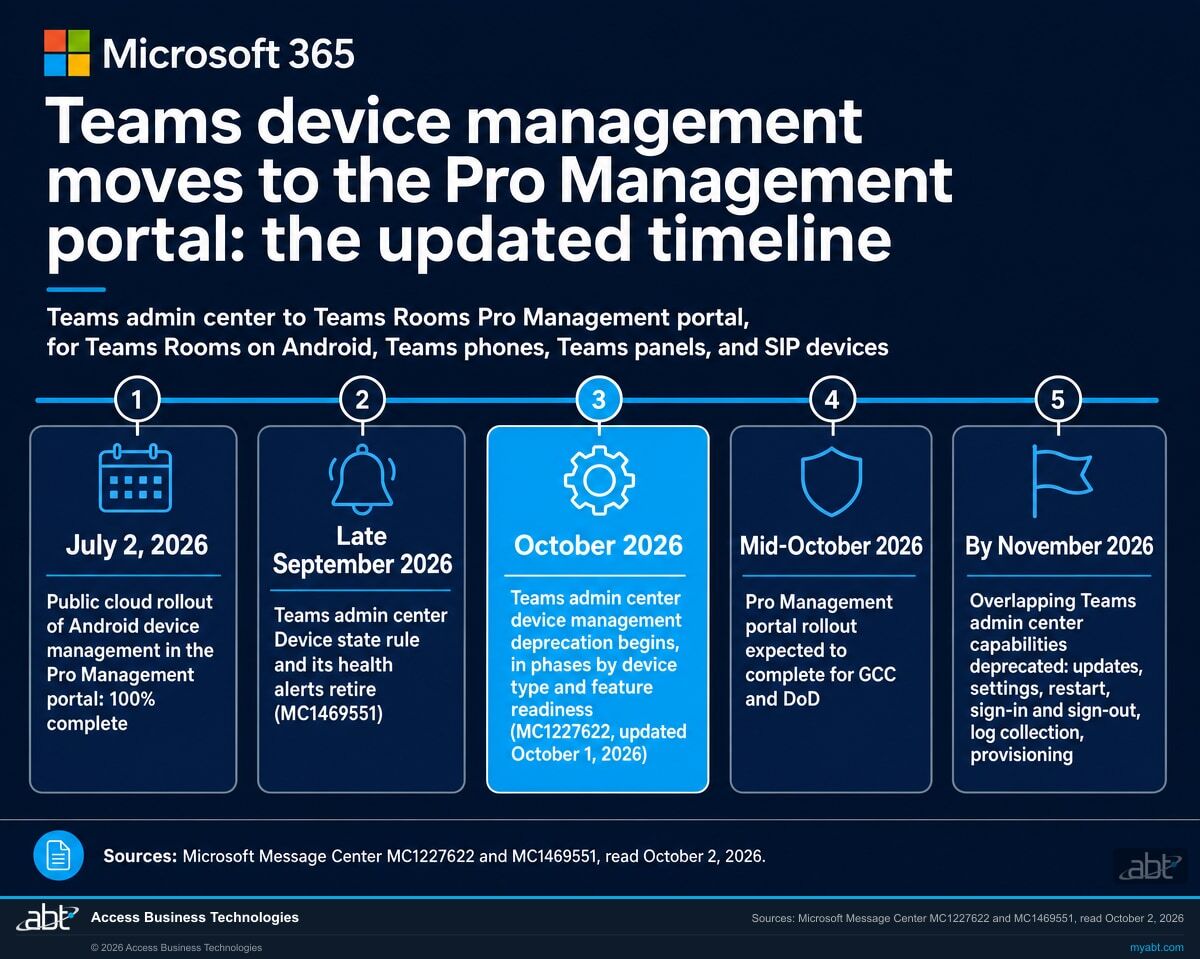
Microsoft moved the date. Management of your Teams phones, panels and Android room systems leaves the Teams admin center in phases from October 2026. Each of those devices still has to meet three conditions to make the trip.
On October 1, 2026, Microsoft updated its Message Center notice for this change: the Teams admin center deprecation now begins in October 2026 and rolls out in phases by device type, with the overlapping capabilities deprecated by November 2026. For a healthy device the move to the Teams Rooms Pro Management portal is automatic, and a healthy, signed-in device keeps ringing and joining meetings. Two of the three things that stop a device being healthy are things an institution acquires by hardening its tenant.
- The new dates in Microsoft's own words, and the piece Microsoft scheduled for late September
- Which Conditional Access controls Microsoft lists as unsupported for Teams devices, in a table
- The inventory to run while the old portal still answers, and the recovery path for a device that misses it
What changed on October 1, and what is actually being retired
The retirement changes where devices are managed. A healthy, signed-in phone still rings, the panel outside the boardroom still shows the next meeting, and the room system still joins calls. What is being retired is the place you manage them from. Microsoft is consolidating Teams device management out of the Teams admin center and into the Teams Rooms Pro Management portal, so that Teams Rooms on Windows and the Android-based Teams device families, Teams Displays excepted, are administered from one place.
Microsoft's guidance had put the end of that consolidation in September 2026. On October 1, Microsoft updated the Message Center notice for the change, MC1227622, with a new timeline:
"The deprecation of Teams device management capabilities in TAC will begin in October 2026 and will roll out in phases based on device type and feature readiness."
"By November 2026, overlapping TAC capabilities (updates, settings, restart, sign-in/out, log collection, provisioning) will be deprecated in TAC."
The Microsoft Learn transition article now labels its final stage the same way: Phase 4, decommissioning the overlapping Teams device management features in the Teams admin center, is headed October 2026. The article's frequently asked questions still carry the earlier answer, that the phased deprecation would start in the first week of September and complete by the end of September 2026. The Message Center notice is the later of the two statements and matches the article's own Phase 4 heading, so plan against the October start and read both again before you schedule work around a particular week.
Microsoft also says the deprecation is gradual and that admins get clear advance communication before any Teams admin center workflow is retired. Watch Message Center for the device-type notices that follow MC1227622.
One piece was scheduled for late September: the Device state rule and its alerts
In MC1469551, Microsoft scheduled the retirement of the Device state rule in the Teams admin center, under Notifications & alerts and then Rules, together with the device health alerts it generates, for late September 2026. Microsoft lists the effects: the rule page goes away and existing rules stop being evaluated, offline and health alerts stop arriving in the Admin Alerts and Notifications team's MonitoringAlerts channel, webhook integrations stop receiving the alert payload, and existing rule configurations and historical alerts are excluded from the migration to the Pro Management portal. Device health monitoring for every Teams device type now lives in the Pro Management portal, with alerting configured there.
ABT's reading: if an offline phone in a branch used to open a ticket through that webhook, rebuild the alert in the new portal and confirm it fires. Check the license on each room system while you do it, because Microsoft's license comparison lists custom health alerts as a Teams Rooms Pro feature.
Four device families move: Teams Rooms on Android, Teams Phones, Teams Panels, and SIP devices. Existing devices appear in the new portal automatically, and Microsoft's guidance is that no manual migration is required. Existing Teams Phones enrolled in the Teams admin center enroll in the Pro Management portal on their own once they reach Admin Agent 830 or later.
Teams Displays are the exception, and their app is already past end of support
Microsoft states that the management of Teams Displays will not be moved to the Pro Management portal, in line with the end of support for the Teams Displays app. Microsoft's Teams Displays page dates that end of support to September 3, 2025, and commits to commercially reasonable best efforts to keep compatibility with the most recent version of the Teams app provided to manufacturers for two years from that date. Displays on desks are a replacement decision, separate from the migration on this page.
Portal access is included. What you can do in it follows each device's license.
The portal is called the Teams Rooms Pro Management portal, which raises the obvious worry that management is moving behind a Pro license. Microsoft's answer comes in two parts, and both matter. The first is that access is included:
"The current access to PMP is included with Teams Rooms and Teams shared device licensing. Additional guidance to be provided if any licensing scenarios require attention."
The prerequisite is a low bar for anyone who already owns Teams devices. The organization needs at least one of the following:
- At least one Teams Rooms Pro, Teams Rooms Basic, or Teams Rooms Standard license, or
- At least one Teams Shared Space license, which Microsoft notes was formerly called Shared devices, or
- At least one Teams device already enrolled in the portal. Microsoft flags this last route as mainly for customers who manage only Teams Phones and hold none of the licenses above.
The second part is what a room system can do once it is there. Microsoft's Teams Rooms license comparison splits the portal's device management features by license, and the split is wide:
| Device management feature | Teams Rooms Basic | Teams Rooms Pro |
|---|---|---|
| Pro Management Portal enrollment and inventory | Included | Included |
| Automatic software updates | Included | Included |
| Detailed system and configuration information | Pro only | Included |
| Peripheral health management | Pro only | Included |
| Remote configuration | Pro only | Included |
| Custom backgrounds set up and management | Pro only | Included |
| Device history and activity | Pro only | Included |
| ITSM integration | Pro only | Included |
| Custom health alerts | Pro only | Included |
| Device analytics | Pro only | Included |
The device management rows of Microsoft's Teams Rooms Basic and Teams Rooms Pro comparison, read cell by cell on October 2, 2026.
Two more lines on the same page shape the decision. The comparison lists Microsoft Entra Conditional Access policies among the Teams Rooms Pro entitlements, with no mark in the Basic column. And an organization can assign up to 25 Teams Rooms Basic licenses to Teams Rooms systems; systems beyond that need Teams Rooms Pro licenses. Microsoft made the same point in March 2026, in Message Center notice MC1242781, for Android devices synced through its Device Management services: portal features reflect the license assigned to each device.
ABT's reading: if your team configures room systems remotely today, count the rooms by license before the admin center workflows retire, because the place you do that work is moving to a portal that gates it by license. Microsoft's licensing sentence says current access and promises guidance if any licensing scenario needs attention, so keep the question on the list for each renewal.
The access that needs checking first is administrative. Reaching the portal takes a Microsoft Entra ID role of Global Administrator, Teams Administrator, Teams Device Administrator or Global Reader, or one of the portal's own roles of Teams Rooms Pro Manager, Site Lead or Site Technician, or a custom role scoped to particular devices and device groups. If the person who has always managed your Teams devices holds a role outside that list, they lose the tool before they lose the devices.
The firmware floor, and the recovery path for a device that missed it
A Teams Android device is manageable in the new portal only if it is running Admin Agent version AA 830, published as 1.0.0.202606082157.product, or later. Government cloud customers in GCC, GCC-High and DoD need AA 856, which Microsoft's Admin Agent release list publishes as 1.0.0.202607160723.product. The newest release on Microsoft's Admin Agent list, Admin Agent 870, is listed for public cloud customers as 1.0.0.202609172331.product.
Microsoft is moving devices to the floor faster than your update rings. It says it will accelerate deployment of the minimum version so devices are ready as soon as possible, with Admin Agent updates arriving at a faster cadence than the schedule you configured. Three consequences follow, each stated outright:
- Customers who permanently disabled auto updates will have their devices forcefully auto-updated to the minimum Admin Agent version before the deprecation.
- In Microsoft's own words and capitals, these Admin Agent updates "are NOT PAUSABLE and are mandatory to manage your devices in PMP successfully."
- Customers whose devices cannot auto update, particularly devices on a very old Admin Agent, should update them manually to the minimum version before the deprecation.
The devices that were going to be fine get moved to a supported version whether or not anyone remembered. The problem is the devices Microsoft cannot reach, and here the documentation is direct about the consequence.
"After the deprecation, admins will no longer be able to update these devices from TAC and may need to use the OEM portal to update firmware with required Admin Agent before the devices can be managed in PMP again."
Read that as the cost of missing the window. Once the Teams admin center workflows are gone, a device that never got the update cannot be updated from the old portal, because it is retired, and cannot be managed from the new one, because it is below the floor. Microsoft's word may is doing real work: how the device recovers depends on how far behind it is. The move to an October start gives an institution more time to find these devices while the old portal can still update them.
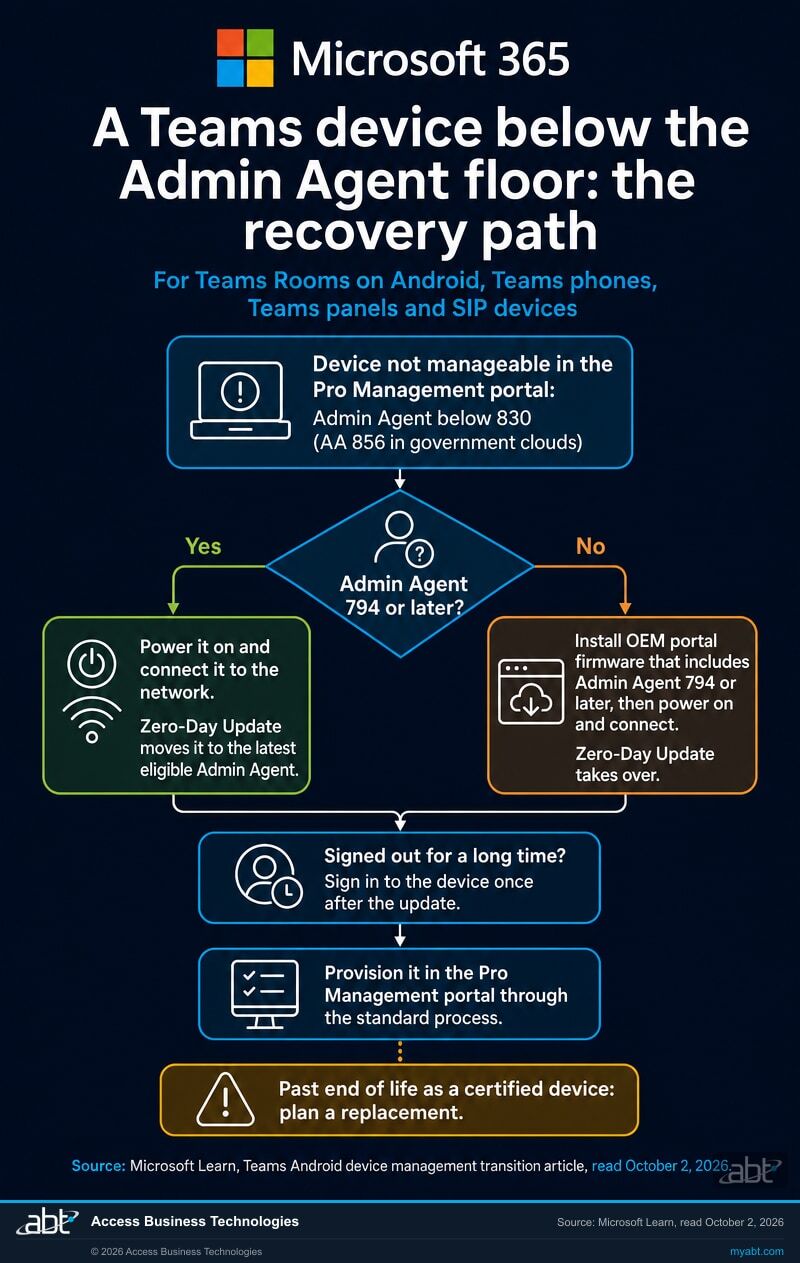
Microsoft gives three examples of how a device falls behind: it was bought and left unprovisioned for a long time, it was factory reset and reverted to the Admin Agent in its factory image, or it simply has not been updated in a long time. A device that stays powered off for an extended period is out of reach too, because Microsoft cannot update it automatically while it is offline. The recovery path splits at Admin Agent 794:
| Device state | What Microsoft says happens | Who has to do something |
|---|---|---|
| Admin Agent 794 or later, powered on and connected | Microsoft's Zero-Day Update mechanism automatically updates the device to the latest eligible Admin Agent version. | Whoever has the device: power it on, let it reach the network, and confirm the new version in the portal. |
| Admin Agent earlier than 794 | Administrators must first manually update the device to a firmware version from the OEM portal that includes Admin Agent 794 or later. Zero-Day Update takes over after that. Microsoft says it is also working with OEM partners on firmware releases that include the required Admin Agent version. | You and your hardware vendor, device by device. |
| Signed out for an extended period | Microsoft cannot automatically onboard the device. An administrator must sign in to the device at least once after it has been updated to the latest eligible Admin Agent version. | Someone with the credentials, at the device or remotely. |
| Past end of life as a certified device | Microsoft will make the latest Admin Agent available for connectivity, but states that because these are unsupported, manageability has not been tested and may not work as expected. | Plan a replacement for the device. |
Once a recovered device is running the latest eligible Admin Agent, Microsoft's instruction is to provision it to the Pro Management portal through the standard provisioning process.
The devices most likely to be in the bottom three rows are the ones nobody thinks about: the spare phone in a supply cupboard, the panel outside a branch meeting room that was closed for refurbishment, the room system in the office that moved, the phone somebody factory reset to clear a fault. They are also the devices an inventory pulled from a management portal will show as present right up until somebody needs one.
The new portal talks to devices over its own endpoints
The Pro Management portal reaches devices through a different set of hostnames from the ones the Teams admin center used. If your firewall has never had to allow them, the devices arrive in the new portal in a state Microsoft describes with a specific error, Device is not connected to IoT Hub, and remote actions such as restart and remove are grayed out.
For commercial and GCC customers, Teams Android devices need thirteen hostnames reachable over TCP and UDP port 443. GCC customers need two more. GCC-High and DoD each have their own endpoint on the azure-devices.us domain.
agent.rooms.microsoft.com

mmrprodnoamcbiot.azure-devices.net      mmrprodemeacbiot.azure-devices.net
mmrprodnoamtciot.azure-devices.net      mmrprodemeatciot.azure-devices.net
mmrprodnoamphonesiot.azure-devices.net  mmrprodemeaphonesiot.azure-devices.net
mmrprodnoampanelsiot.azure-devices.net  mmrprodemeapanelsiot.azure-devices.net

mmrprodapaccbiot.azure-devices.net      mmrprodapacphonesiot.azure-devices.net
mmrprodapactciot.azure-devices.net      mmrprodapacpanelsiot.azure-devices.net
The commercial and GCC list as published, over TCP and UDP 443. GCC adds mmrprodgcciot.azure-devices.net and mmrgcciot.azure-devices.us; GCC-High uses mmrgcchiot.azure-devices.us and DoD uses mmrdodiot.azure-devices.us. Read from Microsoft Learn on October 2, 2026. Confirm against the live page before you write a firewall rule, because Microsoft revises the list.
The naming is worth a second look because it tells you the shape of the dependency. The hostnames are region specific across North America, Europe and Asia Pacific, and device class specific within each region, with separate names carrying phones and panels. An allow list assembled for room systems can therefore be complete for room systems and silently short for the phones on the desks in the same building.
The sentence to read if you run an authenticating proxy
Microsoft states plainly that Teams Android devices do not support authenticated proxy servers or tenant restrictions, and directs customers to their hardware vendor for proxy support information. An institution that routes all outbound traffic through an authenticating proxy, which is an ordinary and defensible control, has a device population that cannot use it.
Microsoft's own recommendation points away from the instinct to put appliances behind more inspection: Teams Android devices do not need to reach the internal network, and are better placed in a secure network segment with direct internet access, so that a compromised internal network has fewer routes to them.
Two smaller network facts are worth recording while you are in the firewall. Teams Android devices use TLS 1.2 or above, so a segment still terminating older TLS is a problem on its own account. And Microsoft recommends that real-time Teams media bypass proxy servers and other network security devices, because latency degrades call quality; the Teams Rooms on Windows tab of the same page adds that Teams media is already encrypted, so a proxy adds no tangible benefit.
We will tell you which of your Teams devices fail the three conditions, while the old portal can still help
A read of the Admin Agent version on every Teams Android device the tenant can see, the Conditional Access policies that apply to your Teams resource accounts, and whether the Pro Management portal endpoints for your cloud (thirteen for commercial tenants, fifteen in GCC) are reachable from the segment the devices sit on. Written up, in your hands, whether or not you engage us for anything after it.
Get a free security assessmentThe controls a hardened tenant enforces are the ones Microsoft lists as unsupported for Teams devices
This condition lands on the institutions that have done the most identity hardening, because the controls on Microsoft's unsupported list are the ones a hardened tenant turns on.
When a device does not appear or cannot be managed in the new portal, Microsoft's troubleshooting section names three things to check. Two are the conditions above. The third is this:
"Ensure no unsupported conditional access policies are assigned to the Teams Resource Accounts which could prevent authentication."
Which policies are unsupported is documented on a separate page, and the list is long. Several entries on it are controls that a mature identity program has deliberately turned on, because for ordinary user accounts they are the right answer.
| Conditional Access control | Teams Rooms on Windows | Teams Rooms on Android, phones, panels | Notes (Microsoft's words in quotation marks) |
|---|---|---|---|
| Require authentication strength | Not supported | Not supported | "Authentication strength including but not limited to, FIDO2 Security keys, isn't supported for use with Conditional Access policies that affect all Teams Devices." |
| Require multifactor authentication | Not supported | Supported | On Android: "To enable seamless sign-on, don't enforce this policy, use a different secondary authentication factor." |
| Require device to be marked as compliant | Supported | Supported | The one device grant that works on both platforms. |
| Require Microsoft Entra hybrid joined device | Not supported | Not supported | A hybrid-join grant applied tenant-wide reaches these accounts too. |
| Sign-in frequency | Not supported | Not supported | "Using the sign-in frequency policy causes devices to periodically sign out and may not be desired." |
| Authentication flows condition | Supported | Not supported | "Don't block device code flow." |
| Customize continuous access evaluation | Not supported | Not supported | "If you check the box, it must be set to Disable or you'll experience instability." |
| Require token protection for sign-in sessions | Not supported | Not supported | Currently a preview control. |
| User risk and sign-in risk conditions | Supported | Supported | Risk conditions do apply, so these accounts stay inside your risk posture. |
Read the first row again, because it is the one that catches the institutions doing the best work. An organization that has moved its Conditional Access grants from the plain multifactor requirement to authentication strengths, which is the more modern and more precise control and the one Microsoft's own guidance pushes toward, has adopted a grant that Microsoft lists as unsupported for Teams devices on both platforms. The same is true of the phishing-resistant direction of travel: the note names FIDO2 security keys specifically.
The underlying reason is in the device security documentation, and it follows from how these devices have to behave:
"You can't use user interactive two-factor or multifactor authentication with this account. Requiring a user interactive second factor would prevent the account from being able to automatically sign into the Teams Rooms app after a reboot."
A room system has to come back on its own after a power cut at two in the morning. Anything that requires a human to be standing in front of it is incompatible with that, by design. Keep the tenant strong: scope the strong controls to the accounts that can carry them, and give the resource accounts a deliberately designed exception that is documented, approved by a named owner, reviewed on a cadence, and compensated for with the controls that do work: device compliance, risk conditions, network and location conditions, and a segregated network segment.
One licensing note belongs here. Microsoft's Teams Rooms license comparison lists Microsoft Entra Conditional Access policies among the Teams Rooms Pro entitlements, so confirm how each room system's resource account is licensed when you design its exception.
ABT's reading, not Microsoft's: the two sentences nobody joins up
Microsoft states in the transition article that a device signed out for an extended period cannot be onboarded automatically, and that an administrator must sign in to the device at least once. Microsoft states on the Conditional Access page that blocking device code flow prevents using the microsoft.com/devicelogin route to sign in a Teams Android device remotely. It never puts those two sentences side by side.
We are putting them side by side. Blocking device code flow is ordinary hardening and generally the right call for user accounts, because device code phishing is a real and current technique. If it is applied to the Teams resource accounts, and a device has been sitting signed out, the documented remote sign-in route is gone, and unless another remote option works for that device, somebody is driving to a branch. Scope the block so it leaves those accounts out, or plan for an on-site sign-in.
One more entry on Microsoft's list is worth checking before the admin center workflows retire, because this one locks out administrators. If an administrator is scoped to an administrative unit in Microsoft Entra ID, Microsoft states they will not be able to access the Pro Management portal at all. Institutions that delegate administration by region, charter or subsidiary are the ones who use administrative units. The workaround Microsoft gives is for an administrator with full access to create custom roles inside the portal, which is work that has to happen before the person needs the tool.
Why an unmanageable phone is a business problem
Four things that carry across differently, and one that carries across too well
The maintenance window setting was never the one in charge
Microsoft corrected this part of its guidance. The Teams admin center maintenance window setting does not migrate, because the Teams admin center did not honor it. Devices received updates between midnight and 5 AM device local time, they still do in the new portal, and administrators cannot set a different window there yet. Updates in the new portal are also non-disruptive by default: an update scheduled while a device is in use waits until it is free.
If your change records name a different window for Teams devices, correct the record to match what the devices actually do.
Update phases become update rings, on a transition date that has passed
During the transition, the new portal keeps following the update cadence defined by your old Teams admin center phases until an administrator explicitly adopts the new rings. Microsoft gives that transition period as running from general availability to September 30, 2026, a date that has now passed. Phones that are not yet on the minimum Admin Agent version move to the default General ring regardless of which phase they used to be in.
Open the update settings in the new portal and confirm which ring each device follows now.
Tags become Groups, and they stop meaning the same thing
Microsoft is explicit about the semantic change: tags in the Teams admin center are associated with the account signed in to the device, whereas groups in the new portal are associated directly with the device. Importing a tag creates a group containing the devices signed in with the accounts that tag covered. The import lives under Settings, Groups, Import from Teams admin center. Microsoft's feature table lists the public cloud import as "August 2026 (In TAP)" where most public cloud rows read completed, so check that the option appears in your portal before you plan around it.
If you tag by branch or by department, check the import produced the membership you expected.
Configuration profiles have to be imported, not assumed
Existing configuration profiles can be carried over as settings templates in the new portal, and existing tags can be carried over as groups, but both are import actions somebody has to perform. Microsoft describes the device inventory as automatic and these as imports.
The devices arrive on their own. The configuration arrives when somebody imports it.
A pause you set last year carries across perfectly, which is the problem
Microsoft states that customers who have updates disabled or paused in the Teams admin center continue to have them disabled or paused in the new portal. A pause put in place for a good reason during a past incident, and never lifted, migrates intact and invisibly into a portal where nobody remembers setting it.
Look for this one first, because it is the one that will not announce itself.
The inventory to run while the old portal is still there
- Open the Pro Management portal and compare the count. Public and GCC customers use portal.rooms.microsoft.com. Every eligible device enrolled in the Teams admin center (Teams Rooms on Android, phones, panels and SIP devices) should appear automatically; Teams Displays stay behind. The number that matters is how many are missing against what you believe you own, and the answer is usually a supply cupboard.
- Find anything showing the IoT Hub error. A device reporting that it is not connected to IoT Hub, or with restart and remove grayed out, is telling you it failed one of the three conditions. Microsoft's own order for chasing it is network first, then Admin Agent version, then Conditional Access.
- Check the Admin Agent version on every Teams Android device against AA 830, or AA 856 in a government cloud. Anything below 794 is the expensive category and needs OEM firmware, so find those now, before the deprecation.
- Power on and sign in to everything that is currently off or signed out, including anything that was factory reset. This is the cheapest item on the list and the one that expires. A device on Admin Agent 794 or later that is on, connected, and signed in before the deprecation gets updated automatically. A device below 794 needs OEM firmware first, and any device found after the deprecation may need a vendor.
- Confirm the thirteen endpoints are reachable, plus the two GCC additions if you are a GCC tenant, from the network segment the devices actually sit on, over TCP and UDP 443, and check whether an authenticating proxy sits in that path. Confirm the phone and panel hostnames specifically, as well as the room-system ones.
- List every Conditional Access policy that applies to your Teams resource accounts and compare its grants against the unsupported table above. Authentication strength, sign-in frequency, hybrid join and blocked device code flow are the four to look for first.
- Check whether your Teams device administrators are scoped to an administrative unit, and if they are, have somebody with full access create the portal custom roles now.
- Rebuild device alerting in the new portal. The Teams admin center Device state rule and its alerts were scheduled to retire in late September. Set up alerting in the Pro Management portal, reconnect any webhook that fed your ticketing system, and confirm an alert fires.
- Count room systems by license. In the new portal, Teams Rooms Basic covers enrollment, inventory and automatic updates; remote configuration and custom health alerts need Teams Rooms Pro, and Basic licenses top out at 25 Teams Rooms systems.
- Look for a paused or disabled update setting in the Teams admin center and decide, deliberately, whether it should follow you into the new portal. It will follow you either way.
- Separate the Teams Displays. Their app reached end of support on September 3, 2025, and they stay out of the migration. Whatever the answer is for them, it is a different answer.
What a clean result looks like
Every in-scope device you own, meaning Teams Rooms on Android, phones, panels and SIP devices, is visible in the new portal and reconciled against your own inventory, none is showing the IoT Hub error, every Admin Agent version is at or above the floor, every Conditional Access policy applying to the resource accounts uses only supported controls, the configuration profiles and tags you need are imported and their memberships checked, every device follows the update ring you chose, each room system's license covers the portal features you rely on, alerts arrive from the new portal, and the administrator who looks after all of this can actually open it. That is a finished job, and the October start leaves time to reach it before the admin center workflows retire.
We run the inventory against your tenant and hand back the answer in writing
The free security assessment covers the three conditions on this page, run against your environment. We report the Admin Agent version on every Teams Android device the tenant can see, against the minimum, which devices are visible and manageable in the Pro Management portal and which are not, whether the Pro Management portal endpoints are reachable from the segment your devices sit on, and every Conditional Access policy that applies to your Teams resource accounts with its grant controls named against the unsupported list. Where an exception is needed for those accounts, we set out what it should be scoped to and what compensating controls belong beside it.
Two limits on scope. It is a technical review, and legal and compliance advice stays with your own advisers. And firmware recovery through a hardware vendor's own portal needs that vendor's tooling and your relationship with them, so where a device is below Admin Agent 794 we identify it and set out the firmware route Microsoft documents for it.
The written output is yours whether or not you engage us for anything afterwards. ABT manages Microsoft 365 tenants and hosts Azure environments for more than 750 financial institutions, so Conditional Access in a regulated setting is daily work for us. ABT also operates M365 Guardian, its managed security service for credit unions, banks, and mortgage companies.
Where the facts on this page come from
The three questions behind this one
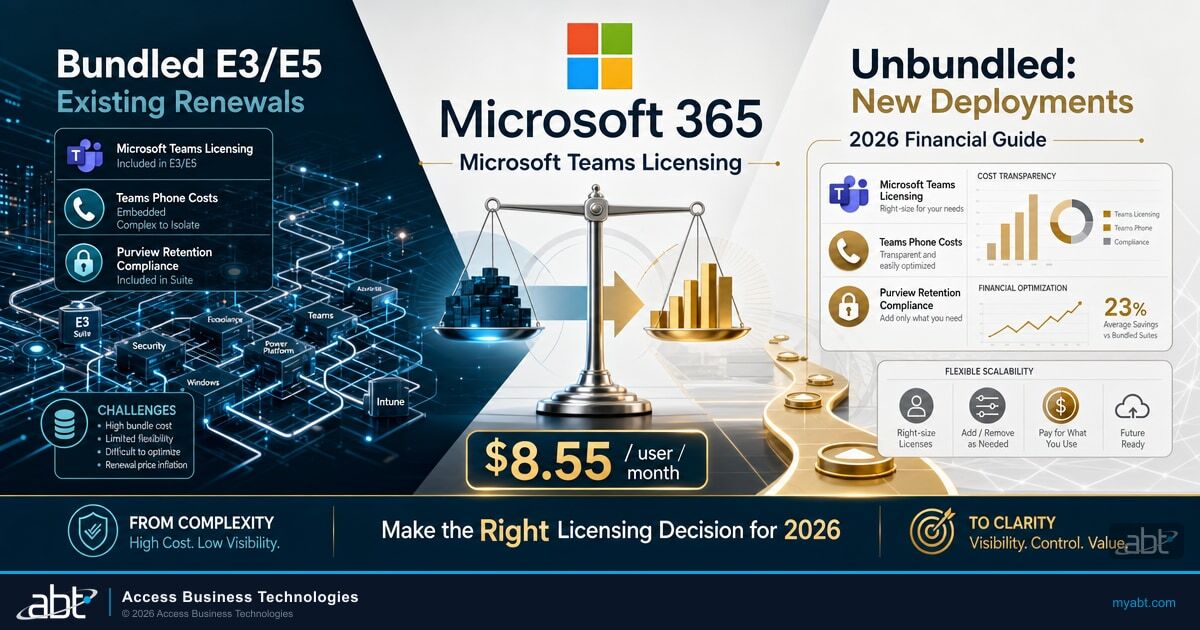
Microsoft Teams Licensing for Financial Institutions (2026 Guide)
What the Teams Rooms and shared device licenses actually cover, which is the ground the portal access question on this page sits on.
Read the article ›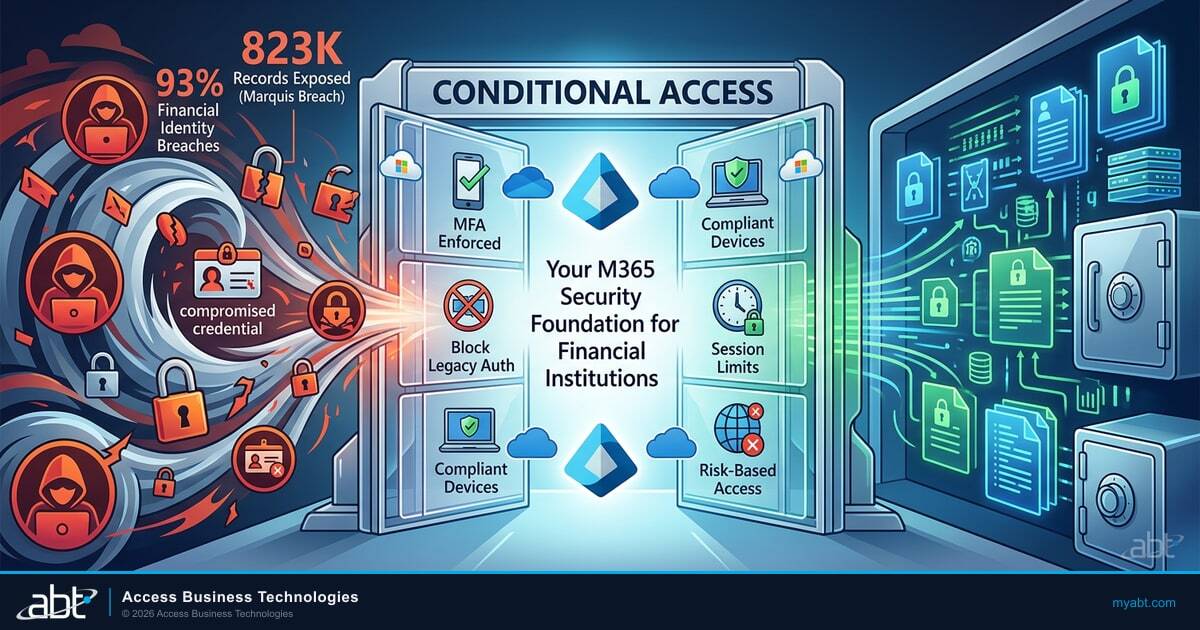
Conditional Access Policies for Financial Institutions: 2026 Best Practices
The policy set an institution should have in place. Read it next to the unsupported table above, because the overlap is the whole of condition three.
Read the article ›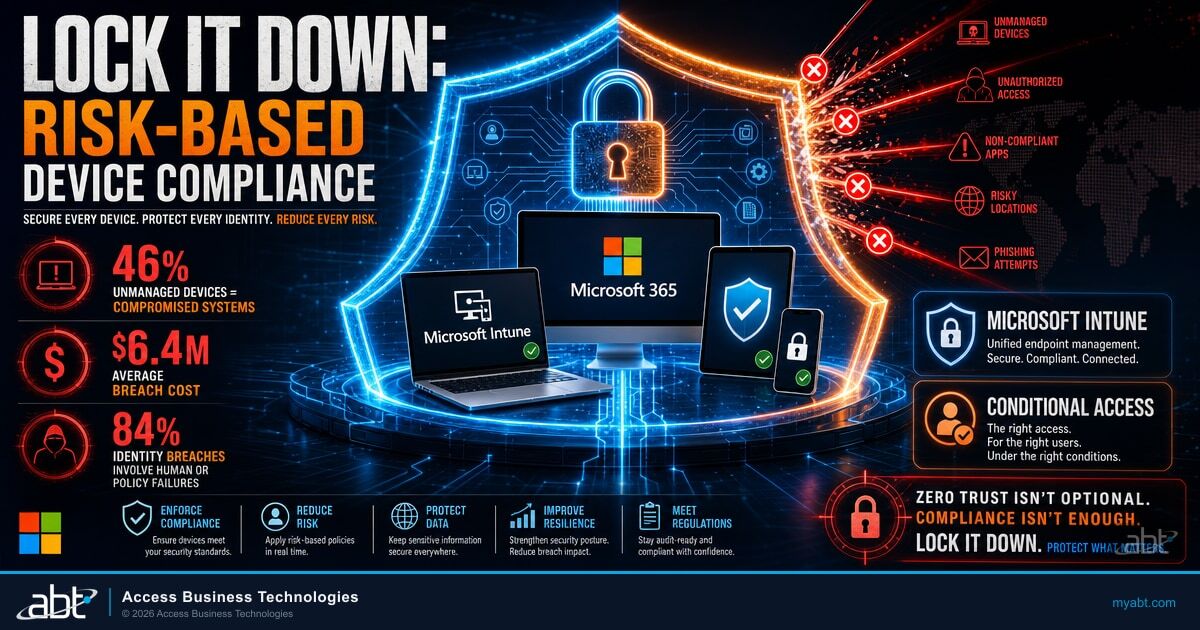
Lock It Down: Risk-Based Device Compliance with Microsoft Intune
Device compliance is the one device grant Teams devices do support on both platforms, which makes it the center of any exception you design for them.
Read the article ›What Microsoft's documentation says, and what we recommend
Microsoft moved the date. On October 1, 2026, Microsoft updated Message Center notice MC1227622: the deprecation of Teams device management capabilities in the Teams admin center will begin in October 2026 and roll out in phases based on device type and feature readiness, and by November 2026 the overlapping capabilities, meaning updates, settings, restart, sign-in and sign-out, log collection and provisioning, will be deprecated in the Teams admin center. The Microsoft Learn transition article now heads its final phase October 2026, while its FAQ still carries the earlier end-of-September answer. One related piece was scheduled for late September: the Teams admin center Device state rule and the health alerts it generates, under MC1469551.
What retires is the management workflow in the Teams admin center. A healthy, signed-in device keeps working: calls connect, panels show meetings, and phones ring. The risk is a device that falls out of management and develops a problem later, after the tool to fix it has gone.
Microsoft says no, and for a healthy device that is accurate. Devices enrolled in the Teams admin center appear in the Pro Management portal automatically, and existing Teams Phones enroll on their own once they reach Admin Agent 830 or later. Microsoft names three conditions a Teams Android device has to meet to be visible and manageable: it must be on Admin Agent version AA 830 or later, the Pro Management portal endpoints must be reachable from its network, and no unsupported Conditional Access policy may be blocking the resource account from authenticating. Configuration is a different matter from inventory. Existing configuration profiles and tags carry over as settings templates and groups, but both are import actions somebody has to perform.
Access does not. Microsoft states that current access to the portal is included with Teams Rooms and Teams shared device licensing, and the prerequisite is at least one Teams Rooms Pro, Basic or Standard license, at least one Teams Shared Space license (formerly Shared devices), or at least one Teams device already enrolled in the portal. What a room system can do in the portal follows its license. Microsoft's comparison gives Teams Rooms Basic the portal enrollment and inventory and automatic software updates, and reserves remote configuration, custom health alerts, device history and activity, peripheral health management, detailed system and configuration information, custom backgrounds, ITSM integration and device analytics for Teams Rooms Pro. An organization can assign up to 25 Teams Rooms Basic licenses to Teams Rooms systems; systems beyond that need Teams Rooms Pro licenses.
Microsoft scheduled their retirement for late September 2026 in Message Center notice MC1469551. The Device state rule page under Notifications and alerts goes away and existing rules stop being evaluated, offline and health alerts stop arriving in the Admin Alerts and Notifications team's MonitoringAlerts channel, and webhook integrations stop receiving the alert payload. Rule configurations and historical alerts are excluded from the migration to the Pro Management portal. Device health monitoring and alerting for every Teams device type now lives in the Pro Management portal, so rebuild the alerts there and confirm they fire. For room systems, Microsoft's license comparison lists custom health alerts as a Teams Rooms Pro feature.
Microsoft lists require authentication strength, require Microsoft Entra hybrid joined device, sign-in frequency, customized continuous access evaluation and require token protection for sign-in sessions as not supported on both Teams Rooms on Windows and Teams Rooms on Android, phones and panels. On Android the authentication flows condition is also unsupported, with the instruction not to block device code flow. Require multifactor authentication is not supported on Windows and is supported on Android, though Microsoft advises against enforcing it there to preserve seamless sign-on. Require device to be marked as compliant is supported on both, and user risk and sign-in risk conditions are supported on both. The note attached to authentication strength is the one to read twice: authentication strength, including but not limited to FIDO2 security keys, is not supported for use with Conditional Access policies that affect all Teams devices.
Keep phishing-resistant authentication on every account that can carry it. The Teams resource accounts need their own, separately scoped policies: a documented exception with a named approver, a review cadence, compensating controls, and the residual risk recorded in your risk register. The exception is structural: Microsoft states that a resource account cannot use user interactive two-factor or multifactor authentication, because requiring an interactive second factor would prevent the account from signing in automatically after a reboot. A room system has to recover on its own after a power cut. The compensating controls that do work on these accounts are device compliance, user risk and sign-in risk conditions, network and location conditions, and putting the devices in a segregated network segment, which is also Microsoft's own recommendation.
AA 830, published as 1.0.0.202606082157.product, for commercial customers, and AA 856, published on Microsoft's release list as 1.0.0.202607160723.product, for GCC, GCC-High and DoD. Microsoft is accelerating the rollout of that version ahead of your own update rings and states that these updates are not pausable and are mandatory, that customers who permanently disabled auto updates will have devices forcefully auto-updated, and that customers without auto update should update manually before the deprecation. If a device misses the window, Microsoft's own sentence describes the cost: after the deprecation, admins will no longer be able to update these devices from the Teams admin center and may need to use the OEM portal to update firmware with the required Admin Agent before the devices can be managed in the Pro Management portal again. Devices already on Admin Agent 794 or later recover on their own once powered on and connected, via Microsoft's Zero-Day Update mechanism. Devices below 794 need a manual firmware update from the hardware vendor first.
Teams Android devices need thirteen hostnames reachable over TCP and UDP port 443 for the Pro Management portal, being agent.rooms.microsoft.com plus twelve azure-devices.net names that are specific to both region and device class, with separate names for phones and panels. GCC customers need two more, mmrprodgcciot.azure-devices.net and mmrgcciot.azure-devices.us, and GCC-High and DoD each have their own endpoint on the azure-devices.us domain. The proxy question matters a great deal: Microsoft states that Teams Android devices do not support authenticated proxy servers or tenant restrictions, and refers customers to their hardware vendor for proxy support information. Microsoft's own network recommendation is that these devices do not need to reach the internal network and are better placed in a secure network segment with direct internet access.
They stay out of the migration. Microsoft states that management of Teams Displays will not be moved from the Teams admin center to the Pro Management portal, in line with the end of support for the Teams Displays app, which Microsoft's Teams Displays page dates to September 3, 2025, with best-efforts compatibility for two years from that date. Teams Rooms on Android, phones, panels and SIP devices move; Displays stay out, which makes them a replacement decision.
Yes, and it is easy to miss because it locks out people. Microsoft states that an administrator scoped to an administrative unit in Microsoft Entra ID will not be able to access the Pro Management portal. Institutions that delegate administration by region, charter or subsidiary are exactly the ones that use administrative units, so this lands disproportionately on multi-charter and multi-branch organizations. The workaround Microsoft gives is for an administrator with full access to create custom roles inside the portal, which can be scoped to specific devices and device groups. That work has to happen before somebody needs the tool.
Partly, and the differences are worth knowing before somebody discovers them. The Teams admin center maintenance window setting does not migrate, because Microsoft says the Teams admin center did not honor it: devices updated between midnight and 5 AM device local time before the move and still do afterwards, and administrators cannot set a different window in the new portal yet. Updates there are non-disruptive by default. Microsoft gave the period in which the new portal follows your old Teams admin center update phases as running to September 30, 2026, so confirm which ring each device follows now. Phones below the minimum Admin Agent version move to the default General ring regardless of their previous phase. Tags can be imported as groups, but they change meaning: tags were associated with the account signed in to the device, whereas groups are associated directly with the device. And a pause carries across perfectly, which is the one to check, because updates disabled or paused in the Teams admin center stay disabled or paused in the new portal.
Find out which of your Teams devices are at risk of missing the trip.
Tell us roughly how many users you have and whether you have Teams phones, panels or room systems in branches. Our engineers read the tenant and come back in writing on the scope set out above: the Admin Agent version on every Teams Android device the tenant can see, against the minimum, which devices the Pro Management portal can and cannot manage, whether the portal endpoints are reachable from the segment your devices sit on, and every Conditional Access policy applying to your Teams resource accounts with its grants named against Microsoft's unsupported list. Confirming what is physically installed in which branch needs your records too, and we name exactly which ones to pull.
ABT manages Microsoft 365 tenants and hosts Azure environments for more than 750 financial institutions. The assessment is a technical review; legal and compliance advice stays with your own advisers.
Get a free security assessment
A read of your Teams device fleet and the Conditional Access policies around it, with a written answer while the old portal is still there to check against.
