

In This Article
- What Changes Late May 2026
- Why Financial Institutions Are Especially Exposed
- The Storage Formula: 1 TB Plus 10 GB Per Qualifying License
- The Read-Only State: What Stops and What Keeps Working
- Seven-Step Pre-Enforcement Verification
- Three Remediation Paths Cost-Compared
- How Guardian Keeps SharePoint Productive
- Frequently Asked Questions
The Closing Disclosure is sitting in the loan officer's drafts. She clicks Upload. SharePoint flashes a banner: "Your organization's storage is full. SharePoint sites are read-only right now. Contact your IT department for more info." It is the morning of a closing. The borrower is on a conference line. The wire is scheduled. And the file will not save.
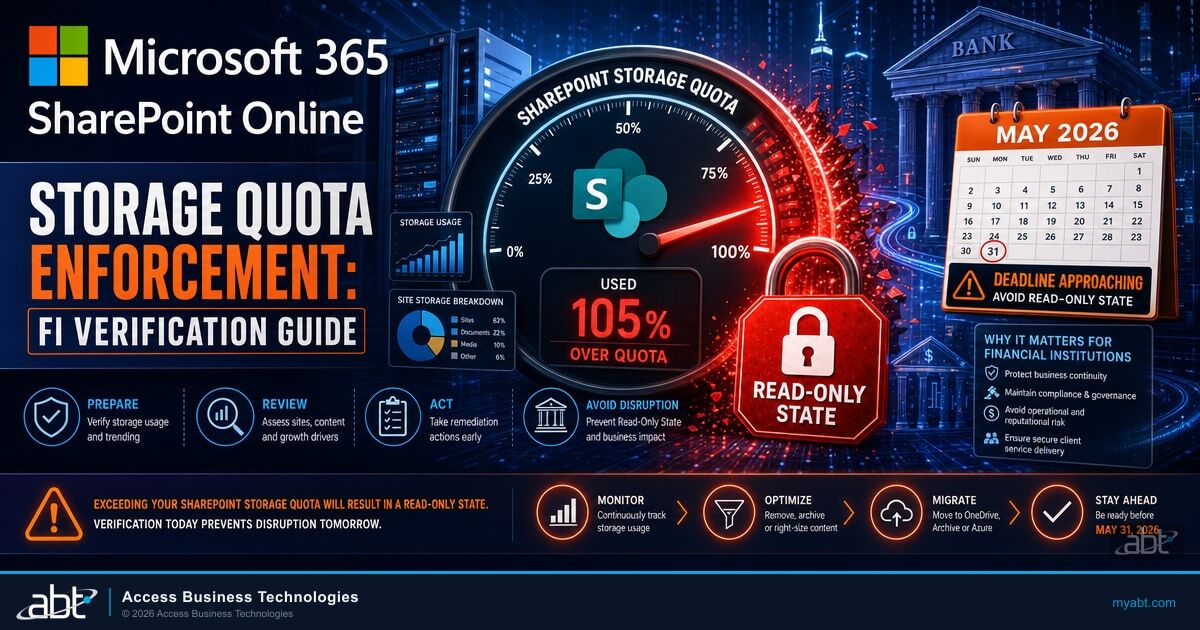
That scenario gets a little more likely starting late May 2026. On May 14, Microsoft published Message Center notification MC1310684, announcing that SharePoint Online will begin enforcing user storage quotas in line with license entitlements. The rollout begins in late May and is expected to complete in June. For banks, credit unions, and mortgage companies running long-tenured document libraries against tightly licensed tenants, that change can flip parts of the daily workflow into read-only mode without warning.
This guide walks the change in plain language. It explains the SharePoint storage formula the way Microsoft actually publishes it, identifies the frontline-license gotcha that most financial institutions miss, and gives an IT director or compliance officer a seven-step verification they can run before the rollout reaches their tenant. The goal is to keep your team productive, your audit trail intact, and your loan closings on schedule.
What Changes Late May 2026
Microsoft frames the change as a fix, not a new product. The published Message Center text reads, "We're updating the way SharePoint Online enforces user storage quotas to ensure they are consistently aligned with license entitlements. This change fixes an issue where user-specific storage limits could be incorrectly applied during quota refreshes, which could result in inaccurate storage enforcement. These updates help ensure predictable storage behavior and improve reliability for admins managing storage at scale."
In practice, three things are happening at once. Microsoft is closing a gap where admin-set per-user storage limits could exceed what the assigned license actually entitled. Microsoft is re-evaluating every user's OneDrive for Business storage against license entitlement during quota refreshes. And Microsoft is moving users whose usage exceeds the licensed quota into a read-only state until the situation is remediated.
The formula governing tenant storage capacity is not changing. The Microsoft 365 admin center has always shown the same arithmetic: 1 TB of base storage per tenant plus 10 GB for each qualifying licensed user. What is changing is the consistency and timing of how Microsoft enforces those numbers across OneDrive and SharePoint Online. Tenants that have drifted out of alignment, whether through admin-customized quotas or simple growth, will get pulled back into license-aligned reality starting late May.
The Banner You Do Not Want to See
When a SharePoint tenant or site exceeds its licensed allocation, Microsoft surfaces a banner reading, "Your organization's storage is full. SharePoint sites are read-only right now. Contact your IT department for more info." Users can still view and download existing files. They cannot upload new content, save edits, save new versions, or delete items until storage capacity is restored. For institutions where SharePoint is the document substrate for Microsoft Teams files, loan packages, board books, and audit evidence, that is a productivity outage with a clock attached.
Why Financial Institutions Are Especially Exposed
Most regulator-driven retention schedules push financial institutions toward long-tenured SharePoint libraries. The Bank Secrecy Act requires that banks maintain most records for at least five years per the FFIEC BSA/AML Examination Manual, Appendix P (we covered the FI Microsoft 365 implementation in BSA/AML Compliance and Your Microsoft 365 Environment). The National Credit Union Administration's records preservation rule at 12 CFR Part 749 keeps board minutes, charters, member-account documentation, and key historical records permanently in Appendix A, and a separate set of operational records for at least six years in Appendix B. The Truth in Lending Act, through Regulation Z section 1026.25(c)(1)(ii), keeps the Closing Disclosure on file for five years after consummation. Most mortgage operations retain loan files for at least five to seven years after payoff, which often runs ten to thirty years from origination. We mapped the broader exam expectation set in FFIEC IT Examination Readiness for Financial Institutions.
"Long-tenured loan libraries, board portals, and BSA/AML evidence stacks are not optional storage. They are the audit trail. When SharePoint flips into read-only mode, the daily workflow stops, but the audit-readiness clock keeps ticking."
Add to that the SEC Rule 17a-4 storage requirements that apply to bank-owned broker-dealers and bank affiliates, the HMDA Loan Application Register retention of three years under Regulation C section 1003.5, the ECOA application-file retention of 25 months for consumer credit under Regulation B section 1002.12, and the typical institutional practice of retaining board and audit committee packets permanently. The result is that a 200-licensed-user community bank is often running with 1.5 TB to 2 TB of SharePoint data against a 3 TB licensed pool. A growth spurt, an audit-export script gone wrong, or a Power Automate flow that copies attachments into the wrong library can tip the tenant over the line in a week.
The change in late May 2026 surfaces that latent risk. Microsoft is not increasing or decreasing what the licenses entitle, but it is being more consistent about applying the rule. Institutions that have been running just under the line, or who have admin-customized OneDrive quotas above the license entitlement to give specific users headroom, will see those headroom buckets pulled back to license-aligned values.

The Storage Formula: 1 TB Plus 10 GB Per Qualifying License
The Microsoft Learn SharePoint Online Limits Service Description, last updated November 6, 2025, publishes the formula directly. Every Microsoft 365 tenant receives a base 1 TB of pooled SharePoint storage. Each qualifying licensed user adds 10 GB to the pool. That math applies to most enterprise and business plans, and it is the math the SharePoint admin center surfaces under Active sites when you check the total allocation.
| License Plan Family | Base Storage | Per-License Addition | 100-User Tenant | 500-User Tenant |
|---|---|---|---|---|
| Microsoft 365 Business Basic, Standard, Premium | 1 TB | +10 GB per license | 2 TB total | 6 TB total |
| Microsoft 365 Enterprise E3, E5, A3, A5, G3, G5 | 1 TB | +10 GB per license | 2 TB total | 6 TB total |
| Office 365 E1, E3, E5, A1, A3, A5, G1, G3, G5 | 1 TB | +10 GB per license | 2 TB total | 6 TB total |
| SharePoint Online Plan 1 or Plan 2 (standalone) | 1 TB | +10 GB per license | 2 TB total | 6 TB total |
| Microsoft 365 F1, F3 or Office 365 F3 (frontline) | 1 TB | No per-license addition | 1 TB total | 1 TB total |
The frontline row is the row most financial institutions miss. A community bank with 60 branch tellers on Microsoft 365 F3, 30 loan officers on Microsoft 365 E3, and 10 executives on Microsoft 365 E5 does not get 1 TB plus 1000 GB of storage. Frontline licenses do not contribute the per-license addition. The bank's tenant allocation in that example is 1 TB plus 400 GB, or 1.4 TB. That is the math the late-May enforcement run will apply.
Frontline License Storage Note
Microsoft 365 F1 and F3 and Office 365 F3 licenses are designed for frontline workers (tellers, branch agents, mobile-first staff). Per the Microsoft Learn SharePoint Online Limits page, frontline plans receive the flat 1 TB tenant base only; they generally do not contribute the 10 GB per-license addition to the SharePoint pool. If your institution recently shifted branch staff to F3 to reduce per-user licensing cost, the storage trade-off may be larger than the cost savings, especially against long-tenured loan and member-record libraries.

The Read-Only State: What Stops and What Keeps Working
The read-only state is the operational consequence of running over the licensed pool. Microsoft documents the behavior on the SharePoint Online Limits service description page: "If your tenant continues to operate above your storage limits, you are at a risk of your environment being put into 'read-only' mode. This means that users may be unable to add or modify content until storage usage is reduced or additional capacity is purchased." MC1310684 reaffirms that user-level read-only also kicks in for individual OneDrive accounts whose usage exceeds their licensed quota.
A loan officer at a 180-licensed credit union finishes the Closing Disclosure for a member's mortgage refinance, attaches it to the loan packet in SharePoint, and clicks Upload. The closing is scheduled for 11:00 AM. The borrower is dialed in. The wire is queued.
"Your organization's storage is full. SharePoint sites are read-only right now. Contact your IT department for more info." The Closing Disclosure stays in drafts. The packet does not finalize. The Calyx-to-SharePoint connector logs an upload failure. The closing slips while IT scrambles to free 40 GB or buy add-on storage.
The read-only condition restricts write actions. Users cannot upload new files, save edits in Microsoft Word, Excel, or PowerPoint, version-stamp documents, delete items to free space, or check items in after editing. Users can still open and view existing content, download files for local work, and read through Microsoft Teams previews. SharePoint sites stay browsable; they just go static. The OneDrive desktop sync client will show conflict and sync-pending icons on files that cannot save back to the cloud. For remote mortgage and lending teams whose document workflow runs through SharePoint and OneDrive, the read-only event collides directly with the security and continuity disciplines we covered in Document Security for Remote Mortgage Teams.
For a financial institution, the cascading effects matter. Microsoft Teams chat files, channel files, and meeting recordings all live in the SharePoint substrate; when SharePoint goes read-only, Teams collaboration on documents stops too. Power Automate flows that copy or move documents start failing. Loan-origination connectors that push closing packages into SharePoint queue up errors. The audit trail, which depends on Microsoft Purview Audit recording every write event, does not lose its existing record, but new events stop being captured for blocked writes that never executed.
A Note on Scope and Framing
Read-only state is a Microsoft 365 service behavior, not a security incident. Microsoft surfaces the read-only banner specifically to prevent data loss and tenant corruption when capacity is exceeded. It is not the same thing as a Microsoft Defender alert, a Microsoft Purview Data Loss Prevention block, or a Microsoft Entra Conditional Access denial. The lockout is corrective, reversible, and triggered by capacity rather than by threat. The right response is to remediate storage and restore write access, not to launch an incident-response playbook.
Will your tenant pass the late-May enforcement check?
Most financial institutions running long-tenured loan or member libraries have not audited SharePoint capacity in the last twelve months. A 30-minute review of your tenant's storage posture catches the problem now, not at the closing table.
Seven-Step Pre-Enforcement Verification
The verification is the work. Microsoft has committed to publishing a PowerShell script that identifies users exceeding their licensed storage limits, with the link added to MC1310684 when available. As of this writing, that script is still pending. In the meantime, the seven steps below use the SharePoint admin center, the Microsoft 365 admin center, and PowerShell read-only commands that any tenant admin can run today.
Pull the tenant pool number from SharePoint admin center
Sign in to the SharePoint admin center, expand Sites in the left rail, and click Active sites. The top of that page shows Total storage allocated to the tenant and Storage used across all SharePoint sites. Note both values and the percentage of the pool currently consumed. A tenant at 90% or higher is at near-term risk; a tenant at 75% or higher should be reviewed against growth trends for the next 90 days.
Pull the storage trend chart from the Microsoft 365 admin center
Open admin.microsoft.com, expand Reports in the left rail, click Usage, and open the SharePoint tile. Switch to the Storage tab and review the 7-day, 30-day, 90-day, and 180-day trends. If your 90-day trend is growing more than 5% per month, your tenant is on a runway that will collide with enforcement before the end of June. Note which specific sites are responsible for the growth in the Site usage tab.
Identify per-user OneDrive overages
In the same Reports area, open OneDrive Usage. Sort by Storage used and review any user account above 80% of its licensed quota. Note also any user whose admin-set quota exceeds the license entitlement; those accounts are exactly the ones MC1310684 will pull back to license-aligned values during the late-May refresh.
Audit your frontline-license assignments
If you have shifted any branch staff, teller pool, or mobile-first agents to Microsoft 365 F1 or F3, recalculate your tenant pool with the frontline rule in mind. F-licensed seats contribute zero per-license storage. Where you assumed 60 F3 tellers contributed 600 GB to the pool, the late-May enforcement will treat those seats as contributing nothing. Adjust your capacity forecast accordingly.
Map your regulator retention to the libraries that drive storage
Use the inventory data from the M365 admin center to identify the five or ten SharePoint sites holding the most storage. Map each one to its regulatory driver. Loan origination libraries are anchored in TILA Regulation Z section 1026.25(c)(1)(ii) (Closing Disclosure 5-year retention) and ECOA Regulation B section 1002.12 (application files 25 months). Board portals are anchored in NCUA 12 CFR Part 749 Appendix A (permanent). BSA evidence stacks are anchored in FFIEC BSA/AML Manual Appendix P (5-year minimum). The mapping tells you which content is fixed by regulation and which is optional growth.
Run the Microsoft Purview retention policy review
Open the Microsoft Purview compliance portal, navigate to Data Lifecycle Management, and review the retention policies and labels currently scoped to SharePoint and OneDrive. Identify any policy with retention period longer than the regulator minimum. A board policy that retains everything for 25 years where the regulator requires only 7 years generates 18 years of optional storage growth. Tighten what is over-retained, and verify the disposition review workflow is alive for items reaching end-of-retention.
Communicate the timeline to helpdesk and business owners
Tell your helpdesk that the late-May enforcement is a Microsoft 365 service change, not a security incident. Give them a one-page playbook: confirm the banner, check tenant pool usage in the SharePoint admin center, contact the IT director or Microsoft CSP for remediation. Tell your business owners (Compliance, Loan Ops, Mortgage Servicing, Board Secretary) that a read-only event is possible in the late-May window and what the remediation timeline looks like. People who know the timeline behave very differently from people surprised by a banner on closing day.
Three Remediation Paths Cost-Compared
When verification surfaces a tenant near or above the licensed pool, financial institutions have three remediation options. The cost math is not equally favorable across them, and the long-term operational implications differ. The right path usually depends on whether the storage is regulator-required retention or operationally driven growth.
Path A: Reduce storage usage
Tighten Microsoft Purview retention policies, complete pending disposition reviews, prune over-retained content, archive optional growth (training materials, old marketing assets, historical Teams channels) into Microsoft Purview Data Lifecycle Management adaptive scopes or to lower-cost Microsoft Azure Blob Storage.
Cost: Internal time only, no Microsoft cost. Typical 90-day savings on a mature tenant: 15% to 30% of pool.
Best fit: Tenants with retention policies older than 24 months and no disposition review in place.
Path B: Buy Office 365 Extra File Storage
Purchase add-on capacity through the Microsoft 365 admin center under Billing, Purchase services, Office 365 Extra File Storage. Pricing as reflected in the Microsoft Q&A community and current CSP listings is roughly $0.20 to $0.25 per GB per month, which works out to roughly $200 to $250 per TB per month, or roughly $2,400 to $3,000 per TB annually.
Cost: Recurring monthly charge billed by Microsoft.
Best fit: Tenants where storage is genuinely regulator-required and a tightening pass has already been done. A clean buy.
Path C: Upgrade licenses (storage-only motivation)
Moving users from Microsoft 365 E3 to E5 does not add tenant pool storage. Both plans use the same 10 GB per-license formula. The cost per additional GB through a license upgrade approaches infinity if the only reason for the upgrade is storage. License upgrades are the right choice when the destination plan delivers Microsoft Defender, Microsoft Purview Audit Premium, Microsoft Sentinel-adjacent features, or other capability gains the institution actually needs (the trade-offs are mapped in Microsoft 365 E3 vs. E5 vs. Business Premium: The Financial Institution Breakdown).
Cost: Per-user-month delta with little marginal storage benefit.
Best fit: Almost never as a storage-only motivation.
The economics make Path A and Path B the right defaults for most financial institutions, with Path C reserved for situations where the destination license tier brings security or compliance features the institution would buy anyway. Run the numbers on a 200-licensed-user community bank scenario and the trade-off becomes obvious.
The clearest reading
Path A first, Path B for what cannot be reduced, Path C only when the destination license tier brings security or compliance features the institution would buy anyway. The Microsoft Q&A community has consistently noted that storage-only upgrades from Microsoft 365 E3 to E5 are an order of magnitude more expensive per GB than the Office 365 Extra File Storage add-on. For a 200-licensed-user community bank, an extra 1 TB through add-on storage runs roughly $2,400 to $3,000 per year. The same 1 TB acquired by upgrading 100 users from Microsoft 365 E3 to E5 (assuming a typical $15 to $20 per-user-month delta) would run roughly $18,000 to $24,000 per year, with no incremental storage gain beyond what the existing licenses already entitle.
How Guardian Keeps SharePoint Productive
Microsoft 365 service-side changes like MC1310684 are routine. They happen every month, sometimes every week, often quietly inside the Message Center stream. Most institutions read the relevant ones two days after the rollout begins. A few read them never. Tenant capacity management, retention-policy hygiene, and license-aligned governance are not glamorous, and they are not the work a community bank's two-person IT department or a mid-sized credit union's IT director was hired to do.
Access Business Technologies is the largest Tier-1 Microsoft Cloud Solution Provider primarily dedicated to financial services. ABT manages the Microsoft 365 tenants of more than 750 banks, credit unions, and mortgage companies. As part of that managed-tenant operating model, the Guardian operating model keeps an eye on Microsoft 365 service-side announcements like MC1310684, runs the storage-pool checks on each client tenant as a recurring discipline, identifies users tracking toward overage before the enforcement reaches them, and recommends the Path A, B, or C trade-off in plain language to the institution's IT director or compliance officer.
Per Microsoft Learn, a Cloud Solution Provider does not host the customer's Microsoft 365 tenant in the traditional sense. Microsoft owns and runs the underlying infrastructure; ABT manages the tenant via delegated admin and the Cloud Solution Provider program. That distinction matters when a notification like MC1310684 lands. Microsoft is enforcing the rule, ABT is the one running the verification, advising the institution on the trade-offs, and applying remediation in the tenant. For financial institutions, that pairing is the difference between reading a Message Center notice on day 2 of a read-only event and getting a heads-up two weeks before enforcement reaches the tenant. Across our 750-plus managed financial institution tenants, the Guardian model treats Microsoft 365 service-side changes as a recurring operational discipline rather than a quarterly surprise.
For institutions that manage Microsoft 365 in-house, the same disciplines apply. Add MC1310684 (and its eventual PowerShell-script link) to the recurring Microsoft 365 admin review. Run the seven-step verification before the late-May rollout reaches your geography. Confirm that frontline-license assignments are reconciled against the tenant pool. Keep Microsoft Purview retention policies tight against regulator minimums. And brief the helpdesk and business owners before the banner appears, not after.
Late-May rollout starts in days. Get a Microsoft 365 tenant review before it reaches you.
If your institution has not audited SharePoint capacity in the last twelve months, the late-May enforcement is exactly the kind of change that surfaces latent risk during a closing or a board cycle. A 30-minute review with an ABT advisor identifies your pool, your growth runway, your frontline-license exposure, and your Path A versus Path B remediation option. We will not sell you storage you do not need. We will tell you whether you are over, under, or near the line, and what to do next.
Frequently Asked Questions
Microsoft 365 Message Center notification MC1310684, published May 14, 2026, states that Microsoft will begin rolling out the change in late May 2026 and expects to complete the rollout in June 2026. The change applies to Worldwide, GCC, GCC High, and DoD cloud environments.
Per the Microsoft Learn SharePoint Online Limits Service Description updated November 6, 2025, the formula is 1 TB of base storage per tenant plus 10 GB per qualifying licensed user. A 100-user tenant therefore receives 2 TB, a 500-user tenant receives 6 TB, and a 1000-user tenant receives 11 TB. The 1 TB base does not scale with license count.
Per Microsoft Message Center MC1310684, users whose OneDrive for Business storage usage exceeds their licensed quota will be placed into a read-only state. The read-only state temporarily restricts write access to existing SharePoint content until storage usage is remediated. Users can still view and download files, but cannot upload, edit, save, or delete content. The Microsoft Learn SharePoint Online Limits page confirms the same behavior at the tenant pool level.
Per the Microsoft Learn SharePoint Online Limits Service Description, Microsoft 365 F1, Microsoft 365 F3, and Office 365 F3 frontline plans receive the flat 1 TB tenant base only. Frontline licenses generally do not contribute the 10 GB per-license addition to the SharePoint pool. Institutions that have moved branch tellers, mobile-first staff, or other frontline workers to F1 or F3 should recalculate their tenant capacity using the flat 1 TB baseline before the late-May enforcement run.
Microsoft does not publish a public rate card for the Office 365 Extra File Storage add-on. Microsoft Q&A community answers and current CSP marketplace listings consistently show pricing in the range of $0.20 to $0.25 per GB per month, which works out to roughly $200 to $250 per TB per month, or roughly $2,400 to $3,000 per TB per year. The definitive price for a specific tenant is the figure displayed in that tenant's Microsoft 365 admin center under Billing, Purchase services, Office 365 Extra File Storage.
The primary federal sources are FFIEC BSA/AML Examination Manual Appendix P (most records 5-year minimum), NCUA 12 CFR Part 749 Appendix A (permanent records for credit union board minutes, charters, member-account documentation) and Appendix B (6-year minimum operational records), CFPB Regulation Z section 1026.25 (TILA general 2 years; ATR/QM 3 years; Closing Disclosure 5 years), CFPB Regulation B section 1002.12 (ECOA consumer applications 25 months), CFPB Regulation C section 1003.5 (HMDA Loan Application Register 3 years), and SEC Rule 17a-4 (3 to 6 years for broker-dealer affiliates). Most mortgage operations retain loan files at least 5 to 7 years after payoff to satisfy overlapping requirements and statute-of-limitations exposure.