


Microsoft Teams · File sharing in external chats
Teams turns on file sharing in chats with other organizations starting late October, even where you turned it off. Decide who can open those files first.
Starting in late October 2026, Microsoft Teams lets your staff attach files in chats with people at other organizations by default, and automatically grants everyone in the chat the permissions they need, within your OneDrive and SharePoint sharing settings. That saves a round of email with an outside auditor, a title company, or a vendor. Microsoft says the new default applies even where your administrators set file sharing in external chats to Disabled, so the settings that decide who can open those files deserve a look now.
- Rollout begins in late October 2026 and is expected to complete by late November 2026 for all Microsoft 365 tenants, per Microsoft 365 Message Center post MC1479514
- Attached files stay in the sender's OneDrive with an External label, and your existing OneDrive, SharePoint, and Microsoft Entra settings still decide who can open them
- To keep it off, Microsoft says to reapply the Disabled setting after the rollout reaches your tenant
The change
What is Microsoft changing about file sharing in external Teams chats?
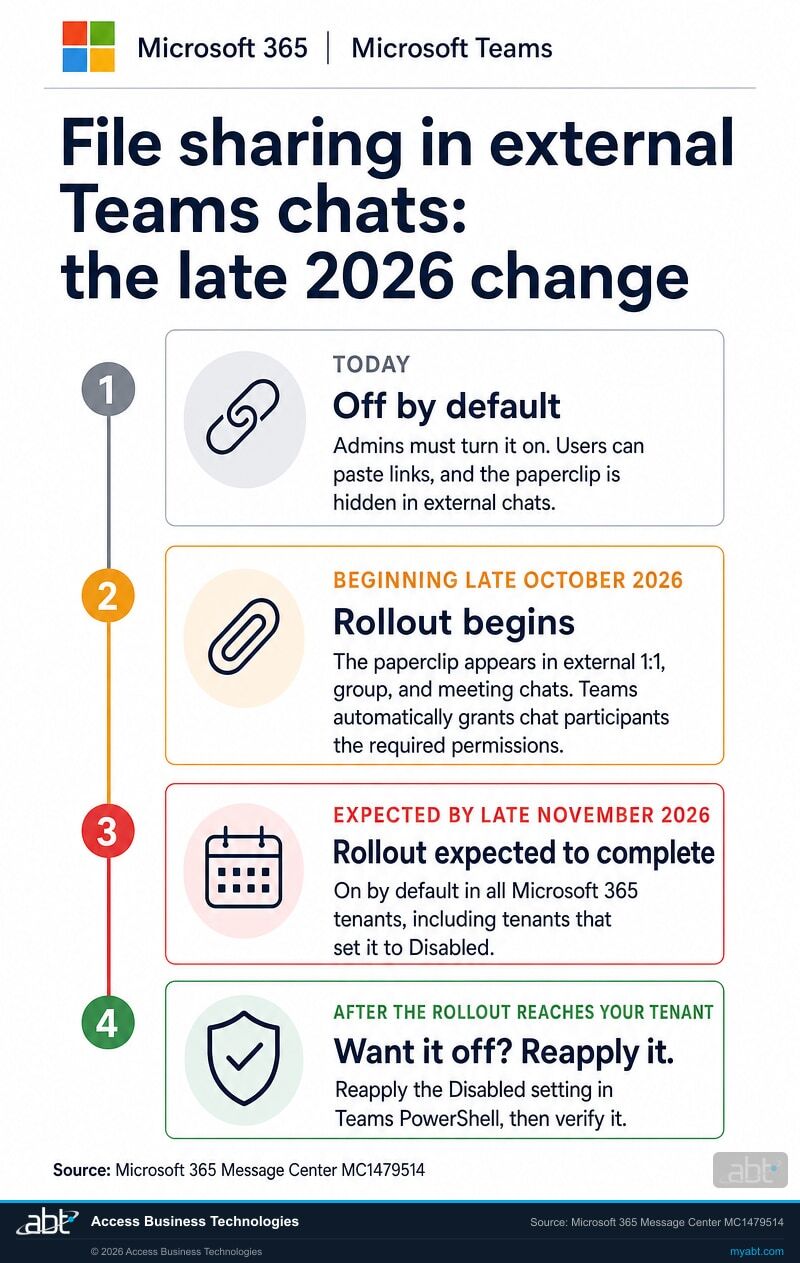
Today, a Teams administrator has to switch file sharing on before anyone can attach a file in a chat with another organization. Microsoft is reversing that default and pairing it with automatic permissions.
Off by default
Microsoft Learn says file sharing in external (federated) chats is turned off by default. Users can paste an existing link, and the paperclip stays hidden in external chats.
The rollout begins
The paperclip appears in external 1:1 chats, group chats, and meeting chats, and Teams automatically grants the people in the chat the required permissions, within your OneDrive and SharePoint sharing settings.
Rollout expected to complete
Microsoft says the new default applies to all Microsoft 365 tenants, even where the setting was configured as Disabled, and expects the rollout to complete by late November.
Your decision, reapplied
To keep file sharing in external chats off, Microsoft says to reapply the Disabled setting after the rollout reaches your tenant, then verify it.
"This change applies even if your organization previously configured the setting as Disabled. Organizations that want file sharing in external chats to remain disabled must reapply the disabled setting after rollout."
Microsoft 365 Message Center post MC1479514, Microsoft Teams: File sharing enabled by default in external (federated) chats, published September 25, 2026Microsoft lists the rollout for Targeted Release and for General Availability in Worldwide, GCC, GCC High, and DoD, beginning in late October 2026 and expected to complete by late November 2026. It affects organizations that use Teams external access, also called federation, including organizations that previously disabled file sharing in external chats. It covers the Teams desktop app and the Teams web app.
Here is what users will see. The Attach file button, the paperclip, shows up in external chats, and people can attach a file or drag one into the message box. When they do, Teams automatically grants the required permissions to the participants in the chat. Senders can review, modify, or remove those permissions before sending, and can change or revoke access after the file is shared. A pasted file link works as it does today and keeps its existing permissions.
Microsoft answers the data question directly in the post's compliance section. Asked whether the change alters how existing customer data is processed, stored, or accessed, it says: "Yes. Uploaded files can automatically receive permissions for participants in external chats."
The settings that decide access
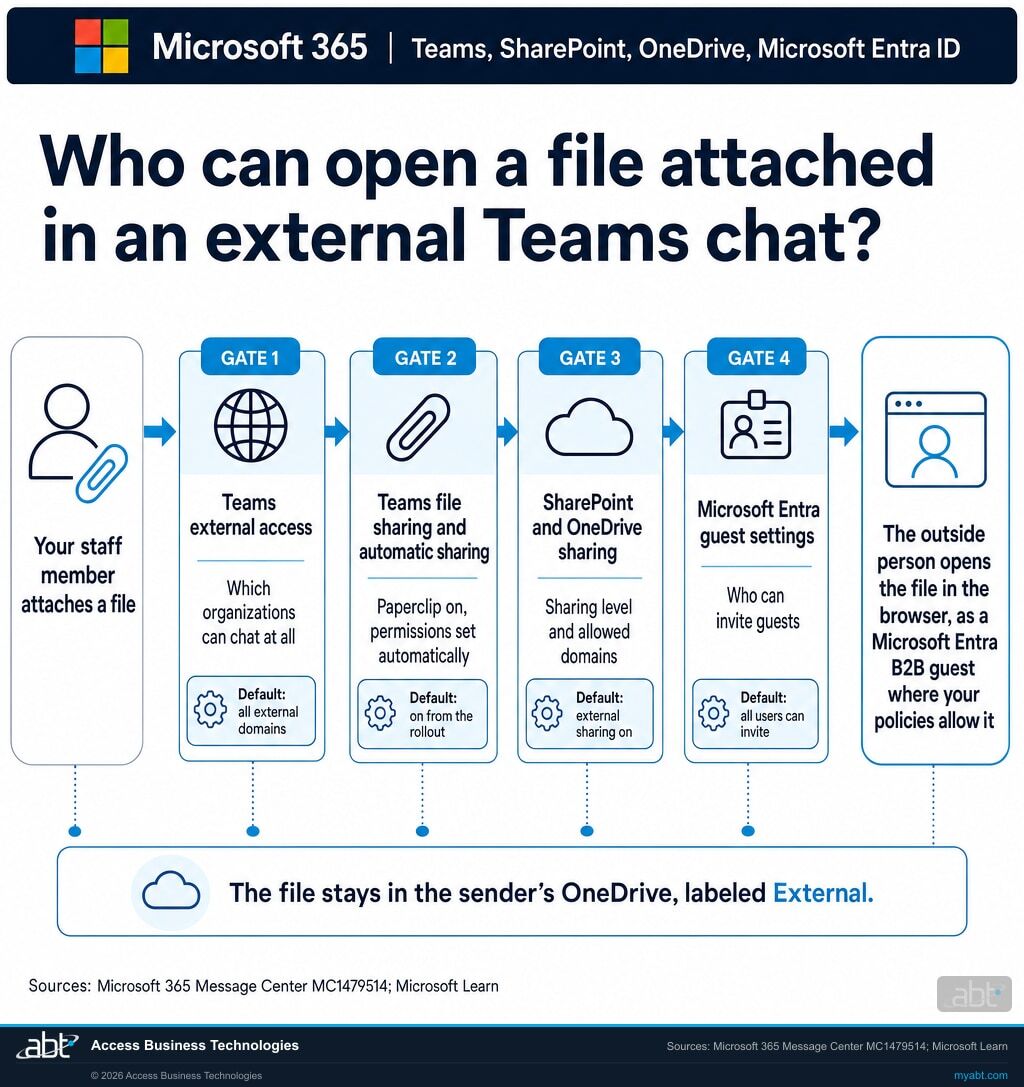
Who can open a file your staff attach in an external Teams chat?
Start with five settings you already own. They are the priority checks, and they sit alongside sensitivity labels and your other protections, which Microsoft says continue to apply. Once the rollout lands, Microsoft's default for every one of the five allows sharing.
| Setting | Where you set it | Microsoft's default | What it decides for an attached file |
|---|---|---|---|
| Teams external access | Teams admin center, Users, External access | Allow all external domains | Which outside organizations your staff can chat with at all. Microsoft notes the other organization must also allow external access. |
| File sharing in external chats | Teams PowerShell, Set-CsTeamsFilesPolicy, FileSharingInChatsWithExternalUsers |
Disabled today; enabled by default as the rollout reaches each tenant | Whether the paperclip appears in external chats. |
| Automatic sharing | Teams PowerShell, Set-CsTeamsMessagingPolicy, AutoShareFilesInExternalChats |
Enabled | Whether Teams grants the people in the chat the required permissions when a file is attached, within your sharing settings. |
| SharePoint and OneDrive external sharing | SharePoint admin center, Policies, Sharing | External sharing turned on | Whether a file in a user's OneDrive can be shared outside the organization, at what level, and with which domains. |
| Guest invitations | Microsoft Entra admin center, External Identities, External collaboration settings | All users, including guests, can invite | Who can bring an outside person into your directory as a guest. |
External file sharing can add guest accounts to your directory.
Microsoft Learn says external recipients open attached files as Microsoft Entra B2B guests, if your policies allow it, and that a guest object is created on demand when one doesn't exist. Microsoft Learn also says that starting in May 2026 Microsoft enables SharePoint and OneDrive integration with Microsoft Entra B2B for all tenants, which gives each outside person you share with an account in your directory, subject to your Microsoft Entra ID policies such as multifactor authentication.
Plan the guest reviews for that growth now. Each chat partner who opens a file can become a guest account in your directory, and someone should decide how long each one stays.
A group chat can include people your external access list never approved.
Microsoft Learn says files attached in external chats are automatically shared with all participants. When one of your staff is added to an external group chat, Microsoft's default only requires a valid federation relationship between that person and the person who started the chat, and Message Center post MC1423114 notes that other people already in the chat might not meet your external access requirements.
Two controls answer that. MC1423114 describes EnableMutualFederationForChatParticipants, available September 30, 2026 and off by default, which requires every participant to meet the federation requirements. And your SharePoint, OneDrive, and Entra domain restrictions still apply to the file itself. Keep those lists in step with the domains your staff are allowed to chat with.
What a paperclip does
What happens when someone attaches a file in an external chat?
Microsoft documents the whole path, from the sender's OneDrive to the outside person's browser. Each step has a setting you already own.
It lands in the sender's OneDrive
Files uploaded to external chats are stored in the sender's OneDrive and display an External label. External recipients open them in the browser.
Permissions are set automatically
Teams grants the chat's participants the required permissions when a file is attached or dragged in, within your OneDrive and SharePoint sharing settings. The sender can change them before sending. Pasted links keep their existing permissions.
Recipients can sign in as guests
External recipients access files as Microsoft Entra B2B guests, if your policies allow it. Microsoft says they may see a consent prompt, and multifactor authentication depending on your tenant policy.
Your protections keep applying
Microsoft says existing sensitivity labels, domain restrictions, and security protections continue to apply, and that enabling file sharing in Teams doesn't override your OneDrive and SharePoint sharing settings.
"File access is governed by existing OneDrive and SharePoint sharing settings. Enabling file sharing in Teams doesn't override these controls."
Microsoft Learn, Share Files and Loop components in external (federated) chats, last updated March 12, 2026That sentence is the reason to read your sharing settings before late October. The Teams change adds the paperclip and the automatic permissions. What an outside person can actually open still comes down to your OneDrive and SharePoint sharing level, your domain lists, and your Entra guest settings, the rows in the table above.
Microsoft adds two practical notes. If automatic permission assignment is turned off, users may need to grant access manually before external recipients can open a file. And people outside your organization who aren't federated with you can access and upload files during a meeting, then lose access after the meeting ends.
Find out how your five sharing settings are set before the rollout reaches you
ABT records Teams external access, both Teams file sharing policies, SharePoint and OneDrive sharing, and Microsoft Entra guest invitations in your Microsoft 365 tenant, as part of a free security assessment.
Request the free assessmentThe decision
Should you keep file sharing in external chats on or turn it off?
Either answer can be right for a credit union, bank, or mortgage company. What matters is that the answer is yours, written down, and still true after the rollout.
On, with guardrails
A good fit when staff trade documents with the same outside partners every week.
- Allow only the domains you work with in Teams external access. Microsoft says that once you list allowed domains, all other domains are blocked. For group chats, pair it with the mutual federation control described above.
- Match those domains in SharePoint and OneDrive sharing, whose organization-level list accepts up to 5,000 domains.
- Set OneDrive's sharing level and guest expiration, and consider limiting external sharing to specific security groups.
- Narrow who can invite guests in Microsoft Entra, and review guest accounts on a schedule.
- Choose automatic or manual permissions.
AutoShareFilesInExternalChats Disabledkeeps the paperclip and makes each sender grant access by hand.
Off, reapplied after the rollout
A good fit when files leave the institution through a secure portal or a managed transfer process.
- Reapply the setting after the rollout reaches your tenant. Microsoft says the change applies even where the setting was configured as Disabled.
- Check it weekly, or more often, until the expected finish. Microsoft gives a window, beginning in late October and expected to complete by late November. Between the rollout's arrival and your reapplied setting taking effect, the paperclip is available, so a shorter check interval means a shorter window.
- Tell staff what still works. Pasted links keep working under each link's own permissions.
- Mind Loop components. Microsoft notes they continue to be shared automatically even when file sharing in chats is disabled.
- Keep the external access list tight anyway. It decides who can reach your staff in chat at all.
The short list
What should an administrator do before late October?
Seven steps. The first five hold whichever way you decide. The sixth applies if you choose off, and the seventh applies to everyone.
Record today's five settings
In the Teams admin center, open Users, then External access, and note which option is set for organizations. In Teams PowerShell, run Get-CsTeamsFilesPolicy | Select Identity, FileSharingInChatsWithExternalUsers and Get-CsTeamsMessagingPolicy | Select Identity, AutoShareFilesInExternalChats. In the SharePoint admin center, open Policies, then Sharing, and note the SharePoint and OneDrive levels and any domain limits. In the Microsoft Entra admin center, note the guest invite settings and collaboration restrictions under External collaboration settings.
Save the output with today's date as your baseline for comparison. Keep a dated record of every change your team makes from here, so a difference your team did not make stands out.
Decide on or off with your compliance officer
Put the two paths above in front of your information security officer and your compliance officer together. Record the decision, the reason, and who owns it. A written decision is far easier to explain later than an inherited default.
Limit external access to the organizations you work with
In Users, then External access, choose Allow only specific external domains and add the partners your staff actually chat with. Microsoft says that once you set up a list of allowed domains, all other domains are blocked. For external group chats, review EnableMutualFederationForChatParticipants, set with Set-CsTenantFederationConfiguration. Microsoft notes that turning it on can remove users from existing federated group chats that fall outside the federation requirements, so tell the help desk before you switch it on.
Set OneDrive's sharing level and domain limits
In the SharePoint admin center, under Policies, then Sharing, set the external sharing level for SharePoint and OneDrive. Microsoft says the OneDrive setting can be more restrictive than the SharePoint setting, but not more permissive. Limit external sharing by domain to match your Teams list, consider allowing only specific security groups to share externally, and set guest access to expire after a set number of days.
Decide who can invite guests
In the Microsoft Entra admin center, go to Entra ID, then External Identities, then External collaboration settings. Microsoft's default lets all users in your organization, including B2B collaboration guest users, invite external users. The options run down to only users in specific admin roles, and collaboration restrictions can allow or deny invitations by domain. Our guide to Microsoft 365 guest access for financial institutions covers what to prove about the guests you already have.
If you chose off, reapply it after the rollout
Once the rollout reaches your tenant, run Set-CsTeamsFilesPolicy -Identity Global -FileSharingInChatsWithExternalUsers Disabled, then verify it with Get-CsTeamsFilesPolicy | Select Identity, FileSharingInChatsWithExternalUsers. Microsoft says to allow several hours for policy changes to propagate. The verify command lists every Teams files policy in your tenant; if it returns custom policies, set each one the same way by its Identity.
Run that check weekly from late October until Microsoft's expected completion in late November, and have a test account open an external chat each time. If the verify command reports Enabled on a policy you set to Disabled, or the test account sees the paperclip, the rollout has reached you: reapply the setting that day. The paperclip stays available from the day the rollout arrives until your reapplied setting takes effect, so a shorter check interval means a shorter window. Watch MC1479514 itself too: Microsoft revises rollout timing inside the Message Center, as our page on how Microsoft changes Message Center dates shows.
Tell staff and the help desk
Microsoft recommends informing help desk and support teams and updating user training. Tell staff four things. If you keep automatic sharing on, files attached in an external chat are automatically shared with the chat's participants unless they change the permissions. Pasted links keep their existing permissions. Attached files stay in their own OneDrive with an External label. And they can change or revoke access after sharing. Pair it with the reporting button covered on our page about Teams user reporting turning on by default, so staff report a suspicious file request from outside to your security team.
Read the sources in two minutes
Open Message Center post MC1479514 in your Microsoft 365 admin center. Then read Microsoft Learn's Share Files and Loop components in external (federated) chats and Manage external meetings and chat for the external access options.
For credit unions, banks, and mortgage companies
Why does this matter at a financial institution?
Institutions run on outside partners, and Teams is where much of that work already happens.
Start with the upside. A loan condition cleared with the title company in one chat, a policy draft sent to outside counsel without a second email thread, a vendor ticket with the log file attached. Institutions that already allowed file sharing in external chats have that today, and the rollout that begins in late October brings it to everyone else.
The same attachment can put member and borrower data in front of people outside the institution, who may sign in as guests of your tenant to open it. Verizon's 2026 Data Breach Investigations Report found that breaches involving a third party now account for 48% of all breaches, with third-party involvement up 60%. Verizon counts breaches of every kind, so read the figure as context for third-party risk in general. Every outside organization your staff chat with is part of that picture, and the five settings above shape how far into your files that relationship can reach.
Governance closes the loop. A written decision on this setting, the domain lists behind it, and a dated record that the setting held after the rollout belong in the evidence your information security program keeps. Our guide to Teams governance for financial institutions covers the settings around it, from guest access to retention.
People outside your institution get the paperclip too
Microsoft says file sharing in external chats will be enabled by default for all Microsoft 365 tenants. That includes the vendors, partners, and anyone else who can reach your staff in Teams chat, unless their own administrators turn it off. Microsoft says malicious link protection continues to apply in external chats, and your external access list decides which organizations can start that conversation in the first place. A file request from an unexpected outside contact is worth a report to your security team.
Why does a default matter more than a written policy?
Because a default reaches every user on the day it lands, and a written policy only reaches the people who read it. The Short from our channel argues a related point: much of the data risk an institution carries already has a badge. Firewalls, phishing filters, and multifactor authentication watch the door, and an employee who sends a borrower file to the wrong outside party is already inside it, trying to get the job done.
A paperclip in every external chat makes that easier. The Short points to Microsoft Purview Insider Risk Management for the behavior side. The five settings on this page are the configuration side, and they shape how far a well-meant attachment can travel.
How ABT helps
A free security assessment
ABT is a Tier 1 Microsoft Cloud Solution Provider serving more than 750 financial institutions, and the external sharing check is part of this assessment.
We show you how your five sharing settings are set today, and what to decide before late October
The assessment is free and ends with written findings you keep. We work through your settings with an administrator on your team, and your team decides what changes in the tenant and who makes each change.
- The five settings, recorded. Teams external access, both Teams file sharing policies, SharePoint and OneDrive sharing, and Microsoft Entra guest invitations, as they stand today.
- The decision brief. On with guardrails or off, laid out for your compliance officer with what each path requires.
- The domain lists. The organizations your staff can chat with, compared against the domains SharePoint, OneDrive, and Entra allow.
- The guest picture. The guest accounts already in your directory and who can invite more.
- The rollout check. The commands and a check schedule to confirm your Teams files policies still match your decision after the rollout reaches your tenant.
ABT also operates M365 Guardian, its managed security service for credit unions, banks, and mortgage companies. Learn about M365 Guardian
Related reading
If this opened a bigger question
External chat file sharing sits between your Teams governance, your guest accounts, and the permissions on your files. These three pick up each thread.
Microsoft 365 Guest Access for Financial Institutions
What banks and credit unions should be able to show about who outside the institution can reach their data, now that external sharing runs through Entra B2B.
Read the guide
Microsoft Teams Governance for Financial Institutions
Teams sprawl, guests that outlive the deal, and retention gaps, with what Business Premium already covers.
Read the guide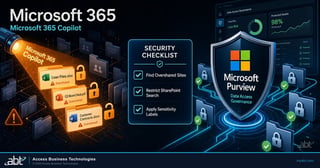
Microsoft 365 Copilot Oversharing for Financial Institutions
Copilot only surfaces what users can already open. How institutions find overshared files and tighten access before a Copilot rollout.
Read the guideAnswered
File sharing in external Teams chats, answered
Verify it yourself
Where the facts on this page come from
Every Microsoft date, default, command, and quotation above was read from the sources listed here on September 26, 2026.
- Microsoft 365 Message Center post MC1479514, Microsoft Teams: File sharing enabled by default in external (federated) chats, plan for change, major change, published September 25, 2026. Source for the change from Disabled to Enabled, the late October to late November 2026 rollout, the change applying to tenants that configured Disabled, reapplying the setting after rollout, the paperclip and automatic permissions, pasted links, the sender's OneDrive and External label, existing controls continuing to apply, the PowerShell commands, propagation time, the recommendations, and the compliance answer. Visible to administrators in your own Microsoft 365 admin center; a public archive copy is at mc.merill.net/message/MC1479514.
- Microsoft Learn, Share Files and Loop components in external (federated) chats, last updated March 12, 2026. Source for today's off-by-default setting, sharing with all participants, browser access for recipients, Microsoft Entra B2B guests created on demand, consent and multifactor prompts, Loop components, meeting access for non-federated users, and settings that are not overridden.
- Microsoft Learn, Set-CsTeamsFilesPolicy and Set-CsTeamsMessagingPolicy. Source for the FileSharingInChatsWithExternalUsers and AutoShareFilesInExternalChats parameters and their current default values.
- Microsoft Learn, Manage external meetings and chat with people and organizations using Microsoft identities, updated August 7, 2026. Source for the Allow all external domains default and allowed-domain lists.
- Microsoft Learn, External sharing overview and Manage sharing settings for SharePoint and OneDrive. Source for external sharing being on by default, the sharing levels, OneDrive never more permissive than SharePoint, domain limits of up to 5,000 domains, security-group limits, and guest expiration.
- Microsoft Learn, SharePoint and OneDrive integration with Microsoft Entra B2B. Source for the May 2026 integration for all tenants and guest accounts subject to Microsoft Entra ID policies.
- Microsoft Learn, Configure external collaboration settings for B2B in Microsoft Entra External ID. Source for the default that all users, including guests, can invite, the invite options, and domain collaboration restrictions.
- Microsoft 365 Message Center post MC1423114, Microsoft Teams: Stricter external access controls for federated chats, updated August 4, 2026. Source for the default federation check in external group chats, EnableMutualFederationForChatParticipants and its September 30, 2026 availability, and participant removal. Visible to administrators in your own Microsoft 365 admin center; a public archive copy is at mc.merill.net/message/MC1423114.
- Verizon, 2026 Data Breach Investigations Report news release, May 19, 2026. Source for breaches involving a third party accounting for 48% of all breaches and third-party involvement up 60%.
Your staff are about to get a paperclip in external chats.
Decide who can open what they attach.
Recording five settings and making one decision is a short piece of work before late October. Once it is settled, your five settings are recorded and your decision is written down.
Tell us a little about your environment and we will come back with what we would check first.
What should we look at? Optional.
Encrypted. Private.
Thank you. That is with us.
An ABT specialist will be in touch shortly. If you want your settings recorded before the late October rollout, say so in your reply and we will move it to the front.
