


Microsoft 365 companion apps · Windows 11
Your staff keep every file, meeting, and contact. The Microsoft 365 companion apps are out of security fixes as of September 18. Remove them by December 16.
Microsoft is retiring its three Microsoft 365 companion apps, Calendar, People, and Files, on December 16, 2026. From late October 2025 they installed automatically on eligible Windows 11 devices with Microsoft 365 Apps unless an administrator opted out. Microsoft says removing them affects no Microsoft 365 data. What changes is the software on the device: it receives no more fixes, and removing it is the administrator's job.
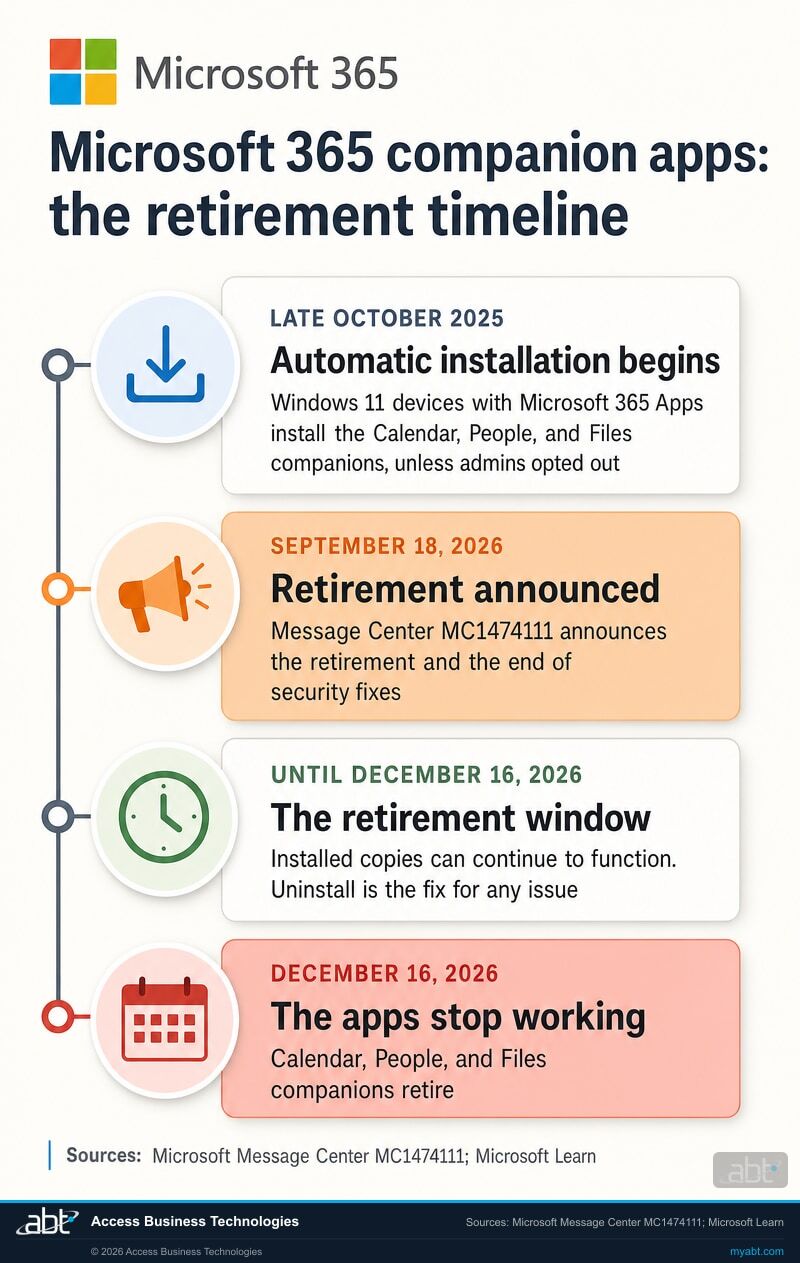
- September 18, 2026: Microsoft 365 Message Center post MC1474111 says Microsoft begins phasing out automatic installation, and that as of its publication, updates and fixes, including security fixes, have ended
- Until December 16, 2026: copies already installed can continue to function during the retirement window
- December 16, 2026: the companion apps stop working, and Microsoft asks administrators to have removed them from managed devices by then
The retirement
What is Microsoft retiring, and when?
Microsoft is retiring the Calendar, People, and Files companion apps, the small Microsoft 365 apps that open from the Windows 11 taskbar. As of Microsoft's retirement notice on September 18, 2026, security fixes had ended; installed copies can continue to function through the retirement window, and the apps stop working on December 16, 2026.
The decision in brief
- What
- The Calendar, People, and Files companion apps on Windows 11 devices with Microsoft 365 Apps.
- Status
- Microsoft's September 18, 2026 notice says "updates and fixes, including security fixes, are no longer being provided." The apps stop working on December 16, 2026.
- Staff
- Files, meetings, and contacts stay where they are. Outlook, Teams, and File Explorer cover the same lookups.
- Owner
- Your Microsoft 365 or endpoint administrator for managed devices; staff for personal and unmanaged ones.
- Action
- Stop the deployment sources, tell staff, uninstall with Intune, and keep a dated report, before December 16.
Automatic installation begins
Microsoft Learn says Windows 11 devices with Microsoft 365 Apps install the companion apps automatically as part of the update process, silently, unless an administrator opted out.
Retirement announced
Microsoft publishes its Learn retirement article and Message Center post MC1474111, which phases out automatic installation and says "updates and fixes, including security fixes, are no longer being provided."
The retirement window
Installed copies can continue to function. For any issue that needs a fix in this period, Microsoft's answer is to uninstall the apps.
The apps stop working
MC1474111 says the remaining companion apps stop functioning and their support ends, and advises administrators to remove them from devices by this date.
"Updates and fixes, including security fixes, are no longer being provided. Existing installations can continue to function during the retirement window."
Microsoft 365 Message Center post MC1474111, Retirement of Microsoft 365 Companion apps, plan for change, major change, published September 18, 2026Microsoft built the companion apps as quick doors into Microsoft 365 from the taskbar. People companion finds colleagues and the people they have worked with, shows an org chart, and lists who is on the current call. Files companion finds, previews, and shares Microsoft 365 files and recent documents. Calendar companion shows the Microsoft 365 calendar, upcoming events, and a one-click way to join meetings. Microsoft Learn says they were provided at no extra cost with eligible Microsoft 365 or Office 365 licenses, and they needed a license that includes both Exchange Online and SharePoint to work.
MC1474111 scopes the retirement plainly: it "affects worldwide enterprise customers that installed the apps." If your Windows 11 devices run Microsoft 365 Apps, check whether that includes your institution: the apps arrived by default unless someone opted out, whether or not anyone chose them.
One detail explains why a well-patched fleet can still carry them. Microsoft's overview of the companion apps says they "use a lightweight, self-contained update system, unlike Microsoft 365 apps that rely on Office update channels." So the companion apps sit outside your Microsoft 365 Apps update channel, and the updater they relied on now has no fixes to deliver.
Your staff
Where will your staff find people, files, and meetings instead?
In the Microsoft 365 apps they already use. Microsoft points people and calendar lookups to Outlook and Teams, and file lookups to the Windows Search Box, File Explorer, SharePoint, OneDrive, and the Office apps. Uninstalling removes the companion apps and their related local cache; underlying Microsoft 365 data remains.
| Companion app | What it did, per Microsoft | Where staff do it now | What happens to the data |
|---|---|---|---|
| People companion | Found people in the organization and others the user had communicated with, pinned close collaborators, opened org charts, and showed who was on the current call | Outlook and Teams | Contacts and profiles stay in Microsoft 365 services |
| Files companion | Found Microsoft 365 files by name or content, previewed and shared them, and listed recently used documents | Windows Search Box, File Explorer, SharePoint, OneDrive, Word, Excel, and PowerPoint | Files stay where they are stored, in OneDrive, SharePoint, or the device |
| Calendar companion | Showed the Microsoft 365 calendar and upcoming events, searched appointments, and joined meetings from the taskbar | Outlook and Teams | Calendar events stay in Microsoft 365 services |
| All three | Opened from the Windows 11 taskbar and were designed to launch when the device starts | Copilot, where your staff are licensed for it, which Microsoft lists as another way to find files, people, and calendar information | Uninstalling removes the name, email address, and contact photos the apps cached on the device |
Microsoft's own words on data: files, events, and contacts stay put.
MC1474111 says removing the companion apps "will not delete or impact any existing capabilities or Microsoft 365 data." The Learn retirement article adds that files, calendar events, and contacts "live in your Microsoft 365 services, not in the companion apps." For a user, the uninstall means one shortcut fewer on the taskbar, with the same information in Outlook, Teams, or File Explorer.
The practical step is a short note to staff before the apps disappear, so people know where the calendar went before they ask the help desk. Microsoft publishes a ready-made announcement for exactly this, covered in the steps below. The companion apps are one of several Microsoft retirements landing this fall: Microsoft Publisher's end of support and Office LTSC 2021's end of support each come with a clear date and follow-up work the institution owns.
Your devices
Are the companion apps on your institution's devices?
Microsoft installed them automatically on eligible Windows 11 devices with Microsoft 365 Apps from late October 2025, unless an administrator opted out. Microsoft lists three ways the apps arrive, and each one needs its own stop.
Microsoft 365 Apps updates installed them
This was the default. Microsoft says it is stopping these automatic installations, and its change leaves the Enable automatic installation of Microsoft 365 companion apps setting as it is in the Microsoft 365 Apps admin center. Microsoft recommends clearing it.
Intune or another deployment tool pushed them
A Required assignment on the Microsoft 365 companion apps entry in Intune reinstalls the apps after you remove them. An Available for enrolled devices assignment lets staff install them again from Company Portal.
Staff installed them directly
On a managed device, an Intune uninstall covers these too. Microsoft says the Intune uninstall removes the apps regardless of how they were originally installed. On an unmanaged device, the user removes them.
Check the inventory before you plan
In the Intune admin center, Apps, then Monitor, then Discovered apps lists apps detected on enrolled devices; Microsoft says it "acts as a software inventory for your tenant," and you can export it. On a single PC, look for Microsoft 365 companions under Settings, Apps, Installed apps.
"When you uninstall through Intune, it removes the companion apps from managed devices regardless of how they were originally installed."
Microsoft Learn, Microsoft 365 companion apps retirement, updated September 17, 2026Two behaviors made the apps easy to miss. Microsoft Learn says the automatic installation "happens silently in the background and does not interrupt users," and Microsoft Support says the apps were "designed to launch automatically when you start your device." Administrators could also pin them to the taskbar and set them as start-up apps through policy. The good news for cleanup: Microsoft says you do not need to remove pinning or automatic startup before you uninstall.
Read the inventory with its limits in mind. Microsoft documents Discovered apps refresh cycles from every 24 hours to every seven days depending on the app type, so a report run today reflects the last collection. On personally owned Windows devices, Intune lists only managed apps, which makes the report strongest on corporate devices and leaves personal ones to the staff note in step 6.
The setting Microsoft's change leaves in place
Microsoft's change stops automatic installations through Microsoft 365 Apps updates, and it leaves the admin center checkbox as it was. Microsoft's reason for clearing it anyway: "to avoid confusion when you later uninstall the companion apps." A setting that still reads Enable while Microsoft phases out the installations behind it is the kind of detail that confuses the next person who reviews the configuration.
Find out where the companion apps are installed today
ABT reviews your Intune inventory, the automatic installation setting, and any assignments that would reinstall the apps, then maps a removal plan your team can run, as part of a free security assessment.
Request the free assessmentThe removal
How do you remove the Microsoft 365 companion apps?
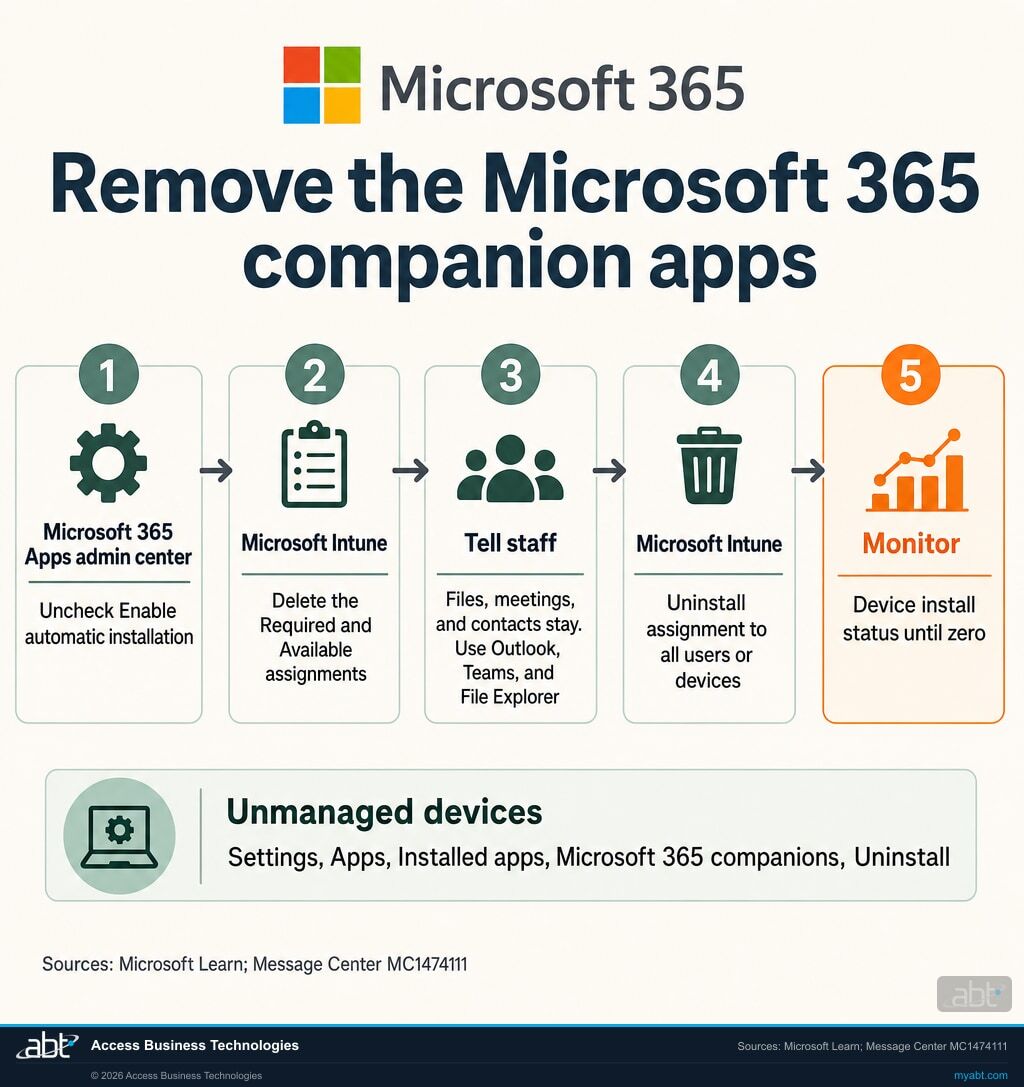
Stop every source that installs them, tell staff, uninstall from managed devices with Intune, cover the devices you do not manage, and watch the managed count reach zero. These seven steps follow Microsoft's own retirement guidance, in its order.
Clear the automatic installation setting
In the Microsoft 365 Apps admin center, go to Device Configuration, select the Modern App settings tab, choose Microsoft 365 companion apps, and uncheck Enable automatic installation of Microsoft 365 companion apps. Microsoft says it is stopping these installations on its side; clearing the box keeps your configuration in line with that change.
Delete the Intune Required and Available assignments
In the Intune admin center, go to Apps, then Windows, select the Microsoft 365 companion apps Win32 app entry, then Manage, then Properties. Under Assignments, select Edit. Deleting the Required assignment stops Intune-driven installation; deleting the Available for enrolled devices assignment stops Company Portal self-installs.
Microsoft notes that if the entry is absent, no such assignments exist and Intune is not installing the apps. If your institution uses another software-distribution tool, stop its deployment the same way.
Tell your staff before the apps disappear
Microsoft's retirement article includes an email template. It covers the three points staff need: the apps retire by December 16, 2026; their files, calendar events, and contacts stay where they are; and Outlook, Teams, the Windows Search Box, File Explorer, SharePoint, OneDrive, and the Office apps cover the same lookups. Send it before or at the time of uninstallation.
Pull the installers and the instructions
Remove deployment instructions and installer links from internal software catalogs, deployment documentation, and anywhere else admins or staff could get the apps. MC1474111 widens the list to "all internal documentation, guides, communications, and training materials."
Uninstall from every managed device with Intune
On the Microsoft 365 companion apps entry, create an Uninstall assignment and add all users or devices. If the entry is absent, Microsoft's retirement article points to its companion apps deployment guide for adding the Win32 app first. Confirm step 2 is done and any other deployment tool has stopped, because an active deployment source can reinstall the apps. Step 1 brings the admin center setting in line with Microsoft's own change, which is phasing out the automatic installations.
Expect a short tail: Microsoft says the apps might remain available until users close them or sign out, and some devices need a restart before the apps are fully removed.
Cover the devices you do not manage
Staff on unmanaged devices remove the apps themselves, in one of two ways: Windows Settings, then Apps, then Installed apps, search for Microsoft 365 companions, open the menu next to it, and select Uninstall; or type Calendar, People, or Files into the Windows Search Box, right-click the app, and select Uninstall. Uninstalling one companion app uninstalls all of them.
Monitor until the count reaches zero
On the same Intune entry, open Device install status or User install status under Monitor. Investigate failures and keep watching as offline devices reconnect. Microsoft defines done for your managed scope: Intune shows the apps removed from every targeted device or user, and every failure has been investigated. Keep a dated copy of that view; it is your evidence.
If the apps come back after you uninstall them
Microsoft's troubleshooting answer is a leftover Required assignment on the Microsoft 365 companion apps entry in Intune, which reinstalls them. Remove the Required assignment, then uninstall again. The same article covers problems during the retirement window: with updates and fixes stopped, uninstalling the companion apps is the fix.
The details
What should you tell staff, and what stays on the device?
Tell staff their files, meetings, and contacts stay where they are, and where the same lookups live now. On the device, the apps kept a small local cache of the user's name, email address, and contact photos, and uninstalling removes it.
Three things every staff note should say
- Your information stays. Files, calendar events, and contacts stay where they are, and the retirement deletes none of them.
- Here is where to look instead. Outlook and Teams for people and calendars; the Windows Search Box, File Explorer, SharePoint, and OneDrive for files; Copilot for any of the three, where licensed.
- Personal and unmanaged PCs are yours to clean up. Uninstall Microsoft 365 companions from Settings, Apps, Installed apps. One uninstall removes all three.
What the apps cached on the device
Microsoft Support's data storage notice says the companion apps store "certain enterprise data" on a managed Windows 11 computer:
- The user's name and email address, in a configuration file cached after sign-in and removed 15 minutes after the app exits.
- Profile images of contacts, in a cache removed when the apps go unused for more than an hour.
Uninstalling removes the related stored files. Microsoft names the folder for anyone deleting it by hand after closing the apps: %localappdata%\Packages\Microsoft.M365Companions_8wekyb3d8bbwe\LocalState\
The cache is short-lived by design, and removing the apps clears it. For an institution that documents where employee and contact information can sit on endpoints, the uninstall closes that line item at the same time as the software one.
Microsoft's overview adds context about what the People app could see: it "syncs with your organization's directory" and lets users connect with external contacts they have previously interacted with through Microsoft 365 services such as Teams or email. Files companion left sharing in each user's hands.
For credit unions, banks, and mortgage companies
Why does a retired taskbar app matter at a financial institution?
Because the productivity story is easy and the software story is specific: the apps your staff barely noticed are now code that receives no security fixes, on the devices that open member and borrower files.
Start with what your people keep. Loan officers still find the processor they need in Outlook and Teams, branch managers still join meetings from the calendar they already use, and every document is where it was yesterday. A short staff note and a quiet uninstall is the whole user-facing change. Handled on your schedule, the switch is quiet.
The security side is concrete. As of Microsoft's September 18, 2026 notice, updates and fixes, including security fixes, have ended for software that was designed to start with the device and sit on the taskbar. Microsoft's own troubleshooting guidance for the retirement window makes uninstalling the fix for any issue that needs one. Removing software on a schedule once its fixes end is the same discipline behind patch management at financial institutions.
Governance closes the loop. A retirement like this produces four records worth keeping: the Discovered apps export from before the cleanup, a note of the installation sources you shut off, a dated copy of the Intune install status showing zero for your managed devices, and the updated software inventory and staff documentation Microsoft asks you to change. Together they answer the question an examiner or auditor asks about any vendor retirement, which is what the institution did and when. Our guide to FFIEC IT examination readiness covers where records like these fit.
Fold it into the fall retirement plan
The companion apps retirement lands in the same season as the October 2026 Microsoft support deadlines, Office LTSC 2021's end of support, and Publisher's retirement. One inventory pass can start all of them: the Intune Discovered apps export shows what is installed, and each product then follows its own path. Institutions that run that pass once this fall carry a repeatable method into the next Microsoft lifecycle date.
Who owns the record when Microsoft switches the apps off?
Your institution does. The Short from our channel makes the point about a different Microsoft event, a cloud-side flaw Microsoft fixed upstream: "Microsoft handled it is not your examiner's answer. It is Microsoft's answer. Your examiner cares about what you did."
The same reading applies here. On December 16, 2026 Microsoft turns the companion apps off. The inventory that shows where they were, the removal your team ran, the Intune report that shows zero for your managed devices, and the exceptions you track belong to you. Together they make the retirement a closed item in your records.
How ABT helps
A free security assessment
ABT is a Tier 1 Microsoft Cloud Solution Provider serving more than 750 financial institutions, and the companion apps check is part of this assessment.
We find the companion apps Intune can see across your devices and map a removal plan your team can run before December 16
The assessment is free and ends with written findings you keep. We work through your settings and reports with an administrator on your team, and your team decides what changes in the tenant and who makes each change.
- The footprint. Where Intune reports the companion apps installed today, from the Discovered apps inventory.
- The install sources. The state of the automatic installation setting in the Microsoft 365 Apps admin center, and any Intune Required or Available assignment that would reinstall the apps.
- The removal plan. The Uninstall assignment, the staff note, and the monitoring view, in the order Microsoft documents.
- The unmanaged gap. Windows devices that Microsoft Entra ID knows about and Intune does not manage: a starting list for where staff need to remove the apps themselves.
- The record. A dated summary of what the assessment found and the removal plan, ready for your change-management file.
ABT also operates M365 Guardian, its managed security service for credit unions, banks, and mortgage companies. Learn about M365 Guardian
Related reading
If this opened a bigger question
The companion apps are one retirement in a crowded fall. These three cover the patching discipline behind it, the examination view, and how attackers pose as IT support, useful context before staff hear about changes to their devices.

6 Zero-Days in One Month: Why Financial Institutions Can't DIY Patch Management
Why keeping every device patched is a managed discipline at a financial institution, and what it takes.
Read the guide
FFIEC IT Examination Readiness for Financial Institutions
What examiners check at community banks, credit unions, and mortgage companies, and how Microsoft 365 controls line up.
Read the guide
Microsoft Teams Helpdesk Impersonation, Stage by Stage
How attackers posing as IT support work through Microsoft Teams, from the first chat to data leaving the institution.
Read the guideAnswered
Microsoft 365 companion apps retirement, answered
Verify it yourself
Where the facts on this page come from
Every Microsoft date, setting, step, and quotation above was read from the sources listed here on September 28, 2026.
- Microsoft 365 Message Center post MC1474111, Retirement of Microsoft 365 Companion apps, plan for change, major change, published September 18, 2026. Source for the December 16, 2026 retirement, the phase-out of automatic installation, the end of updates and security fixes, the retirement window, the scope of worldwide enterprise customers, the administrator and unmanaged-device actions, and the statement that removing the apps affects no Microsoft 365 data. Visible to administrators in your own Microsoft 365 admin center; a public archive copy is at mc.merill.net/message/MC1474111.
- Microsoft Learn, Microsoft 365 companion apps retirement, updated September 17, 2026. Source for the three installation paths, the Microsoft 365 Apps admin center setting, the Intune assignment and uninstall steps, monitoring, the troubleshooting guidance, the staff email template, the user uninstall steps, and the alternatives Microsoft recommends.
- Microsoft Learn, Overview of Microsoft 365 companion apps, updated September 17, 2026. Source for what each app did, automatic installation from late October 2025, silent installation, start-up and pinning options, the license requirement, the self-contained update system, and the privacy notes.
- Microsoft Support, Get started with Microsoft 365 companions. Source for automatic launch at start-up, the data storage notice, the cache retention times, and the local folder.
- Microsoft Learn, Intune Discovered Apps. Source for the Discovered apps report as a software inventory, its location and export, its refresh cycles, and the managed-apps-only rule for personally owned devices.
The companion apps are out of security fixes as of Microsoft's September 18 notice.
Remove them from your devices by December 16.
The work starts with the copies Intune can see and the sources that could reinstall them. When that is done, you know where the apps are, which sources could put them back, and your removal plan is written down.
Tell us a little about your environment and we will come back with what we would check first.
What should we look at? Optional.
Encrypted. Private.
Thank you. That is with us.
An ABT specialist will be in touch shortly. If the companion apps came back after an uninstall, say so in your reply and we will start there.
