


Your email moved. Your calendars did not.
An IMAP migration is the path most teams end up on, because it is what the admin center wizard offers and what almost any source system supports. Microsoft states plainly that it moves mail and nothing else. Calendars, contacts, and tasks stay behind. There is a better path for most organizations, and knowing which one you are on before cutover weekend is the difference between a quiet Monday and forty people rebuilding their calendars by hand.
- Every migration limit on this page is sourced to Microsoft's own documentation, and linked so you can check it
- Free migration with a 12-month Microsoft 365 licensing commitment through ABT
- Run by a Tier 1 Microsoft Cloud Solution Provider that manages Microsoft 365 for 750+ financial institutions
Does an IMAP migration move calendars and contacts?
No. An IMAP migration moves the contents of mail folders and nothing else. Microsoft says it in one sentence on its own documentation, and it has said it consistently for years.
"You can only migrate items in a user's inbox or other mail folders. This type of migration doesn't migrate contacts, calendar items, or tasks."
Microsoft Learn, What you need to know about migrating your IMAP mailboxes to Microsoft 365The Gmail-specific procedure repeats it even more directly: "IMAP migration will only migrate emails, not calendar, and contact information." Two separate Microsoft pages, the same limitation, no ambiguity.
This surprises people because IMAP migration is the path of least resistance. Microsoft publishes several migration methods and which ones are available to you depends on your source system, but IMAP is the one in the Microsoft 365 admin center setup wizard. It is what most small hosting providers support. It works against almost any source system that speaks IMAP, which is why it gets recommended for moves off Gmail, Rackspace, cPanel mail, Zimbra, IONOS, Bluehost, and a long tail of regional hosts. It is genuinely useful. It is also, by design, a mail-only tool.
The part that catches teams out is what Microsoft recommends you do about it. The final step of Microsoft's Gmail migration procedure is headed Step 8: Users migrate their calendar and contacts, and it points each user at the consumer-grade Import contacts to Outlook and Import Google Calendar to Outlook help articles. The gap is not an oversight. It is documented design, and the documented fix is manual and per-person.
For a five-person office that is an afternoon of mild annoyance. For a forty-person lender in the middle of a rate lock, it is forty people who cannot see next week on cutover Monday, and a loan officer who has lost the phone number of the appraiser she needs before noon.
Here is the useful part, and it is the reason this page exists rather than just a warning: the limitation belongs to the method, not to Microsoft 365. Microsoft publishes a second migration path that does carry calendars and contacts. Most organizations moving from Google Workspace should be on it, and many end up on the IMAP path only because it is the one the wizard offered first.
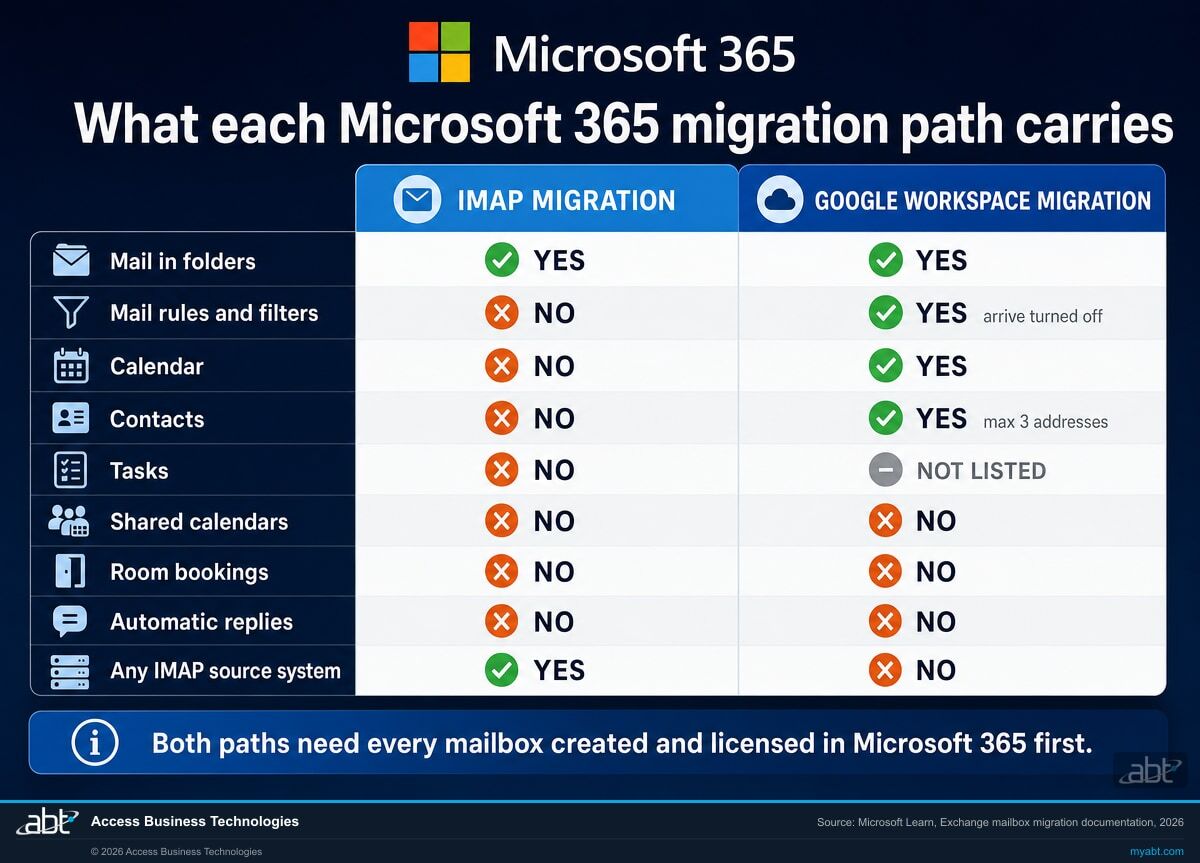
What moves, and what does not, by migration path
Both columns describe Microsoft's documented behavior, sourced to the pages linked at the bottom of this page. Neither column is a verdict on which tool is better. They do different jobs, and the right one depends entirely on what you are moving from.
| IMAP migration | Google Workspace migration | |
|---|---|---|
| Mail in inbox and folders | Yes, up to 500,000 items per mailbox, newest first | Yes |
| Mail rules and filters | No | Yes, but migrated rules arrive turned off by default and need checking in Outlook before anyone enables them |
| Calendar | No | Yes, with exceptions below |
| Contacts | No | Yes, up to three email addresses per contact |
| Tasks | No | Not listed among the supported content types. Microsoft names mail and rules, calendar, and contacts; tasks are absent from that list rather than explicitly excluded |
| Shared calendars | No | No. Microsoft states shared calendars and event colors are not migrated |
| Room and resource bookings | No | No. Microsoft states room bookings are not migrated |
| Vacation and automatic reply settings | No | No, listed explicitly as a limitation |
| Contact tags, custom tags, contact URLs | No | No, listed explicitly as a limitation |
| Source systems supported | Any source that speaks IMAP, which is most of them | Google Workspace only |
| Available in GCC High or DoD | Not restricted by this limitation | No. Microsoft states the Google Workspace migration is not currently available for those clouds |
Both paths require that every user already exists in Microsoft 365 with a licence that includes Exchange Online before the migration starts. Mailboxes have to be there to receive the mail.
Find out which path your migration is actually on
Tell us what you are moving from and how many mailboxes are involved. We will tell you which documented path fits, what it will and will not carry, and what has to be sorted out before anyone touches a DNS record.
Six documented limits that decide how your migration goes
None of these are secrets. All six are published by Microsoft. They cause trouble because they are read after the migration rather than before it. Each one is tagged with the path it applies to, because they are not all universal.
500,000 items, newest first
IMAP path
An IMAP migration carries at most 500,000 items from a mailbox, and Microsoft notes the order: newest to oldest. That ordering is what decides which mail is left behind on a mailbox that exceeds the cap, and it is the opposite of what most people assume when they picture a queue.
Microsoft Learn, IMAP mailbox migration35 MB per message, and only one path documents raising it
Both paths, different answers
Microsoft's IMAP page states flatly that the biggest email you can migrate is 35 MB, and gives no procedure for lifting it. The Google Workspace migration page reads differently: the ceiling follows your transport configuration, 35 MB is the default, and Microsoft links to its own guidance for raising it toward 150 MB. Treat 35 MB as a hard number on the IMAP path and as a starting point on the Google Workspace path. Whichever you are on, settle it before the batch runs, because raising the limit later does nothing for messages already skipped.
Microsoft Learn: IMAP mailbox migration, and Perform a Google Workspace migrationRetention policies make the report lie
Both paths
Microsoft is blunt about this one. Its migration tool cannot see messaging records management or archival policies, so anything those policies move or delete gets flagged as missing. In Microsoft's words that produces "perceived data loss rather than actual data loss, which makes it much harder to identify actual data loss during any content verification checks." Microsoft recommends disabling those policies before migrating and reinstating them after. For a regulated institution that recommendation is an input, not an instruction: whether any retention control, hold, or journaling rule can be paused at all is a decision for whoever owns records retention, and it needs authorization, scope, and a documented restore. What is not optional is deciding it before the migration rather than discovering it afterwards.
Microsoft Learn, stated on two separate migration pagesSource credentials are the step that slips
IMAP path
An IMAP migration batch needs a working credential for every single source mailbox, supplied as a row in a CSV. Microsoft’s procedure walks through collecting them, and assumes you will reset passwords if you do not already hold them. How you actually obtain those credentials depends on the source platform’s current authentication policy, which changes independently of Microsoft’s documentation, so confirm it against your source provider before you size the project. On a large move this is the step that quietly adds a week if nobody plans it.
Microsoft Learn, Migrate Google Workspace mailboxes. Confirm current source-side authentication with your source providerBatches sync once a day, and Google sets the pace
Google Workspace source
A running migration batch synchronises once every twenty four hours, so mail that arrives at the old system after the last sync is not in Microsoft 365 yet. Microsoft also notes that a batch stuck on Syncing is often hitting Google's own bandwidth and sync limits, and that calendar and contact throughput depends entirely on the quota on your Google service account. Your migration runs at the source system's speed, not yours.
Microsoft Learn, Migrate Google Workspace mailboxesGovernment clouds do not get the better path
Google Workspace path
Microsoft states that the Google Workspace migration is not currently available for Office 365 US Government GCC High or DoD. If you operate in one of those clouds, the calendar and contact question has to be answered a different way, and it needs answering during planning rather than during cutover.
Microsoft Learn, Perform a Google Workspace migrationThe order that keeps a migration boring
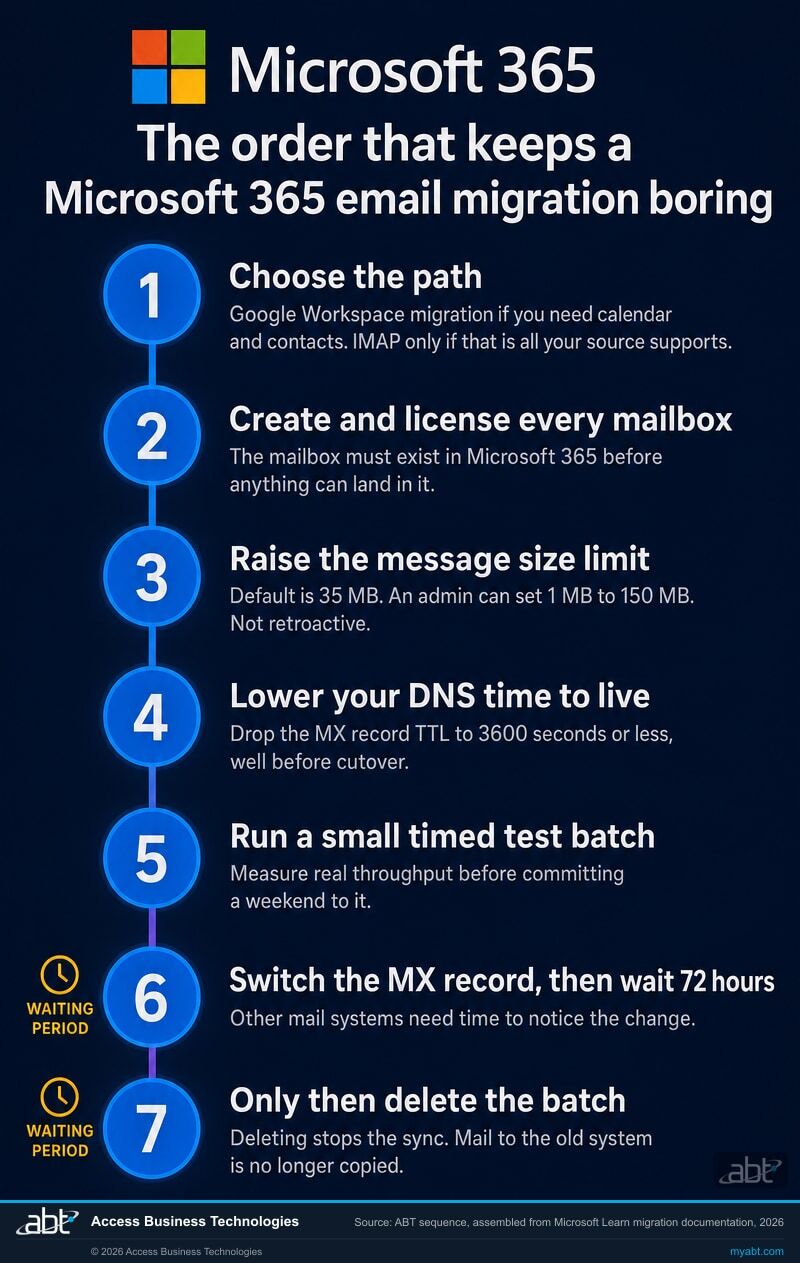
Most migration pain is a sequencing problem rather than a technology problem. This is ABT's recommended sequence, assembled from the individual steps Microsoft documents, including the two waiting periods that people compress and then regret. Microsoft publishes the steps; the ordering and the emphasis below are ours.
Decide the path before you touch anything
Moving off Google Workspace and you need calendars and contacts? That is the Google Workspace migration, not the IMAP wizard. Moving off a small host that only speaks IMAP? Then the calendar and contact question needs a separate plan now, while it is cheap. This one decision determines everything downstream.
Create and license the users first
Microsoft is explicit that the mailboxes have to exist in Microsoft 365 before a migration can put anything in them, and each user needs a licence that includes Exchange Online. The Google Workspace path says the same thing in different words: users must be provisioned as mail-enabled users outside the migration process. No mailbox, no migration.
Settle the message size question, and decide the retention one deliberately
Find out what your ceiling actually is, because it differs by path: Microsoft states a flat 35 MB for IMAP, while the Google Workspace path treats 35 MB as a configurable default. Whatever you settle on has to be settled before the first batch runs, because it cannot be applied retroactively to mail that has already been skipped. The retention question is different and heavier. Microsoft recommends disabling retention and archival policies during a migration, but for a regulated institution that is not a routine toggle: it needs a named approver, a documented scope, a compensating control while it is off, evidence that it was restored, and a record of the whole thing. Decide it deliberately, in writing, with whoever owns records retention. Never quietly.
Lower your DNS time to live before the cutover, not during it
Microsoft recommends dropping the MX record time to live to 3,600 seconds or less well ahead of the move, so other mail systems refresh their view of your email location quickly when you switch. Skip this and mail keeps arriving at the old system for longer than anyone expects.
Run a small test batch and time it
Microsoft's own guidance is to migrate a handful of mailboxes first, using batches of comparable size at comparable times of day, and compare the run times. That is how you find out what your real throughput is before you commit a weekend to it. Batches can hold up to 50,000 mailboxes in a file of up to 10 MB, so the constraint is almost never the file.
Switch the MX record, then wait 72 hours
Microsoft notes it can take up to 72 hours for your customers' and partners' mail systems to recognise the change. During that window the batch keeps synchronising, which is exactly what you want, because anything still landing at the old address is still being copied across.
Only then delete the batch
Deleting the migration batch is what stops the synchronisation, and Microsoft is clear about the consequence: after you delete it, mail sent to the old mailboxes is no longer copied to Microsoft 365. Confirm every user is genuinely working in the new system first. This is the last irreversible step, and it is the one people rush.
We run the migration, and you know what moves before it moves.
ABT is a Tier 1 Microsoft Cloud Solution Provider. We manage Microsoft 365 tenants for more than 750 financial institutions, and we host the Azure environments that sit behind the applications those institutions run every day. Migrations are ordinary work here rather than a project we schedule around.
- Path selection first. We look at what you are actually moving from and tell you which documented path fits, what it carries, and what it will not.
- The gaps get a plan, not a shrug. Calendars, contacts, shared calendars, room bookings, and automatic replies each get a named approach before cutover instead of a support ticket after it.
- Licensing right-sized on the way in. A migration is the one moment when every seat is being looked at anyway, so it is the cheapest possible time to stop paying for the ones nobody uses.
- Tenant hardening included. Multifactor authentication, Microsoft Entra ID policies, and an Exchange Online Protection review, done while we are already in the tenant.
- Retention reinstated deliberately. Anything we pause for the migration goes back on with a written record of what changed and when, so your next examination has an answer.
The migration is free with a 12-month Microsoft 365 licensing commitment through ABT. Credit unions, banks, and mortgage companies are our core practice, and the same process runs for organizations outside financial services. To be plain about scope: some content is carried by neither of the two documented Microsoft-native paths, shared calendars, room bookings, and automatic reply settings among them. Where that content genuinely matters to you, we will tell you what it would take to move it and what it would cost, rather than quietly leaving it out. What we commit to is that you will have the list before cutover, with a named approach for each item on it, rather than a support ticket afterwards. If your source system will not support a clean path, we will say so before you commit rather than after.
ABT also operates M365 Guardian, its managed security service for credit unions, banks, and mortgage companies.
Where the migration facts come from
The load-bearing technical claims above are drawn from these four Microsoft Learn pages, quoted where the wording matters and summarized where it does not. ABT's own claims, our Tier 1 CSP status, the institutions we serve, and the terms of the offer, come from ABT and are marked as such.
- What you need to know about migrating your IMAP mailboxes to Microsoft 365 or Office 365 gives the mail-only limitation, the 500,000 item cap, the 35 MB message ceiling, the retention warning, and the requirement that mailboxes exist first.
- Migrate Google Workspace mailboxes to Microsoft 365 or Office 365 gives the per-mailbox credential requirement, the 50,000 mailbox batch file limit, the once-a-day sync, the 72 hour MX propagation window, the consequence of deleting a batch, and the manual calendar and contact step.
- Perform a Google Workspace migration to Microsoft 365 or Office 365 gives the supported content types, the full limitations table, the rules-arrive-disabled behavior, the Google-side throughput dependency, the GCC High and DoD exclusion, and the 35 MB default message ceiling with its link to the guidance for raising it.
- Exchange Online limits gives the wider context for message size limits in Exchange Online, including which ceilings apply to which migration method and the fact that an organization message size limit is administrator-configurable at all.
Related reading
Tenant-to-Tenant Migration for Credit Union and Bank Mergers
When the move is Microsoft 365 to Microsoft 365 rather than IMAP to Microsoft 365, the rules change completely. Here is what that path looks like.

Microsoft 365 Data Retention for Financial Institutions
Any policy you pause during a migration, with the records owner's authorization, is one an examiner will ask about. What good looks like on the other side.

Cloud Migration: The Integration Challenges Nobody Warns You About
Mail is rarely the hard part. The integrations hanging off it usually are, and they surface on cutover weekend.
Migration questions, answered from the documentation
Move more
than just the mail.
Tell us what you are moving from and how many mailboxes are involved. Our team will come back with the documented path that fits, exactly what it carries and what it leaves behind, and the order the work has to happen in.
