

In This Article
- What Huntress found in two incidents
- Why removing the remote tool is not the fix
- The question to ask: which management agents belong on our PCs
- Look for unapproved agents with Defender for Endpoint
- What Intune enrollment restrictions cover
- Controls from our earlier guides still apply
- If you find an unapproved management agent
- Questions for your board and examiners
- How ABT helps
- Frequently Asked Questions
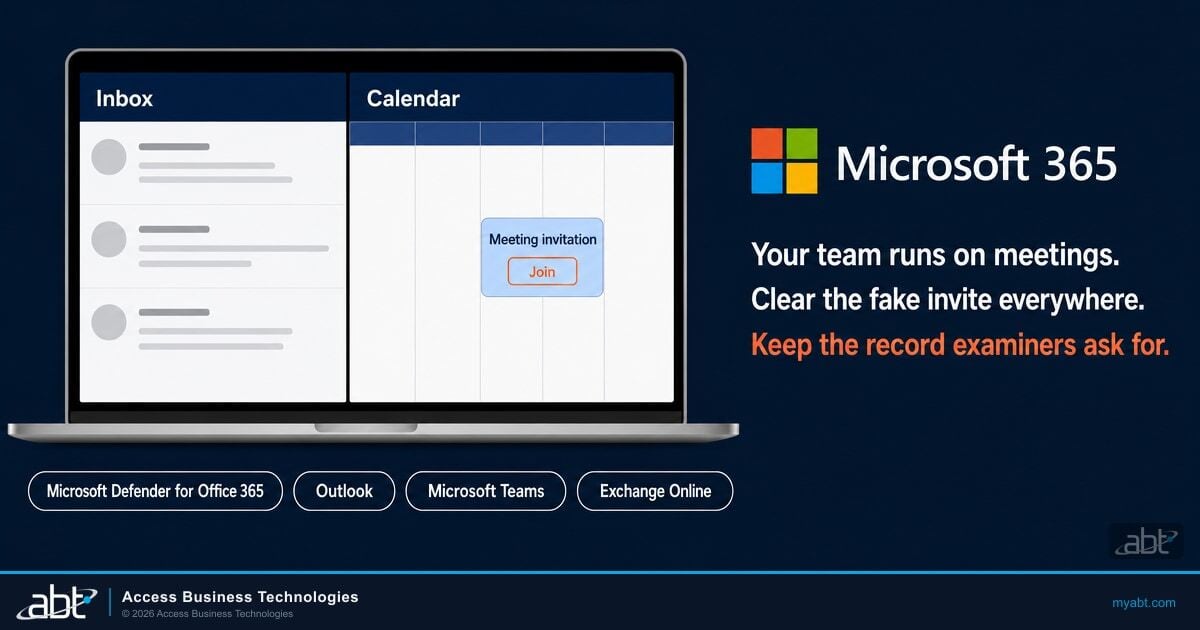
A receptionist opens a calendar link in an email titled "Re: Tax Planning and Preparation Inquiry." About a minute later, the receptionist's PC shows a registry key consistent with enrollment in a mobile device management (MDM) service your institution never signed up for. About 35 minutes after the agent installs, attackers use the MDM to run a remote access tool on the PC with SYSTEM-level permissions.
The security firm Huntress published that account on October 28, 2026, along with another incident that began with a fake DocuSign installer. In both, attackers got a Hexnode or Rippling management agent onto a victim's PC and then installed remote access software. In the Rippling incident, Huntress says the PC appears to have enrolled in an attacker-controlled tenant and the attackers used the MDM to stage the remote tool. A management agent is a legitimate program that installs software on request, so it makes persistence that looks like administration.
Both products did what they are built to do, and Huntress describes no vulnerability in either one. The question for an institution is which management agents are allowed to exist on its PCs, and who notices when another one appears.
ABT, a Tier-1 Microsoft Cloud Solution Provider serving 750+ financial institutions, wrote this guide for IT leaders at community banks, credit unions, and mortgage companies that run Microsoft 365 and Intune. Huntress's recommendations are general. ABT translated them into the Microsoft 365, Intune and Defender for Endpoint checks below, using the documentation Microsoft publishes on Microsoft Learn.
What Huntress found in two incidents
Huntress cites several recent incidents and details two. Both end the same way: a legitimate management agent the attacker put on the PC, a remote access tool beside it, and a PC that is not clean until both are gone.
In the first incident, proposal-themed phishing emails led to an MSI file disguised as a DocuSign installer. The file installed Hexnode MDM components, and ScreenConnect followed shortly after, connecting to a relay the attacker ran. A managed service provider removed the remote management tool. Several hours later ScreenConnect was installed again and reconnected to the same relay. The threat actor had already installed a Hexnode client on that PC, and removing the remote tool did little to deter the actor, who staged and installed it again. Huntress isolated the endpoint after the second alert.
The second incident began with a link. Here is the sequence Huntress reconstructed:
The email, titled "Re: Tax Planning and Preparation Inquiry," links to a fake Microsoft Teams "Calendar" page.
About a minute after the click, a Rippling enrollment registry key appears, consistent with registration in the MDM platform. The page redirected to a PHP file that appears to have helped facilitate enrollment into an attacker-controlled Rippling tenant.
The agent installs as C:\Rippling\daemon.exe with SYSTEM-level permissions. Huntress traced the activity to the online Rippling management agent, which suggests the attacker created an account in advance.
ScreenConnect is staged and run as SYSTEM through the MDM, and connects to a relay the attacker controls.
The lures in both incidents were ordinary business email: a proposal invitation and a tax-planning inquiry. A fake meeting page is the same bait our guide to calendar invite phishing walks through, and the person who opened it was a receptionist.
Why removing the remote tool is not the fix
The first incident shows the trap. The provider did the obvious thing and removed the remote tool, and it returned hours later. Huntress writes that removing it did little to deter the actor, who simply staged and installed the tool again. The actor had already put a Hexnode client on the PC, and a management agent exists to install software on request, so it is the thing to find.
The management client stays on the PC, and a management client exists to install software. In Huntress's first incident the tool came back several hours after it was removed.
Isolate the PC and unenroll it from the unauthorized MDM tenant before cleaning up what was pushed. Isolation and unenrollment are the first two steps on Huntress's response list.
Huntress's list ends with a rebuild when the device's integrity is in doubt. A management agent that ran as SYSTEM is a good reason to ask that question about any PC where one turns up.
The question to ask: which management agents belong on our PCs
Huntress's advice is to maintain an inventory of authorized MDM products, tenants, agents and RMM instances, and to treat any unexpected enrollment, management agent or RMM instance as a security event. Huntress also asks readers to treat MDM enrollment as "security-sensitive activity." A few terms keep the conversation precise:
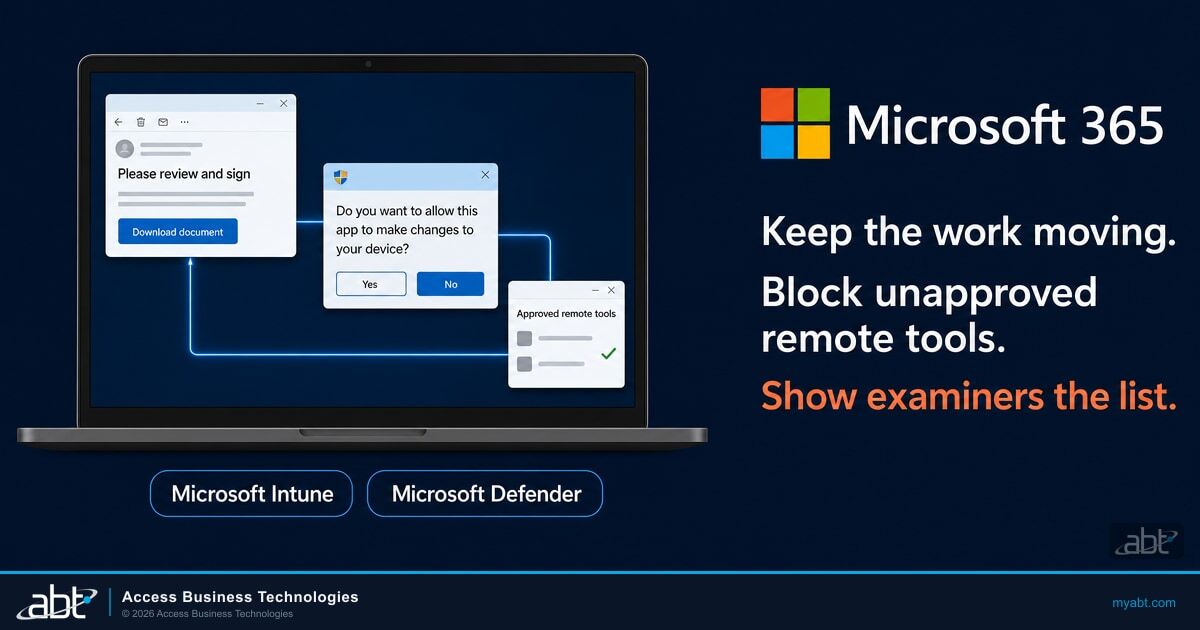
For most institutions the list is short: Intune, plus the remote support tool your IT team or managed provider uses, plus anything else you can name and defend. Our guide to RMM phishing covers writing that list and blocking the tools outside it. The new part here is the agent behind the tool: a PC can carry a management agent that is not Intune, and the list should name that possibility.
Look for unapproved agents with Defender for Endpoint
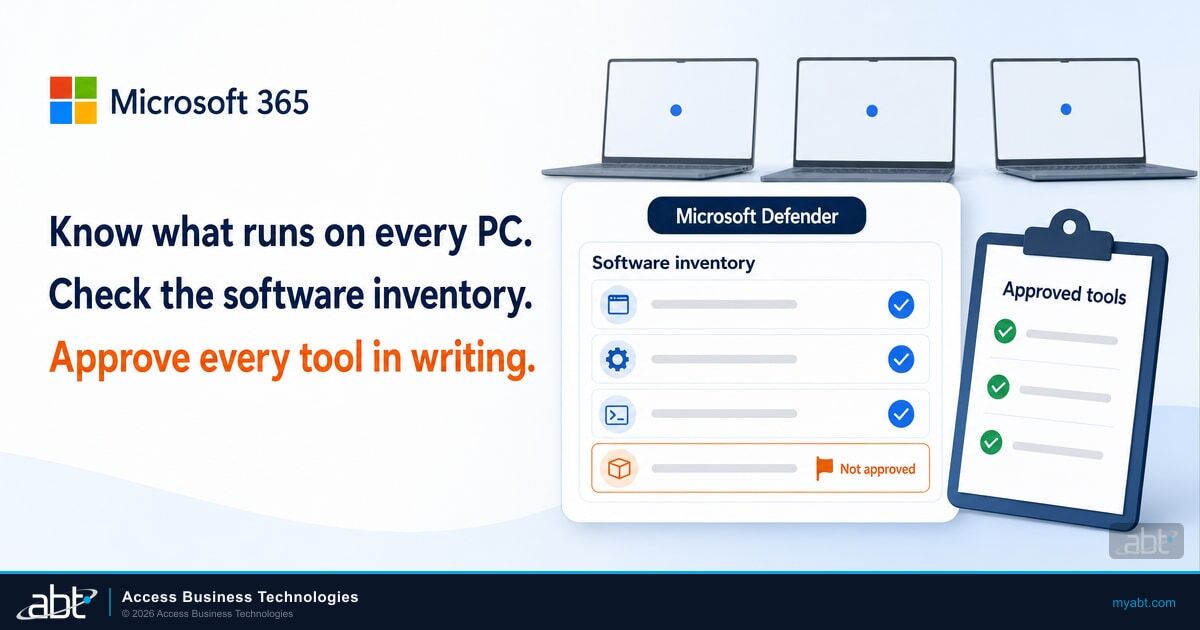
If your PCs are onboarded to Microsoft Defender for Business, which Microsoft 365 Business Premium includes, or to Defender for Endpoint Plan 2, the core vulnerability management capabilities include an inventory of installed software. The Defender Vulnerability Management software inventory lists the software installed in your organization with its vendor name, and Microsoft says the data updates every three to four hours, with no way to force a sync. Our guide to Defender Vulnerability Management covers the rest of that tool.
Two settings matter for this search:
- Clear the CPE filter. The inventory page defaults to software that has an official Common Platform Enumeration (CPE) name. Clearing the "CPE Available" filter shows all installed software, including products without a CPE, which the default view hides.
- Open the device page. A device's software entry shows software evidence: where Defender found the software, in the registry, on disk, or both.
For a sweep across every onboarded PC, use advanced hunting, which Microsoft includes with Defender for Endpoint Plan 2. Microsoft states that advanced hunting capabilities are not included in Defender for Business, so a Business Premium tenant on Defender for Business works from the portal inventory above. The DeviceTvmSoftwareInventory table holds the same inventory, with the vendor, software name and version for each device. This query lists any device with a product from either management platform, or the remote tool Huntress saw:
DeviceTvmSoftwareInventory
| where SoftwareVendor has_any ("hexnode", "rippling")
    or SoftwareName has_any ("hexnode", "rippling", "screenconnect")
| project DeviceName, SoftwareVendor, SoftwareName, SoftwareVersion
Huntress also published file paths from the Rippling incident: the agent at C:\Rippling\daemon.exe and the agent's installer, an MSI file under C:\Windows\System32\config\systemprofile\AppData\Local\mdm\. The DeviceProcessEvents table records process launches with the file name, folder path and command line:
DeviceProcessEvents
| where Timestamp > ago(7d)
| where FolderPath startswith @"C:\Rippling\"
| project Timestamp, DeviceName, FileName, FolderPath, ProcessCommandLine, InitiatingProcessFileName
Treat a hit as a lead and an empty result as a partial answer
Both queries read Defender for Endpoint data, so they return nothing at all on a PC that is not onboarded, and advanced hunting itself needs Defender for Endpoint Plan 2. Defender only lists software it recognizes, and the inventory refreshes every three to four hours. A match on a tool you approved is a note for the list. A match on one you did not approve is a security event to investigate. A clean result tells you what Defender saw on the PCs it covers.
The same sweep works for any vendor name your team does not recognize. Sort the software inventory by vendor, take it to the approved-tools list, and ask who installed each management or remote-access product on the PCs where it appears.

Which of your PCs sit outside Intune today?
ABT's free Security Assessment connects read-only and reviews Intune enrollment status, compliance policies, operating system patch levels and encryption settings across your managed and unmanaged devices. You get a written report and a 90-day roadmap.
What Intune enrollment restrictions cover
Intune has enrollment restrictions, so it is natural to ask whether they stop a PC from enrolling somewhere else. Microsoft describes two kinds: device platform restrictions and device limit restrictions. Both decide which devices can enroll in Intune. With personally owned Windows devices blocked, Intune checks that each new Windows enrollment request is authorized for corporate enrollment, such as through Windows Autopilot or a bulk provisioning package, and blocks the rest.
| Control | The question it answers | What it leaves open |
|---|---|---|
| Intune enrollment restrictions | Which devices may enroll in your Intune tenant | Whether a PC also carries another management agent |
| Intune device compliance | Whether an enrolled PC meets your baseline, such as encryption and patch level | Which management agents are installed beyond Intune |
| Defender software inventory | Which products Defender found installed, by vendor and device | Anything Defender does not recognize or a PC it does not see |
| Approved-tools list with an App Control policy | Which programs your PCs are allowed to run | The exceptions you allow, and the upkeep of the list |
Microsoft's own note on enrollment restrictions says they are "not security features" and a "best-effort barrier for non-malicious users." They keep staff from enrolling the wrong device in your Intune tenant, which is useful. Whether another management agent is on a PC is a different question, and the software inventory answers it.
Controls from our earlier guides still apply
Three earlier ABT guides cover related controls on the PC itself:
- Standard user accounts and an approved-tools list. Our RMM phishing guide covers standard users, Defender indicators and attack surface reduction rules, and an approved-tools list.
- Application allowlisting. App Control for Business asks whether you approved a program, script or installer before a PC runs it.
- Local admin rights. Intune Endpoint Privilege Management covers retiring local administrator rights on staff PCs, including the separate step of taking away the rights users already hold.
Huntress's second recommendation is for people: train users to verify unexpected meeting, document-signing and proposal-review requests. At an institution, include the staff whose job is to open mail from strangers: front desk, loan processing, marketing, accounts payable.
If you find an unapproved management agent
Work the order Huntress lists, with two additions of our own: removing the remote access tool, and looking for the same agent on every other PC.
Take it off the network so the agent cannot take new instructions.
Remove the PC from the unauthorized MDM tenant before anything else is cleaned up.
Take out the remote access tool and shut off any accounts the attacker created.
Revoke active sessions and tokens and reset affected credentials.
Rebuild the PC if its integrity is in doubt, then run the inventory query on every other PC.
If your IT work is handled by a managed service provider, give them this order before an incident, and ask who reads the Defender alerts overnight. The provider in Huntress's first case removed the remote tool, which was a reasonable step that left the Hexnode client in place.
Questions for your board and examiners
These are the questions worth putting on a security committee agenda.
- Which management and remote-access tools are approved on our PCs, and who approves additions?
- How often do we sweep the software inventory for management agents nobody approved, and who reads our Defender alerts overnight?
- Is every PC onboarded to Microsoft Defender, whether Defender for Business or Defender for Endpoint, so the software inventory sees it?
- Which PCs sit outside Intune today, and who owns bringing them in?
- What do front-desk and loan-processing staff do with a surprise meeting invite or e-signature request?

How ABT helps
The approved-tools list and the inventory query are yours to own. The M365 Guardian plans answer the overnight question in the list above: who watches the Defender alerts, and who responds. Guardian Contain provides round-the-clock detection across identity, endpoint, email and cloud apps on Microsoft Defender XDR signals, plus pre-authorized automated containment that revokes a compromised session in seconds at any hour. Respond has ABT engineers work covered incidents during business hours, and Resolve puts a person on incidents at any hour, including after hours.
Every Guardian plan includes a hardened Microsoft 365 tenant with Zero Trust identity and device baselines, Conditional Access and Intune device compliance. Guardian's device compliance work covers Intune compliance policies, BitLocker encryption, operating system security baselines and Conditional Access gates.
The free ABT Security Assessment addresses the fourth board question, which devices sit outside Intune today. Its Device Compliance area reviews Intune enrollment status, compliance policies, operating system patch levels and encryption settings across managed and unmanaged devices. It connects read-only, most assessments finish within two weeks, and it ends with a written report and a 90-day roadmap.
Start with a free written look at your devices
The free ABT Security Assessment gives you:
- A view of which devices are enrolled in Intune and which sit outside it
- Compliance policy, patch level and encryption status across those devices
- A written report with a 90-day roadmap
Frequently Asked Questions
It is an attack in which social engineering gets a victim's PC enrolled in a mobile device management service, or gets a management agent installed on it, and the attacker then uses that management path to deploy software, such as a remote access tool. Huntress documented two incidents on October 28, 2026, one using Hexnode and one using Rippling.
Huntress describes no vulnerability in either product. Both are legitimate management platforms, and Huntress places the cause on social engineering: users were tricked into installing the software. The exposure is a PC accepting a management agent nobody at the institution approved.
Intune enrollment restrictions decide which devices can enroll in your Intune tenant, and Microsoft says they are not security features and are a best-effort barrier for non-malicious users. Whether a PC also carries another management agent is a separate question, which the Defender for Endpoint software inventory helps answer.
Start with the software inventory in Microsoft Defender Vulnerability Management, with the CPE filter cleared, and compare each management or remote-access product to your approved-tools list. For a sweep across all PCs, query the DeviceTvmSoftwareInventory table in advanced hunting. The portal inventory is part of the core vulnerability management in Defender for Business and Defender for Endpoint Plan 2, while advanced hunting needs Defender for Endpoint Plan 2. A clean result shows only what Defender recognized.
Isolate the PC and unenroll it from the unauthorized MDM tenant before removing the remote access tool, because a management agent can be used to install the tool again. Then remove what was pushed, disable any accounts the attacker created, revoke active sessions and tokens, reset affected credentials, and rebuild the PC if its integrity is in doubt. Check every other PC for the same agent.
Huntress describes no vulnerability in either management product and places the cause on social engineering that got people to install the software. The controls that fit are an approved-tools list, an inventory that shows what is installed, application allowlisting, and staff who treat a surprise meeting invite or e-signature request with suspicion.