


Microsoft Intune · Security baselines · Windows 11, version 26H2
The Windows 11 26H2 security baseline is in Intune. Your baseline profiles stay on the version they were built on until you move them.
Microsoft released the Windows 11, version 26H2 security baseline in Microsoft Intune the week of October 5, 2026. It brings new settings, updated default values and revised guidance, including Administrator protection, which asks an administrator to approve each task that needs admin rights. Microsoft is plain about the part that matters most for your records: existing security baseline profiles don't move to the new version on their own. A credit union, bank, or mortgage company that tells an examiner "we run the Microsoft security baseline" is running whichever version each profile was created on, and the update path Intune offers creates a copy that reaches no devices until someone assigns it. This page covers what changed, what to test, and how to move each profile on a schedule your help desk can support.
- Four changes since 25H2: a print driver setting, TLS 1.2 and 1.3 only, and two User Account Control settings that turn on Administrator protection
- Update Version builds a side-by-side 26H2 copy with blank assignments and scope tags, and the original profile keeps deploying
- Microsoft says Administrator protection became the default with the October 2026 security update for organizations on the 24H2, 25H2 and 26H2 baselines
The change
What is new in the Windows 11 26H2 security baseline?
Microsoft announced the baseline on its Security Baselines blog on September 29, 2026, added it to Intune the week of October 5, and covered the Administrator protection default in the Windows message center on October 13. Here is the change in one place.
The change in brief
- What
- A new Windows security baseline for Windows 11, version 26H2, available in Intune and in the Microsoft Security Compliance Toolkit for Group Policy. Microsoft lists Version 26H2 above 25H2, 24H2 and 23H2 in Intune.
- Changes
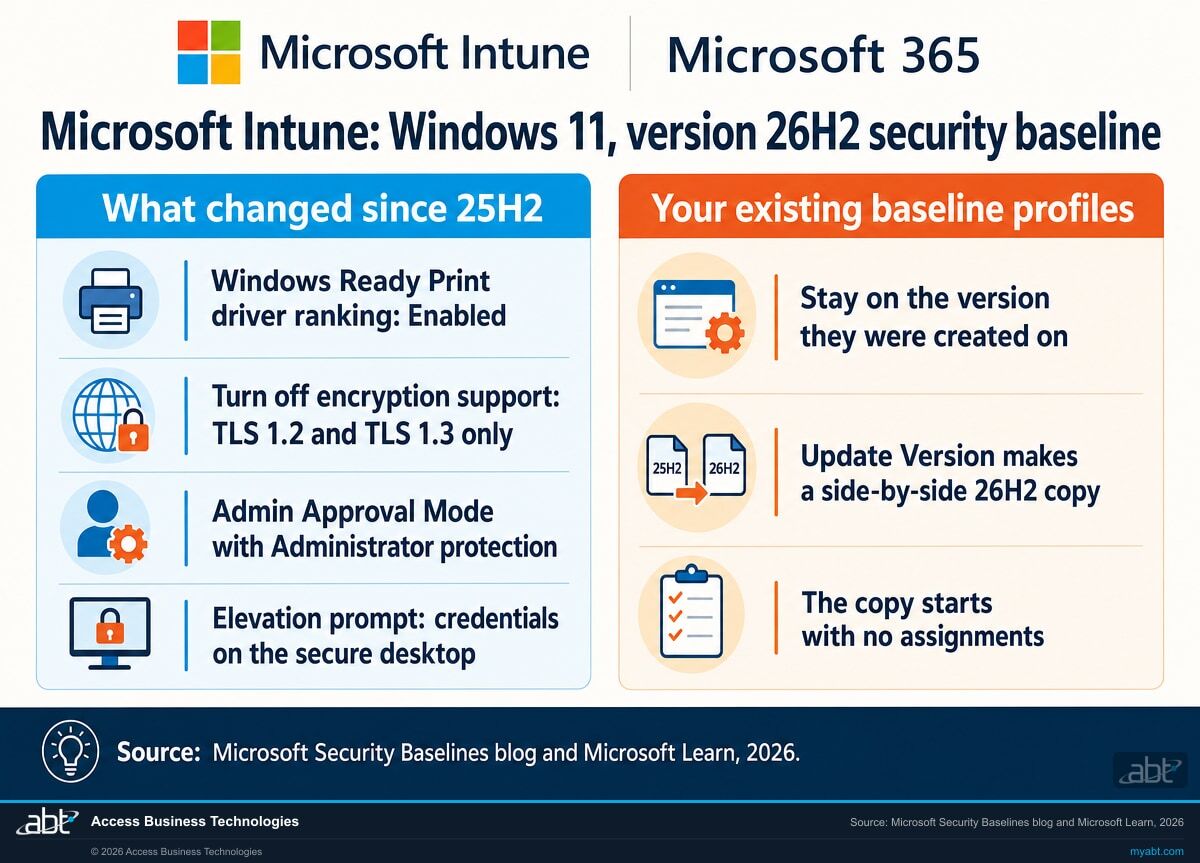
- Windows Ready Print driver ranking enabled; TLS 1.2 and 1.3 only; Admin Approval Mode with Administrator protection; credential prompt on the secure desktop for elevation.
- Profiles
- Existing baseline profiles stay on their version. You create a new 26H2 profile or update an existing one, and an updated copy starts with no assignments.
- Default
- Microsoft says Administrator protection becomes enabled by default with the October 2026 Windows security update for organizations that use the 24H2, 25H2 or 26H2 baselines.
- Later
- The Configure NetBIOS settings policy is planned for a future baseline update, once it reaches supported Windows versions.
The baseline package is published
Microsoft posts the Windows 11, version 26H2 security baseline for download from the Security Compliance Toolkit, for Group Policy environments.
The baseline arrives in Intune
Intune lists Version 26H2 under Security Baseline for Windows 10 and later, as the latest Windows baseline available in Intune.
Administrator protection becomes the default
For organizations using the 24H2, 25H2 or 26H2 baselines, Microsoft says Administrator protection is enabled by default with the October update.
Your profiles move when you move them
Each profile keeps its version until an administrator runs Update Version and reassigns the new copy. Microsoft recommends doing it as soon as it is practical.
"Existing security baseline profiles don't automatically update to the new version. To use the Windows 11, version 26H2 security baseline, Intune admins can create a new baseline profile or update an existing profile to the latest version."
Microsoft Intune, What's new, week of October 5, 2026A security baseline is Microsoft's recommended set of Windows security settings, published as a group so an institution can apply them together and adjust the few that its applications need. In Intune, each baseline profile is pinned to the baseline version it was created on. When Microsoft publishes a new version, your existing profiles keep deploying the old values, which is safe and predictable, and it also means the move to the new defaults is a decision your team makes and schedules.
Most of what changed in 26H2 is quiet. The print setting only affects printers that support IPP and are installed by USB or network discovery. The TLS setting removes TLS 1.1. The change your staff will feel is Administrator protection: an administrator who installs software or changes a system setting now approves it with Windows Hello or credentials, and the task runs under a temporary admin token that Windows discards when the task ends. Microsoft describes it as a way to stop malware from silently gaining admin rights. It also changes a daily habit for IT staff, so it deserves a pilot group and a note to the help desk before it reaches every branch.
Setting by setting
Which 26H2 baseline settings should you test first?
We put Microsoft's change summary next to the test each setting deserves. The values come from Microsoft; the test column is our recommendation for a financial institution's branch and back-office devices.
| Setting | 26H2 baseline value | What to test |
|---|---|---|
| User Account Control: Configure type of Admin Approval Mode | Admin Approval Mode with Administrator protection | Every elevation your IT staff and line-of-business installers perform, on a pilot group, after the required restart; and Microsoft's list of devices where it should stay off, including LAPS-managed devices |
| User Account Control: Behavior of the elevation prompt for administrators running with Administrator protection | Prompt for credentials on the secure desktop | That each administrator can complete the Windows Hello or credential prompt, and how remote support sessions handle it |
| Turn off encryption support (Internet Control Panel, Advanced Page) | TLS 1.2 and TLS 1.3 (was TLS 1.1 and TLS 1.2) | Older vendor applications, appliances and internal sites that may still depend on TLS 1.1 |
| Printers: Configure Windows Ready Print driver ranking | Enabled (new setting) | Branch printers installed by USB or network discovery whose vendor driver features your staff use |
| Configure NetBIOS settings | Planned for a later baseline update | Nothing yet; watch Intune What's new for the addition |
| Your existing baseline profiles | Stay on their version | Which version each profile uses, and which customizations it carries |
| An updated 26H2 copy | Starts with blank assignments and scope tags | That assignments move from the old profile to the new one, without both applying to the same devices |
Check what your devices already have before you change anything
Microsoft's Windows message center says Administrator protection becomes enabled by default with the October 2026 security update for organizations that use the 24H2, 25H2 or 26H2 baselines. That means some of your devices may already prompt administrators differently from last summer, even before you touch a 26H2 profile. Sign in to a baseline-managed test device as an administrator, run an elevated task, and see which prompt appears. Then read the two User Account Control settings in the profile assigned to it. Starting from what is true on the device keeps the plan grounded, and it tells the help desk whether calls about new prompts are coming or already here. Then read Microsoft's list of devices where Administrator protection should stay off: Windows 365 Cloud PCs, Azure Virtual Desktop session hosts, devices that require Hyper-V, devices running apps that share files across profiles, and devices managed with Local Administrator Password Solution (LAPS).
See which version every baseline profile runs, test the 26H2 defaults on a pilot group, and move assignments on a plan your help desk knows about
ABT works with your team to list each Windows baseline profile and its customizations, compare them with the 26H2 defaults, plan the Administrator protection, TLS and printer tests, and map the assignment move, as part of a free security assessment.
Request the free assessmentThe work
How do you move Intune security baseline profiles to Windows 11 26H2?
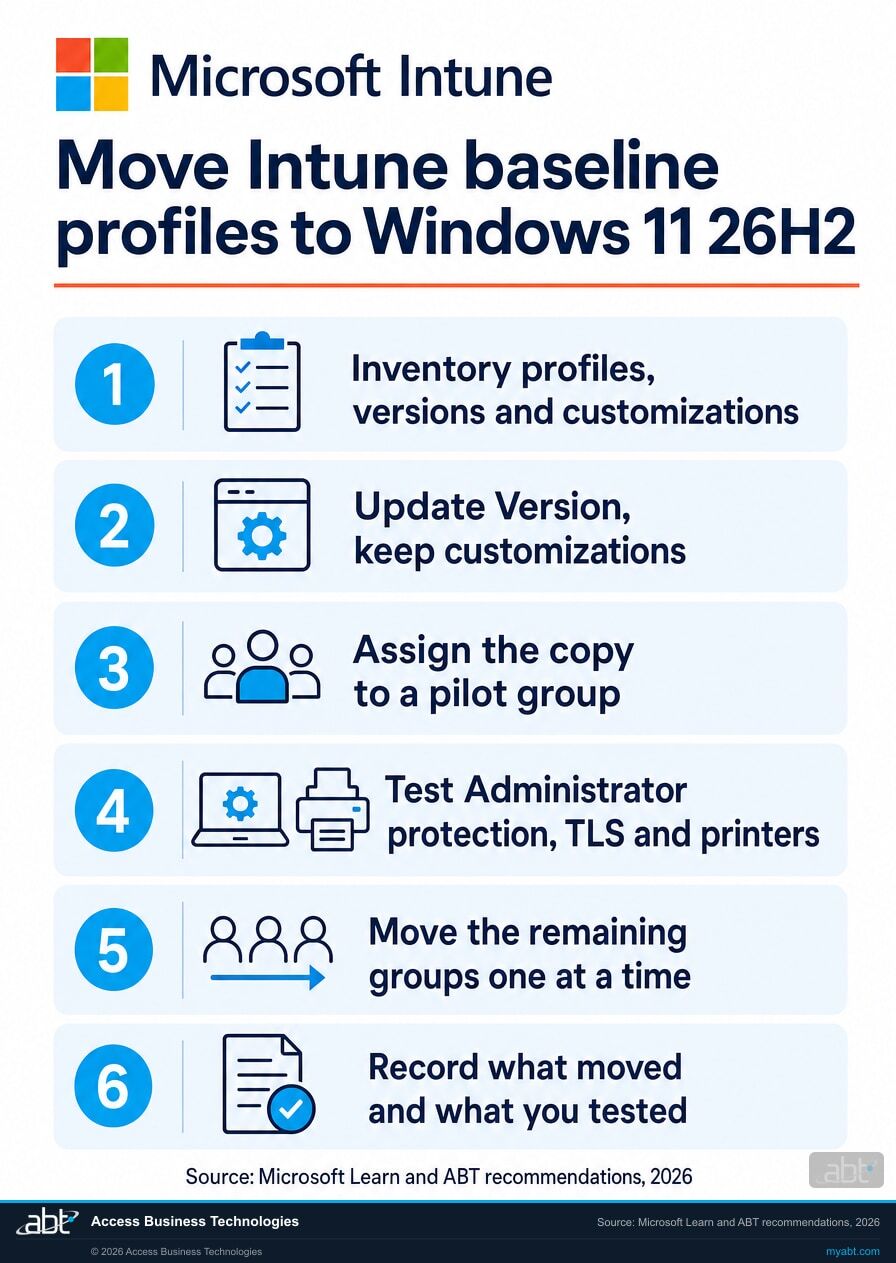
Six steps, built on Microsoft's update guidance. Step 1 is the inventory. Steps 2 and 3 create the 26H2 copy and give it to a pilot group. Step 4 is the testing, step 5 is the rollout, and step 6 is the record.
List every baseline profile, its version and its customizations
Write down each Windows baseline profile, the baseline version it uses, the groups it is assigned to, and every setting your team changed from the default. If some devices take their baseline from Group Policy instead, list those GPOs too; the 26H2 package for Group Policy comes from the Security Compliance Toolkit. Profiles created before May 2023 use an older format, and Microsoft documents a separate path for them, so flag any you find.
Note which device groups are Windows 365 Cloud PCs, Azure Virtual Desktop session hosts, devices that need Hyper-V, devices running apps that access shared files across profiles, or devices managed with Local Administrator Password Solution (LAPS). Microsoft lists each of those as a case where Administrator protection should stay off, and step 2 depends on knowing where they are.
Create the 26H2 copy and keep your customizations
Select the profile, choose Update Version, and pick Accept baseline changes but keep my existing setting customizations. Intune creates a new profile on the latest version, side by side with the original, and you name it. Review the configuration settings tab before you save: this is where your customizations and the new 26H2 defaults meet, and where you decide whether each older customization still makes sense.
For device groups on Microsoft's stay-off list, plan a separate profile, or a separate value, with Configure type of Admin Approval Mode set to Legacy Admin Approval Mode, which is how Microsoft says to turn Administrator protection off. Intune can only update a profile to the most recently released version, and the new copy starts with blank scope tags and assignments.
Assign the copy to a pilot group only
Assign the 26H2 copy to a small pilot group that includes IT staff, a branch and a back-office team, and exclude that group from the original profile's assignment so only one baseline version applies to each pilot device. Microsoft advises removing an assignment from the original whenever you add it to the updated profile, to avoid conflicts. Restore the scope tags the original carried.
Restart the pilot devices after the profile applies; Microsoft says Administrator protection takes effect only after a restart.
Test Administrator protection, TLS and printers on the pilot
Administrator protection. It keeps administrators on a standard token and asks them to approve each administrative task, and the 26H2 baseline sets the prompt to credentials on the secure desktop. Ask IT staff and anyone who installs line-of-business software to work a normal week. Microsoft notes that some applications expecting admin rights to always be present may need updates, and that application settings stay separate between the regular and elevated profiles. By default, domain users in the local Administrators group sign in remotely without elevated rights when Administrator protection is on, so include your remote support and administration tools; Microsoft provides two User Account Control policies to change that behavior.
Windows logs approvals and denials as events 15031 and 15032 under the Microsoft-Windows-LUA provider. Microsoft's sample command starts a trace:
logman start AdminProtectionTrace -p {93c05d69-51a3-485e-877f-1806a8731346} -ets
TLS. The baseline's Turn off encryption support setting allows only TLS 1.2 and TLS 1.3. Run your core banking, loan origination and document imaging clients, vendor portals and internal sites, and note anything that fails to connect. Microsoft describes TLS 1.1 as obsolete, so a failure here usually points to a vendor conversation worth having.
Printers. Windows Ready Print driver ranking prefers the inbox IPP class driver when an IPP-capable printer is installed by USB or network discovery. Printers installed directly by TCP/IP, and printers without IPP, behave as before. Test the printers whose vendor driver features your staff rely on.
Move the remaining groups in stages
When the pilot checks out, add the next group to the 26H2 profile and remove it from the original, and keep going one group at a time. Tell the help desk which groups move on which day, and what the new elevation prompt looks like. If a group runs into trouble, you can assign it back to the original profile, which keeps its settings unchanged, while you fix the cause; restart a device in that group and confirm the setting it now shows.
When the original profile has no assignments left, you can delete it. Keeping it unassigned for a short time gives you a known reference while the last groups settle.
Record what moved, what you kept and what you tested
Write a dated record: each profile's old and new version, the customizations you carried forward and why, the device groups where Administrator protection stays off and the reason, the pilot test results, any exceptions with an owner, and the date each group moved. Note that the NetBIOS setting will arrive in a later baseline update, so the next review has a reason to happen.
Who notices
Who in the institution will notice the 26H2 baseline?
Each card is a group that sees a change when a 26H2 profile reaches its devices, and what to tell them first.
IT staff and administrators
Every install or system change asks for Windows Hello or credentials. Give them a pilot week and a short note on what the prompt looks like.
The help desk
Calls about new prompts and blocked installers come first. Share the rollout schedule by group so tickets can be matched to a move.
Vendor application owners
Owners of core, lending and imaging clients confirm their software connects with TLS 1.2 or 1.3 and installs cleanly under Administrator protection.
Branch operations
Printers installed by USB or network discovery may move to the inbox class driver. Check the printers tellers and loan staff use every day.
Remote support
By default, domain users in the local Administrators group sign in remotely without elevated rights when Administrator protection is on. Test your support tool on the pilot before the wide rollout.
Compliance and audit
Policies that cite "the Microsoft security baseline" should name the version. Update the wording when the last group moves.
For financial institutions
Why does the 26H2 baseline matter at a credit union, bank, or mortgage company?
Because the baseline is the setting list behind "our devices are hardened," and the version is part of that sentence.
Your staff keep working through the change. A pilot shows whether the loan officer's printer, the teller's imaging client and the IT team's installers work under the new settings before a wider group moves, which lowers the chance of a disruption, and the help desk knows what the new prompt looks like before the first call. Staging by group turns a tenant-wide setting change into a series of small, reversible steps.
Admin rights get harder to steal. Malware that lands on an administrator's machine has long tried to borrow that administrator's rights without asking. Administrator protection requires an explicit, authenticated approval for every elevation and throws the admin token away afterwards, and the TLS change retires a protocol version Microsoft calls obsolete. Our page on Windows 11 24H2 end of support covers the version timeline these baselines sit on, and our page on Windows 10 Extended Security Updates year two covers the devices still on Windows 10.
A record you can show. Examiners and cyber insurers ask how you configure and harden endpoints and how you manage changes to those settings. A dated record of each profile's version, the customizations you kept, the tests you ran and the date each group moved answers both questions with your own evidence, written before anyone asked.
A patch fixes one flaw. A baseline limits what the next one can reach.
Our Short covers an Excel vulnerability Microsoft patched, where a malicious spreadsheet could misuse Copilot's agent mode to send data to an attacker's server.
Patches close flaws one at a time, after they are found. A baseline sets the defaults that decide how far the next flaw gets, such as whether code running as an administrator can take admin rights without asking. Keeping both current is the steady work behind a hardened device.
How ABT helps
A free security assessment
ABT is a Tier 1 Microsoft Cloud Solution Provider serving more than 750 financial institutions. It manages Microsoft 365 tenants and hosts Azure environments for credit unions, banks, and mortgage companies. Device hardening is a common place for those reviews to start, and this assessment covers the baseline profiles that set it.
With your team, we map every Windows baseline profile, plan the 26H2 tests, and lay out the assignment move
The assessment is free and ends with written findings you keep. We work through it with an administrator on your team, and your team decides what changes and who makes each change.
- The profile list. Each Windows baseline profile, its version, its groups and its customizations, plus any Group Policy baselines.
- The customization review. Which of your changes still make sense against the 26H2 defaults, and which to drop.
- The device check. How Administrator protection behaves today on a baseline-managed test device.
- The test plan. Administrator protection, TLS and printer tests for a pilot group, with the applications to include and the device groups where Administrator protection stays off.
- The move plan. Group-by-group assignment changes, with help desk notes and a rollback.
- The record. A dated summary for your change log and information security program.
ABT also operates M365 Guardian, its managed security service for credit unions, banks, and mortgage companies. Learn about M365 Guardian
Related reading
If this opened a bigger question
A baseline change tends to raise the questions around it: who should hold admin rights at all, how device compliance gates access, and what this month's patches fix.
Intune Endpoint Privilege Management: Keep Work Moving and Retire Local Admin Rights
How banks, credit unions, and lenders use Intune Endpoint Privilege Management to approve installs and retire local admin rights.
Read the article
Lock It Down: Risk-Based Device Compliance with Microsoft Intune
How financial institutions use Intune device compliance to enforce encryption, block unmanaged endpoints, and prepare for examinations.
Read the article
October 2026 Patch Tuesday: What Banks, Credit Unions, and Lenders Patch First
The October 2026 security update for banks, credit unions, and lenders: the exploited Windows flaw, the Outlook bugs, and what to patch first.
Read the articleAnswered
The Windows 11 26H2 security baseline, answered
Verify it yourself
Where the facts on this page come from
Every Microsoft date, setting name, value and quotation above comes from the sources listed here.
- Microsoft Intune, What's new in Microsoft Intune, week of October 5, 2026, "Intune security baseline for Windows 11, version 26H2." Source for the release in Intune, the new settings and defaults, the statement that existing profiles don't update automatically, the review advice, and the NetBIOS note.
- Microsoft Security Baselines blog, Windows 11, version 26H2 security baseline, September 29, 2026, updated October 27, 2026. Source for the four changes since 25H2, the print driver ranking behavior, the TLS change and Microsoft's description of TLS 1.1, and the v2 package for Administrator protection.
- Microsoft Windows message center, Manage Administrator protection within Windows 11 security baseline, October 13, 2026. Source for the Administrator protection default with the October 2026 security update, the 26H2, 25H2 and 24H2 baselines, and the preview and general availability timeline.
- Microsoft Learn, Configure security baseline policies in Microsoft Intune. Source for Update Version, keeping or discarding customizations, the side-by-side copy, blank scope tags and assignments, the advice on removing assignments from the original, the May 2023 format note, and Microsoft's recommendation to update as soon as practical.
- Microsoft Learn, Security baselines overview for Intune. Source for the list of Windows baseline versions in Intune.
- Microsoft Learn, Administrator protection. Source for how Administrator protection works, Windows Hello integrated authentication, the restart requirement, how to turn it off, the Windows 365 and Azure Virtual Desktop scope, the list of cases where it should not be enabled (including LAPS-managed devices), the remote logon default and its two policies, the application note, events 15031 and 15032, and the sample trace command.
- The test column, the six steps and their order, and the list of groups who notice are ABT's recommendations; everything else on this list is Microsoft's own.
Your Intune baseline profiles stay on the version they were built on.
Move them to Windows 11 26H2 on a tested, recorded plan.
The work starts with a list of every Windows baseline profile and the version it uses. The assessment ends with a written plan you keep: which profiles move and in what order, which customizations to carry, the pilot tests for Administrator protection, TLS and printers, and the device groups where Administrator protection stays off.
Tell us a little about your environment and we will come back with what we would check first.
What should we look at? Optional.
Encrypted. Private.
Thank you. That is with us.
An ABT specialist will be in touch shortly. If a particular profile, application or device group is what you are thinking about, say so in your reply and we will start there.
