

In This Article

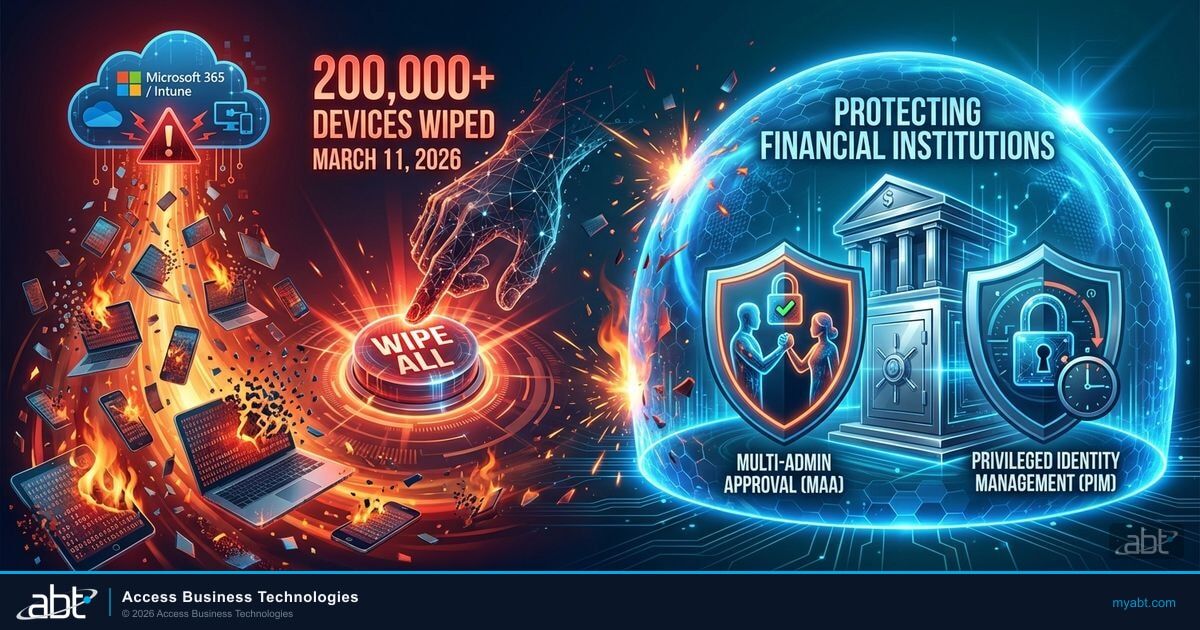
On March 11, 2026, an Iranian-linked group called Handala used Stryker Corporation's own Microsoft Intune environment to factory-reset more than 200,000 devices across 79 countries. No malware. No zero-day exploit. No ransomware. The attackers gained admin credentials to Stryker's Microsoft 365 tenant and pressed the wipe button that Intune provides to every IT administrator.
The distinction matters for every mortgage company, credit union, and community bank running Microsoft 365. This wasn't a Microsoft platform breach. Intune performed exactly the way it was designed to perform. The failure was entirely in how Stryker managed privileged access to their own tenant. And the admin controls Stryker lacked are the same ones many financial institutions haven't configured yet.
Five specific steps lock down the admin plane that Stryker left exposed, ordered from fastest to implement to most involved. Step 1 takes 15 minutes. Every step uses built-in Microsoft features included in licensing most financial institutions already own. Here's what happened, why your organization is at risk, and what your IT team can start configuring today.
Short on time? The only MFA that actually stops this attack.
The Stryker-class wipe used valid credentials, not malware. The Short names the one phishing-resistant MFA pattern (FIDO2 / platform passkeys + Conditional Access + session revocation) that would have shut it down. The long walkthrough below covers the five Microsoft 365 controls that shorten the recovery clock from days to hours.
Watch the 60-second versionWhat Really Happened at Stryker
The Stryker attack followed a two-team playbook that Iran's Ministry of Intelligence runs repeatedly. First, a cyber espionage group called MuddyWater (also known as Seedworm) spent weeks quietly breaking into the network using backdoor tools called Dindoor and Fakeset. Their job was access, not destruction. Once they had a foothold, they handed the keys to a second group whose only job is to destroy. That destruction team operates publicly under the name Handala and is tracked by cybersecurity firm Check Point as Void Manticore.
The attackers compromised Global Administrator credentials in Stryker's Entra ID environment. With those credentials, they had full control over Intune device management. At approximately 3:30 AM EDT, they issued mass remote wipe commands across the entire managed device fleet.
Attack Timeline: March 11, 2026
At 3:30 AM EDT, attackers used legitimate Intune admin credentials to issue factory-reset commands to 200,000+ devices across 79 countries. Stryker's Cork, Ireland headquarters sent 5,000 employees home. Michigan headquarters declared a building emergency. Stock dropped 3-4.5% within hours. Handala claimed to have exfiltrated 50TB of data, though this claim has not been independently verified.
No encryption. No ransom demand. No malware to detect. The attackers used Intune's built-in remote wipe feature, which exists so IT administrators can securely retire lost or stolen devices. It's a legitimate tool, and Intune executed the commands exactly as designed.
Microsoft Intune worked exactly as designed. The failure was in how Stryker managed admin credentials, MFA, and privileged access.

How the attackers obtained those credentials hasn't been publicly confirmed. Iranian threat groups like MuddyWater routinely use adversary-in-the-middle (AiTM) phishing that intercepts authenticated sessions in real time, bypassing standard MFA entirely. Proofpoint documented active campaigns by TA450, MuddyWater's designation, targeting US organizations as recently as March 8. Whether that's how Stryker's credentials were compromised remains unconfirmed, but the lesson holds: standard MFA alone doesn't protect admin accounts from determined nation-state operators. Phishing-resistant MFA methods like FIDO2 security keys or Windows Hello for Business bind credentials to the legitimate domain so they can't be intercepted. And Privileged Identity Management (PIM) ensures that even if credentials are stolen, they don't carry standing admin privileges to exploit.
How Exposed Are Your Admin Accounts?
ABT evaluates Intune admin controls, PIM configuration, and Conditional Access policies for 750+ financial institutions.
Why Mortgage Companies, Banks, and Credit Unions Should Pay Attention
The Stryker attack targeted a medical device manufacturer, not a financial institution. But the attack method works against any organization running Microsoft 365 with Intune device management. And the threat actors behind it are actively targeting the financial sector.
Active Threat: Iranian Groups Targeting US Critical Infrastructure
A joint NSA, CISA, FBI, and DC3 cybersecurity advisory issued in June 2025 warns that Iranian state-sponsored cyber actors are actively targeting US critical infrastructure, including financial services. MuddyWater, the MOIS group that pre-positioned access for the Stryker attackers, was documented by Proofpoint (as TA450) targeting US organizations as recently as March 8, 2026.
Mortgage companies are particularly exposed. Most run Microsoft 365 Business Premium or E3 with Intune managing every loan officer's laptop. Their IT teams tend to be lean, sometimes just two or three people for a company processing hundreds of millions in monthly volume. The admin controls that would have stopped the Stryker attack often go unconfigured because they require deliberate setup beyond the defaults.
Credit unions face similar risks. Member data protection under NCUA oversight depends on securing the same Entra ID admin plane that Stryker left exposed. A compromised Global Admin at a credit union doesn't just wipe devices. It can access SharePoint document libraries with member records, modify Conditional Access policies to create persistent backdoors, and disable security alerts that would otherwise catch the intrusion.
Community banks operating under FFIEC examination requirements need to demonstrate that privileged access controls are active, documented, and monitored. An examiner asking "Who has the ability to remotely wipe every device in your environment?" expects a short list behind just-in-time access controls. Not four roles with standing permissions.
- Multi-Admin Approval (MAA)
- An Intune feature requiring a second administrator to approve before wipe, retire, or delete actions execute on managed devices.
- PIM (Privileged Identity Management)
- An Entra ID feature enforcing just-in-time admin access. No user holds standing Global Admin or Intune Admin privileges.
- AiTM (Adversary-in-the-Middle)
- A phishing technique that intercepts authentication sessions in real time, capturing tokens that bypass traditional MFA protections.
Your 5-Step Tenant Hardening Checklist
The Stryker attack started with a stolen session token and ended with 200,000 wiped devices. Every step in this checklist targets a specific link in that kill chain, ordered from fastest to implement to most involved. Steps 1 through 4 only touch admin accounts. Step 5 is the big organizational lift that protects every user and every device.
These aren't theoretical recommendations. ABT is implementing every one of them right now across the credit unions, banks, and mortgage companies we manage. Institutions that were resistant to some of these changes before March 11 are getting them done now.
Step 1: Enable Multi-Admin Approval for Intune Wipe Actions
This is a 15-minute configuration change that directly prevents the exact Stryker attack. Do this before you finish reading the rest of the article.
Multi-Admin Approval (MAA) is a built-in Intune capability, generally available since service release 2508. When configured, MAA requires a second administrator to approve before wipe, retire, or delete actions execute. A compromised admin account can request a mass wipe, but nothing happens until a second person from a designated approver group confirms the action.
If MAA had been active on Stryker's tenant, the attack would have stalled at the approval step. The attackers could have requested 200,000 wipes, but every single one would have sat in a pending queue until a second admin approved it. The entire attack neutralized by a single policy.
Implementation: Multi-Admin Approval
Where to configure: Intune admin center > Tenant administration > Multi Admin Approval > Access policies.
What to protect: Create a policy covering wipe, retire, and delete operations.
Approver group: Assign at least two people. These should not be the same accounts that perform day-to-day device management.
Time to configure: 15 minutes. No user impact. No device changes. Just a policy that immediately requires dual authorization for every destructive device action.
Licensing: Included with Microsoft Intune. No additional cost.

Step 2: Enable Privileged Identity Management for Every Admin Role
No account in your organization should hold Global Administrator, Intune Administrator, or any other privileged role as a permanent assignment. Not your IT director. Not your MSP. Not your break-glass accounts (those have their own protocol). Nobody.
Privileged Identity Management (PIM) converts all admin access to just-in-time activation. An admin who needs to perform a privileged task requests elevation through PIM. The request requires a separate MFA challenge (above and beyond their normal login MFA). The elevation is time-boxed, typically 1-4 hours. When the window expires, the privileges disappear automatically.
The Stryker attacker went from stolen credentials to Global Administrator because that account had standing privileges 24/7. PIM would have forced the attacker through an additional authentication gate that their stolen session token couldn't satisfy.
Implementation: Privileged Identity Management
Where to configure: Entra ID > Identity governance > Privileged Identity Management > Azure AD roles.
Roles to protect (minimum): Global Administrator, Intune Administrator, Help Desk Operator, Security Administrator, Exchange Administrator, SharePoint Administrator.
Key settings: Maximum activation duration = 4 hours (adjust per role). Require MFA on activation = Yes. Require justification = Yes. Require approval = Yes (for Global Admin; optional for less critical roles).
MFA proof-up: Configure an Authentication Strength policy in Conditional Access that requires phishing-resistant MFA (FIDO2 or Windows Hello) specifically for PIM activation. This prevents attackers from using a stolen push notification or SMS code to activate admin roles.
Licensing: PIM requires Entra ID P2 (included in M365 E5, or available as a standalone add-on).
Step 3: Lock Down the Help Desk Operator Role
This is the one most organizations miss. The built-in Help Desk Operator role in Intune carries device wipe permissions by default. Most IT teams hand out this role generously: Tier 1 technicians, onboarding coordinators, sometimes even vendors who need to assist with password resets. Every one of those accounts is a device wipe button if the credentials are compromised.
Most organizations hand out Help Desk Operator like candy. Every one of those accounts is a device wipe button if it gets compromised.
The Stryker attacker used Global Administrator privileges to execute the wipe, but Help Desk Operator would have worked just as well for wiping individual devices or smaller batches. For a targeted attack against a credit union or mortgage company with a few hundred devices, compromising a single Help Desk account could be enough.
Implementation: Help Desk Operator Lockdown
Option 1, Administrative Units: Scope the Help Desk Operator role to specific device groups using Administrative Units in Entra ID. A scoped Help Desk Operator can only manage devices in their assigned unit, not the entire fleet.
Option 2, PIM activation: Move Help Desk Operator into PIM so it requires just-in-time activation with MFA, just like Global Admin (see Step 2).
Option 3, Custom RBAC role: Create a custom Intune RBAC role that includes password reset and device sync but excludes wipe, retire, and delete. Assign this instead of the built-in Help Desk Operator role to anyone who doesn't need destructive device management permissions.
Audit step: Run a report on all accounts with the Help Desk Operator role today. Ask: does this person need the ability to wipe devices? If the answer is no, remove the role or replace it with a custom role.
Know Your Wipe Permissions: Four Entra ID Roles
Only four built-in roles can remotely wipe devices through Intune. All four must be protected with Privileged Identity Management so nobody holds them as permanent assignments.
- Global Administrator: Full tenant control including all Intune device actions
- Intune Administrator: Full Intune management including wipe, retire, and delete
- Help Desk Operator: Has wipe permission by default, often overlooked in privilege reviews
- School Administrator: Has wipe and retire permissions, relevant for institutions running education-adjacent programs
Step 4: Deploy FIDO2 Security Keys for Every Admin Account
This is the control that breaks the entire Stryker kill chain at the first step. A FIDO2 security key (YubiKey Bio, Google Titan, or similar hardware token with biometrics) cryptographically verifies the domain during authentication. The key generates a unique cryptographic response for each legitimate domain it's registered with. A phishing proxy site running on a different domain physically cannot complete the FIDO2 authentication handshake.
Standard MFA (push notifications, SMS codes, authenticator app approvals) fails against AiTM phishing because the attacker relays the MFA challenge to the real Microsoft login page in real time. The user completes MFA, the attacker captures the session token, and the MFA served its purpose for the attacker, not the user. FIDO2 eliminates this attack entirely because the key won't respond to a domain it doesn't recognize.
Implementation: FIDO2 Security Keys
Hardware recommendation: YubiKey Bio (biometric FIDO2 key). Biometric verification means the key only works with the registered fingerprint, a stolen key alone is useless. Budget approximately $80-90 per key.
Deployment model: Two keys per admin account (primary + backup). Store the backup in a secure location separate from the primary. If an admin loses their primary key, the backup prevents lockout.
Where to configure: Entra ID > Protection > Authentication methods > FIDO2 security key. Enable for all admin users. Combine with an Authentication Strength Conditional Access policy that requires phishing-resistant MFA for admin sign-ins and PIM activation.
Scope: Start with every account that can activate Global Administrator, Intune Administrator, Security Administrator, or Help Desk Operator roles. Then expand to all users with access to sensitive data (loan processing, member records, wire transfer authorization).
Licensing: FIDO2 support is included in all Entra ID tiers. The only cost is the hardware keys themselves.
ABT is recommending FIDO2 keys for every admin account across every institution we manage. Two keys per admin, no exceptions. The cost of a YubiKey Bio is roughly $80. The cost of a Stryker-style attack on a mortgage company processing hundreds of millions in monthly volume is incalculable.
Step 5: Require Compliant Devices for Every Sign-In
This is the most impactful control on this list, and it's last because it's the biggest lift. A Conditional Access policy that requires a compliant, managed device for every sign-in stops token replay attacks cold. The policy itself takes 30 minutes to create. Getting your organization ready for it is a project.
Here's why it matters. An AiTM phishing proxy captures the victim's session token after they complete MFA on the fake login page. The attacker then tries to use that stolen token from their own machine. If your tenant requires the device to be Intune-managed and compliant, the attacker's unmanaged laptop gets rejected. The token is valid, but the device isn't. Access denied.
Most organizations enforce device-based Conditional Access on PCs but not on mobile devices. Every unmanaged phone or tablet is an open door for token replay.
Loan officers check email on personal iPhones. Branch managers approve transactions on tablets that aren't enrolled in Intune. If a device isn't enrolled and compliant, it doesn't get access. PC and mobile. No exceptions.
Why This Is Step 5, Not Step 1
Creating the Conditional Access policy takes 30 minutes. But flipping it on before your environment is ready locks people out. Fully deployed device-based Conditional Access means every PC is Azure AD joined, every mobile device is enrolled in Intune, BYOD policies are resolved, and there are no exceptions that create gaps. For most financial institutions, that's weeks or months of preparation, enrolling devices, resolving BYOD conflicts, testing with pilot groups before going organization-wide.
If you've already done that work, this is the single most effective control you have. If you haven't, start the enrollment project now while Steps 1-4 protect your admin accounts immediately.
Implementation: Device Conditional Access
Where to configure: Entra ID > Protection > Conditional Access > Create new policy.
Target: All users (or start with admin accounts and expand). All cloud apps.
Grant controls: Require device to be marked as compliant. For highest security, combine with "Require Hybrid Azure AD joined device" for corporate PCs.
Critical: Include mobile platforms (iOS and Android) in the policy. Create a separate Conditional Access policy for mobile if needed, requiring the Intune-managed device compliance state.
Rollout approach: Start with admin accounts only (small scope, immediate value). Expand to a pilot group. Then go organization-wide once device enrollment is complete.
Licensing: Conditional Access requires Entra ID P1 (included in M365 Business Premium, E3, E5). Device compliance requires Intune (included in the same licenses).
If you already have Conditional Access policies in place, audit them specifically for gaps: Are mobile devices covered? Are guest accounts excluded? Are there any "allow" exceptions that bypass the compliant device requirement? Every gap is an entry point for a stolen token.
The Long Game: Full-Organization Hardening
The five steps above can be completed within weeks. These two additional controls take longer to deploy but extend your protection beyond admin accounts to every user and every device in your organization.
Windows Hello for Business on Every Workstation
Windows Hello for Business replaces passwords with a device-bound credential stored in your machine's TPM (Trusted Platform Module) chip. The credential never leaves the device. Even if an attacker intercepts the PIN through a keylogger or shoulder-surfing, it's mathematically useless on any other machine because the private key is hardware-locked to that specific TPM.
This matters because the Stryker kill chain started with credential theft. Windows Hello credentials can't be replayed from the attacker's infrastructure the way passwords and session tokens can.
Reality Check: TPM 2.0 Hardware Requirements
Windows Hello for Business requires TPM 2.0 on every workstation. If your fleet includes machines older than 5-6 years, they may not have TPM 2.0 or it may be disabled in BIOS. This isn't a policy you flip on from a console. For many institutions running older hardware, full deployment means a phased hardware refresh that takes months.
What to do now: Run an Intune hardware inventory report filtered by TPM version. Machines with TPM 2.0 get the policy immediately. Machines without it go on your hardware refresh schedule. Budget 3-6 months for full organization-wide deployment. Don't let the hardware gap stop you from deploying to the machines that are ready today.
Implementation: Windows Hello for Business
Where to configure: Microsoft Intune > Devices > Configuration profiles > Create profile > Windows Hello for Business.
Key settings: Enable Windows Hello for Business = Yes. Require TPM = Yes. Minimum PIN length = 6 (or your organization's standard). Allow biometric authentication = Yes.
Time to deploy: About 20 minutes per device. Users enroll at their next sign-in after the policy applies.
Licensing: Included with Microsoft 365 Business Premium, E3, and E5. No additional cost.
Windows Hello is not a replacement for FIDO2 keys on admin accounts (that's Step 4). It's the baseline credential protection for every employee in your organization. Deploy it to every TPM 2.0-capable workstation now, then layer FIDO2 on top for privileged accounts.
Microsoft Sentinel Detection Rules
The five steps above prevent the attack. Sentinel tells you someone tried. Together with Multi-Admin Approval (Step 1), Sentinel completes the detection-and-response layer: MAA blocks the wipe command, and Sentinel alerts your security team so they can investigate how the attacker got in and close the hole.
Four KQL detection rules cover the Stryker attack pattern. The first monitors for mass remote wipe events, alerting when more than five devices are targeted within 15 minutes. The second watches audit logs for bulk wipe commands from a single operator. The third flags first-time wipe operators by comparing current activity against a 14-day baseline. The fourth correlates UEBA suspicious admin activity with wipe commands.
Financial institutions already running Microsoft 365 compliance configurations with Sentinel can deploy these rules within a few hours. For organizations without Sentinel, the investment is small relative to the cost of a Stryker-scale device wipe.
Microsoft Defender + Sentinel: The Breach-Detection Telemetry Financial Institutions Need After Stryker
The Stryker attack succeeded because the attackers spent weeks inside the network before the destructive payload fired, and the signals were there to catch them if anyone had been correlating across the right surfaces. The Microsoft Defender stack produces the per-surface signal. Microsoft Defender for Office 365 flags the AiTM phishing pattern that almost certainly seeded the initial credential compromise. Microsoft Defender for Endpoint flags the MuddyWater backdoor activity and the living-off-the-land commands that come before the wipe. Microsoft Defender for Identity flags the impossible-travel sign-in and the unusual Global Administrator activation. Microsoft Defender for Cloud Apps flags the anomalous Intune API behavior in the hours before the mass-wipe command. Each one is a paragraph in the story. Microsoft Sentinel is what reads the story. Sentinel correlates the Defender signals with Entra ID sign-in logs, Purview audit trails, and Intune device events into a single incident timeline, then runs analytic rules tuned to the specific kill chain a community bank or credit union faces. That correlated telemetry is what an FI needs to catch a Stryker-class kill chain before the wipe command runs, and it is the same telemetry an examiner asks for under FFIEC and NCUA cybersecurity guidance when reconstructing an incident timeline post-breach.
M365 Guardian and Guardian MxDR: ABT's Productized Incident-Response Framework for 750+ Financial Institutions
The Defender stack and Sentinel are the Microsoft surface. M365 Guardian is the operating model ABT runs on top of them for the 750+ banks, credit unions, mortgage companies, and securities firms ABT manages. Guardian applies the configuration baselines this article describes (Multi-Admin Approval, PIM, FIDO2 enrollment, device-based Conditional Access, the four Sentinel detection rules) consistently across every customer tenant, monitors them for drift, and produces the evidence an examiner expects to see when the post-incident questions come. Guardian MxDR is the 24x7 detection-and-response layer on top of that baseline. The ABT security operations center watches the Defender and Sentinel signals every minute of the day, triages alerts against the same kill chains used by MuddyWater, Handala, and the other Iranian groups currently active against US financial services, and runs the productized incident-response playbook that contains a Stryker-class event before the destructive payload runs. The FI keeps its Microsoft 365 licensing and retains tenant ownership. ABT manages the Microsoft 365 tenant under delegated admin and operates the Guardian MxDR layer as a managed service. The combined result is that a community bank IT director or credit union CIO does not need to staff a 24x7 SOC, does not need to build the Sentinel analytic rules from scratch, and does not need to assemble the post-incident evidence by hand. The same operating model that protects 750+ FIs protects every individual customer tenant.
Start Here: Implementation Priority
If you're looking at this list and wondering where to begin, start at Step 1 and work down. The first four steps only affect admin accounts. Step 5 is the organizational project.
- Today (under 2 hours): Enable Multi-Admin Approval for Intune wipe actions (Step 1, 15 minutes). Audit all admin accounts and move them into PIM (Step 2). Review Help Desk Operator assignments (Step 3). Three config changes that immediately eliminate standing admin privileges and prevent single-admin mass wipe.
- This week: Order FIDO2 keys for all admin accounts. Begin enrollment as keys arrive (Step 4). Configure Authentication Strength policies requiring phishing-resistant MFA for PIM activation.
- Within 30 days: Begin device enrollment project for Conditional Access (Step 5). Start with admin devices, expand to a pilot group. If devices are already enrolled, deploy the Conditional Access policy now.
- Within 90 days: Complete organization-wide device enrollment and deploy Conditional Access for all users (Step 5). Roll out Windows Hello for Business to all TPM 2.0-capable workstations. Deploy Sentinel detection rules. Plan hardware refresh for workstations without TPM 2.0.
If your organization manages Microsoft 365 through an external IT partner, ask them directly: "Have you enabled Multi-Admin Approval on our tenant? Which of our admin accounts have standing wipe permissions? Are FIDO2 keys deployed for admin authentication?" A partner that can't answer those questions immediately is a partner carrying unnecessary risk in your environment.
ABT already monitors standing admin accounts across all managed tenants through Guardian Security Insights, surfacing active privileged roles that customers may not realize are exposed. In response to the Stryker attack, we're recommending MAA configuration, FIDO2 keys, and enhanced Conditional Access policies to every managed customer. No financial institution should depend on the assumption that their admin credentials won't be compromised. The Stryker attack proved that assumption wrong.
Key Takeaway
The Stryker attack didn't exploit a software vulnerability. It exploited a governance gap. The attackers used legitimate admin tools because legitimate admins had too much standing access. Multi-Admin Approval blocks the wipe command (Step 1). PIM eliminates standing admin access (Step 2). Help Desk lockdown reduces blast radius (Step 3). FIDO2 keys prevent credential theft entirely (Step 4). Device-based Conditional Access blocks token replay across your entire organization (Step 5). Then Windows Hello hardens every endpoint and Sentinel tells you when someone tries. Together, these layers make a Stryker-style attack impossible to execute against your tenant.
Could Your Tenant Survive a Stryker-Style Attack?
ABT's security assessment evaluates your Intune admin controls, PIM configuration, and Conditional Access policies against the exact attack patterns used in the Stryker breach. Takes 48 hours. Covers every managed device.
Frequently Asked Questions
No. Microsoft's cloud platform was not compromised. Attackers gained access to Stryker's tenant-level administrator credentials and used legitimate Intune remote wipe capabilities to factory-reset devices. The failure was in Stryker's credential management and privileged access controls, not in the Microsoft platform itself.
Multi-Admin Approval is a built-in Intune feature, generally available since service release 2508, that requires a second administrator to approve before wipe, retire, or delete actions execute on managed devices. It adds a human verification step that prevents a single compromised account from issuing destructive commands at scale.
Four built-in roles can remotely wipe devices through Intune: Global Administrator and Intune Administrator have full control that includes wipe, while Help Desk Operator and School Administrator have explicit wipe permissions in their built-in role definitions. All four should be protected with Privileged Identity Management so no user holds these roles as permanent assignments.
A joint NSA, CISA, FBI, and DC3 advisory warns that Iranian state-sponsored cyber actors are actively targeting US critical infrastructure, including financial services. MuddyWater, the group that pre-positioned access for the Stryker attackers, has been documented targeting US organizations. Financial institutions running Microsoft 365 face the same tenant-level admin risks that Stryker failed to address before the attack.
Enable Multi-Admin Approval for Intune wipe actions first, it's a 15-minute configuration change that directly prevents the Stryker attack. Then move all admin roles into Privileged Identity Management, lock down the Help Desk Operator role, and deploy FIDO2 security keys for every admin account. Those four steps protect your admin accounts within days. Then begin the larger project of deploying device-based Conditional Access across your entire organization. The full five-step checklist with implementation details is covered in this article.
Adversary-in-the-Middle phishing intercepts the entire authentication session in real time. The user enters their credentials on a fake login page, the attacker relays everything to the real Microsoft login, and the user completes their MFA challenge (push notification, SMS code, or authenticator approval) against the legitimate server. The attacker then captures the authenticated session token. Standard MFA works exactly as designed, but it authenticates the session for the attacker, not just the user. FIDO2 security keys stop this because they cryptographically verify the domain, and a proxy site on a different domain cannot complete the FIDO2 handshake.
Yes. The built-in Help Desk Operator role in Microsoft Intune includes permissions for remote wipe, retire, delete, remote lock, and sync on managed devices. Many organizations assign this role broadly to Tier 1 support staff, onboarding coordinators, and sometimes external vendors without realizing it carries destructive device management capabilities. Each Help Desk Operator account is a potential device wipe vector if compromised. Organizations should scope this role using Administrative Units, protect it with Privileged Identity Management, or replace it with a custom RBAC role that excludes wipe permissions.
A Windows Hello for Business PIN is fundamentally different from a password. The PIN is bound to the specific device's TPM (Trusted Platform Module) chip and never leaves the hardware. Even if an attacker intercepts the PIN through a keylogger or shoulder-surfing, it is cryptographically useless on any other device because the private key is hardware-locked. A password, by contrast, can be used from any device anywhere in the world. Windows Hello for Business also supports biometric authentication (fingerprint, facial recognition) as an alternative to the PIN.
When the attacker's objective is destruction, your backups, recovery time, and identity plane are the last line.