


Microsoft Teams · Meeting policies · MC1459141
Outside AI note-takers can join your Teams meetings. Teams can now keep them out.
AI note-takers and transcription bots save people real time, and some of them join meetings as participants from outside your tenant. Microsoft Teams already detects these external bots and holds them in the lobby until an organizer admits them. A new meeting policy option, rolling out through the end of November 2026, blocks detected bots outright. This page covers the three settings, how they compare, and six steps a credit union, bank, or mortgage company can take to choose and roll out the right one.
- Bot detection is on by default for every tenant, with detected bots held in the lobby for approval, per MC1251206
- The block option is off by default and can be assigned to specific users or groups, per MC1459141
- One setting controls it: ExternalBotAccessMode in the Teams meeting policy
The change
What is Microsoft changing about external bots in Teams meetings?
Two Microsoft Message Center notices cover it. MC1251206 brought bot detection and lobby approval. MC1459141, updated November 3, 2026, adds the option to block detected bots. Message Center is in the Microsoft 365 admin center. Here is the change in one place.
The change in brief
- What
- A new option in the existing Manage bots meeting protection settings automatically blocks identified external meeting bots from joining meetings governed by the assigned policy.
- Default
- Off. Leaving it off keeps each meeting policy as it is today. Under the default approval setting, detected bots wait in the lobby for an organizer to admit them.
- When
- General availability began in early October 2026 and is expected to complete by the end of November 2026.
- Scope
- Meetings hosted in your organization and governed by the assigned policy. The policy can be assigned to specific users or groups through Teams meeting policy management.
- Limit
- Microsoft says some bots may not be detected, and asks organizations to report them through Feedback in Teams.
Bot detection begins rolling out
Message Center notice MC1251206: Teams labels detected external bots in the lobby and organizers approve or deny them.
Block option reaches Targeted Release
Message Center notice MC1459141: the option to block identified bots arrives for Targeted Release tenants.
Detection rollout completes
Detection is on by default for every tenant, with organizer approval as the default handling.
Block option rollout expected to complete
Microsoft expects worldwide general availability of BlockDetectedBots by then; it stays off until an administrator turns it on.
"Some bots may access meetings without the knowledge or consent of the meeting organizer or the hosting tenant, which can create data security, privacy, and compliance risks."
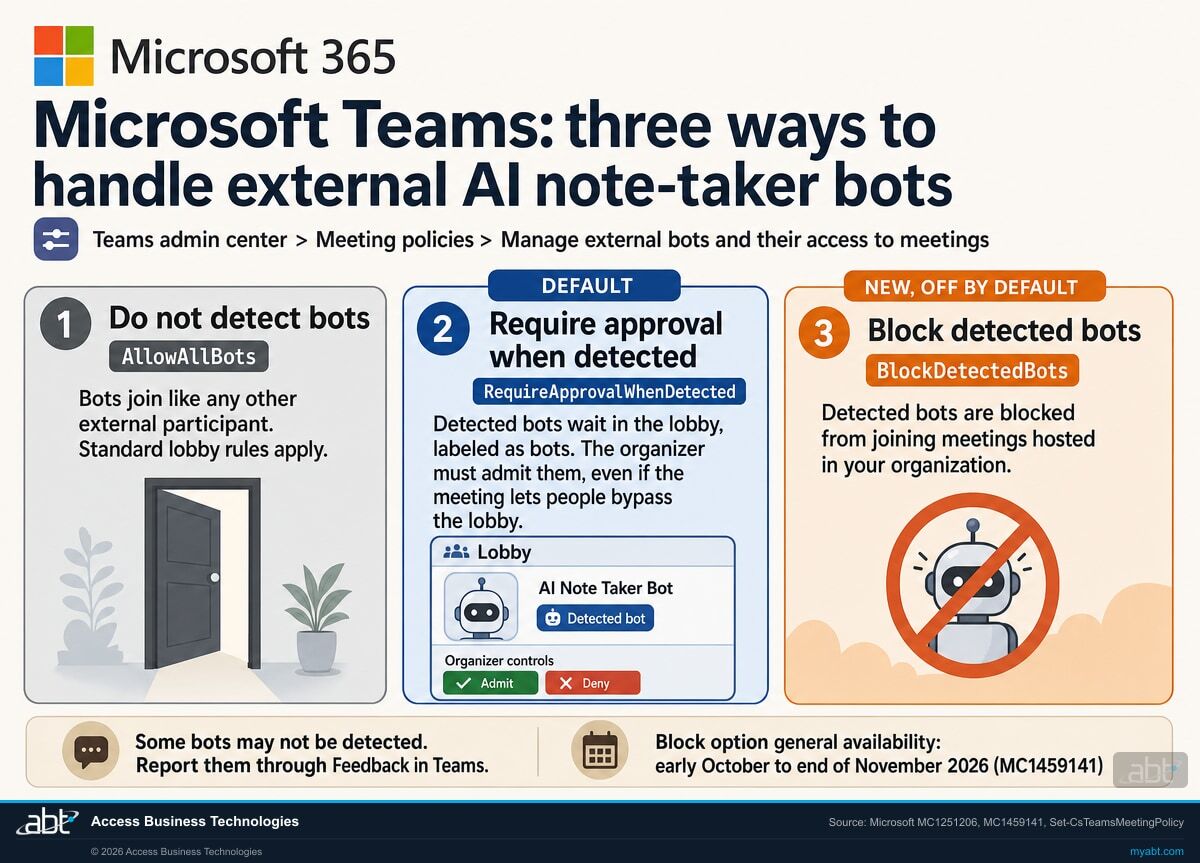
Microsoft Message Center, MC1251206, updated September 22, 2026Meeting assistants are popular for a good reason: notes, summaries and action items arrive while the meeting is still fresh. Some of those assistants are Microsoft's own, and some are third-party services that join the call as a participant and send what they capture to their own platform. Teams now separates the two. It uses signals from the meeting join process to identify external bots, puts them in the lobby regardless of the meeting's lobby settings, and shows the organizer clearly that the participant waiting is a bot.
The new option goes one step further. With the policy value BlockDetectedBots, Microsoft's PowerShell reference says detected external third-party meeting bots and meeting assistants "are blocked from joining meetings hosted in the organization." Microsoft frames it as additional control for administrators, assignable to the users and groups who need it. Our page on Teams external chat file sharing covers another Teams setting that decides what people outside the institution can reach.
Side by side
How do the three meeting bot settings compare?
Each row reflects Microsoft's notices, its PowerShell reference or its Learn documentation, except the last row, which is our recommendation.
| Question | Do not detect bots (AllowAllBots in the cmdlet reference) | Require approval when detected (default) | Block detected bots (BlockDetectedBots) |
|---|---|---|---|
| What happens when an external bot tries to join? | It appears as any other external participant; standard lobby rules apply | It is labeled as a bot and held in the lobby until explicitly admitted | A detected bot is blocked from joining meetings governed by the policy, including assistants the institution approved |
| Can a lobby bypass let it in? | Yes; Microsoft notes bots may get mistakenly admitted | No; detected bots still require organizer approval | No; detected bots are kept out |
| Who makes the call in the meeting? | Whoever admits people from the lobby | The organizer, or presenters depending on meeting settings | The policy the administrator assigned |
| Is it the default? | No | Yes, and Microsoft recommends keeping it as the baseline | No; default state Off |
| What about bots Teams does not identify? | Detection is off, so no bot is identified | They join as ordinary participants; report them through Feedback in Teams | They join as ordinary participants; report them through Feedback in Teams |
| Where it fits (ABT recommendation) | Only with a documented business reason | The floor for every meeting policy | Policies for staff who hold member, borrower, board or examiner meetings |
Start from the meetings, then pick the setting
The block option is assigned through meeting policies, so the decision follows the people who organize meetings. Keep the default, require approval, everywhere as the baseline. Then put BlockDetectedBots on the policies for the people whose meetings carry member and borrower information, board and committee business, or examiner conversations, starting with a pilot group as Microsoft recommends. The block option applies to every detected external bot in those meetings, so organizers who depend on an approved external assistant stay on the approval policy, where they admit it from the lobby. For a credit union, bank, or mortgage company, the blocked meetings are where an outside transcript raises the hardest questions.
Read every meeting policy's bot setting, list the note-takers in use, and plan where to block
ABT works with your team to review each Teams meeting policy's bot and lobby settings, map which organizers need the block option, and plan a pilot and the message to organizers, as part of a free security assessment.
Request the free assessmentThe work
How do you decide where to block AI note-takers in Teams?
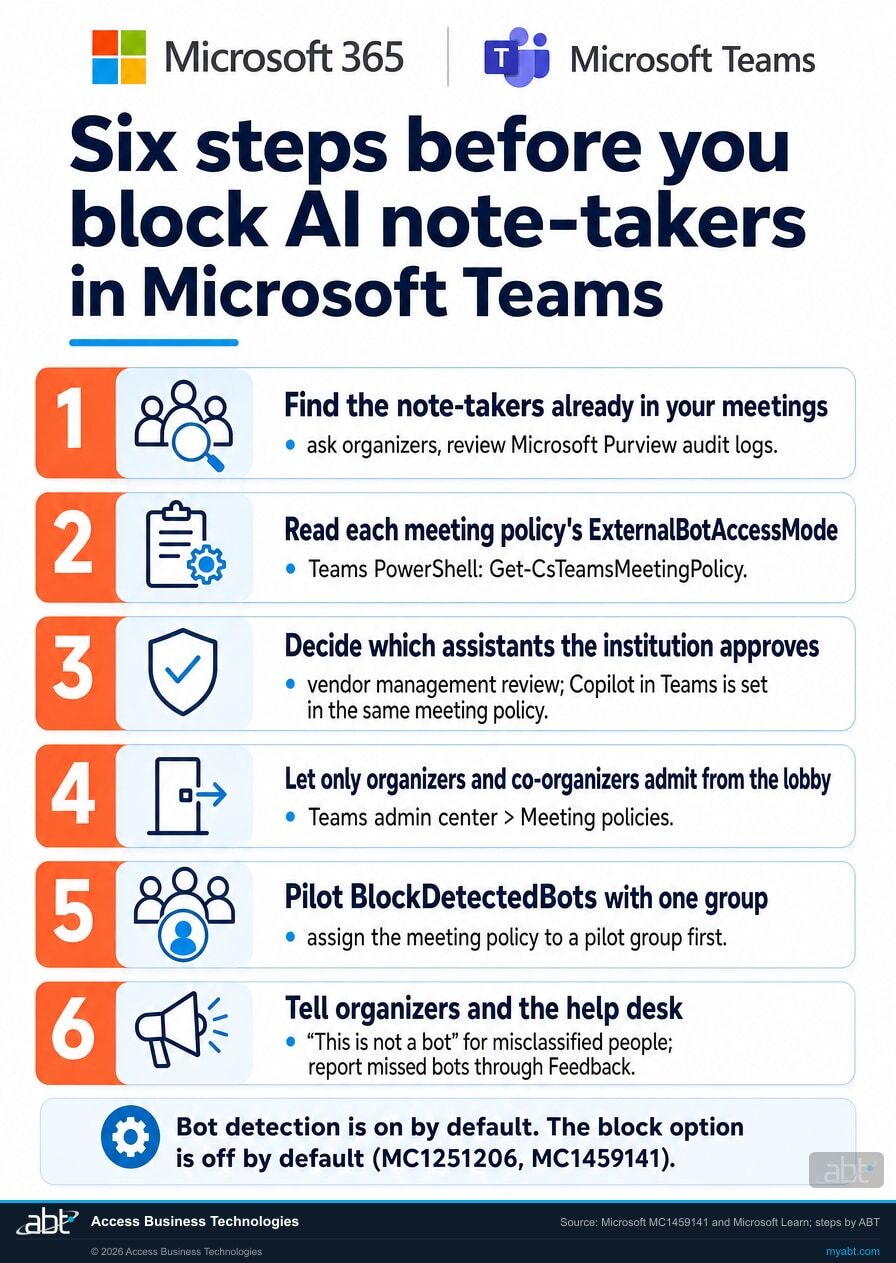
Six steps built on Microsoft's recommendations in MC1459141 and its Learn guidance. Steps 1 to 3 are decisions. Steps 4 to 6 put them into the meeting policies.
Find the note-takers already in your meetings
Ask meeting organizers which assistants they invite or connect today, and which meetings they use them in. Microsoft's best practices also suggest monitoring audit logs for unusual participant activity. The answer tells you which workflows the block option would interrupt, and which people to talk to first.
Read each meeting policy's current bot setting
List every meeting policy with its ExternalBotAccessMode value, so you know where detection is on and where it was switched off.
Get-CsTeamsMeetingPolicy | Select-Object Identity, ExternalBotAccessMode
That list shows policies and their settings. Separately, check in the Teams admin center which meeting policy applies to each organizer you plan to pilot, including group assignments and the Global default. Any policy with detection switched off deserves a written reason: Microsoft's best practice is to keep bot detection on unless a specific business scenario requires otherwise.
Decide which note-taking assistants the institution approves
Route staff use of outside note-takers through the institution's third-party review process, the same review as any other service that handles customer information. An assistant a guest brings is a disclosure question for the organizer, which the lobby label puts in front of them. Copilot in Teams meetings is managed separately, through the Copilot setting in the same meeting policy, so the institution can offer AI notes it governs while keeping unapproved services out.
Let only organizers and co-organizers admit from the lobby
Under the default setting, a detected bot waits in the lobby until someone admits it. Microsoft's Learn guidance recommends configuring meetings so only organizers and co-organizers can admit participants from the lobby, which keeps that decision with the people accountable for the meeting.
Pilot BlockDetectedBots with one group
Microsoft recommends evaluating the feature with a pilot group before broader deployment. Once the option has reached your tenant, set the value on a dedicated meeting policy, read it back, assign that policy to a small group of organizers whose meetings carry sensitive content, and confirm the result in real meetings before widening it.
Set-CsTeamsMeetingPolicy -Identity "Pilot-BlockBots" -ExternalBotAccessMode BlockDetectedBots
Get-CsTeamsMeetingPolicy -Identity "Pilot-BlockBots" | Select-Object Identity, ExternalBotAccessMode
Tell organizers and the help desk what changes
Microsoft recommends communicating the change to organizers who rely on meeting bots and updating help desk guidance. Explain the lobby label, the "This is not a bot" option for a person detection gets wrong, and how to report a bot Teams missed through Feedback. Record which policy carries which setting, and why.
Who notices
Who in the institution will notice the meeting bot settings?
Each card is a group of people who meet, admit or approve, and what to agree with them before the block option goes on.
Meeting organizers
They see detected bots labeled in the lobby and decide whether to admit them. Tell them which assistants are approved and which meetings use the block option.
Lenders and member-facing staff
Loan officers, member service and relationship managers meet with borrowers and members. Their meetings are the first candidates for the block option.
Board and committee secretaries
Board, loan committee and audit committee meetings often carry the most sensitive discussion. Agree how those meetings are recorded and by which tool.
The help desk
They field the call when a note-taker stops joining. Give them the approved list, the policy each team is on, and where to send exceptions.
Vendor management and compliance
They decide whether an outside note-taking service belongs in the vendor program, and what the institution's own AI meeting notes should cover instead.
Your IT provider
If a provider manages your tenant, agree who changes meeting policies, who assigns the pilot, and where the record of each setting lives.
For financial institutions
Why do AI note-takers matter at a credit union, bank, or mortgage company?
Because the notes are valuable, and where they are kept is a decision the institution makes once, for every meeting.
AI notes save real hours. Summaries and action items at the end of a meeting are one of the most visible productivity gains AI brings to a lender or credit union. Teams lets the institution manage its own meeting AI through the Copilot setting in the meeting policy, so the time savings can come from a tool the institution chose and configured.
Detected bots wait for a decision. Microsoft Learn says external bots may record or transcribe meetings without participant awareness and store meeting data in third-party systems outside the organization's compliance boundaries. In a member, borrower or board meeting, that data can include account details, loan terms and strategy. Detection with lobby approval puts a detected bot in front of the organizer before it joins, and the block option keeps detected bots out of meetings governed by the policies you assign it to. Where an admitted assistant keeps its notes is set by that assistant's vendor, which is why the approved list matters. Our page on Teams user reporting covers another Teams control that brings suspicious activity to the security team.
A vendor decision you can show. For banks, the 2023 interagency guidance on third-party relationships from the Federal Reserve, the FDIC and the OCC states that it "addresses any business arrangement between a banking organization and another entity, by contract or otherwise." A written list of approved meeting assistants, kept beside a record of which meeting policies block detected bots, gives examiners and auditors a clear answer to how the institution controls which bots join its meetings.
Meeting notes are worth having. Where they live is the decision.
In our 25-second Short, a lender describes AI meeting notes that are ready by the end of the meeting, save a couple of hours, and suggest who owns each task for a quick yes or no.
That is the productivity case, and it is strongest when the notes come from a tool the institution approved and configured. Our Copilot readiness page covers the preparation for Microsoft's own meeting AI, and our article on Teams AI meeting archives covers how long that content is kept.
How ABT helps
A free security assessment
ABT is a Tier 1 Microsoft Cloud Solution Provider serving more than 750 financial institutions. It manages Microsoft 365 tenants and hosts Azure environments for credit unions, banks, and mortgage companies. Teams meetings are a natural place for a review to start, and this assessment covers who and what can join them.
With your team, we read your meeting bot settings, list the note-takers in use, and plan where to block
The assessment is free and ends with written findings you keep. We work through it with an administrator on your team, and your team decides which assistants are approved and which policies get the block option.
- The policy read. Every Teams meeting policy with its ExternalBotAccessMode value, its lobby settings and the users it covers.
- The note-taker list. The meeting assistants your organizers use today, and the meetings they join.
- The meeting map. Which teams hold member, borrower, board or examiner meetings, and the setting each should carry.
- The vendor question. Which assistants go through vendor review, and how Copilot in meetings is configured.
- The pilot plan. One pilot policy with BlockDetectedBots, the group to assign it to, and what to check.
- The record. A dated summary of each setting and its reason for your information security program.
ABT also operates M365 Guardian, its managed security service for credit unions, banks, and mortgage companies. Learn about M365 Guardian
Related reading
If this opened a bigger question
Meeting bots sit next to the larger questions of how Teams is governed, how long meeting AI content is kept, and what goes in a vendor file.
Microsoft Teams AI Meeting Archives Go Default-On for Financial Institutions
What banks, credit unions, and mortgage companies should decide about AI meeting archive files and how long they are kept.
Read the article
Microsoft Teams Governance for Financial Institutions
Teams sprawl, guests that outlive the deal, and retention gaps, and what examiners ask about each.
Read the article
Vendor Due Diligence on Microsoft 365: What Goes in the File
What belongs in a bank or credit union vendor due diligence file, and where Microsoft publishes the reports.
Read the articleAnswered
Blocking AI note-takers in Teams, answered
Verify it yourself
Where the facts on this page come from
Every Microsoft date, setting name, default and quotation above comes from the sources listed here.
- Microsoft Message Center, MC1459141, "Microsoft Teams: Admin policy to automatically block identified external meeting bots from joining meetings," updated November 3, 2026, read in the Microsoft 365 admin center Message Center. Source for the block option, its rollout dates, the default state of Off, assignment to users or groups, and the recommendations to pilot, update help desk guidance and communicate with organizers.
- Microsoft Message Center, MC1251206, "Microsoft Teams: Identify external bots joining your Teams meetings," updated September 22, 2026. Source for detection on by default, lobby labeling and organizer approval, the detection rollout dates, undetected bots, and the quotation on data security, privacy and compliance risks.
- Microsoft Learn, Set-CsTeamsMeetingPolicy. Source for the ExternalBotAccessMode values AllowAllBots, RequireApprovalWhenDetected (default) and BlockDetectedBots, and for the Copilot meeting setting. The Learn admin page below writes the first value as AllowBots.
- Microsoft Learn, Manage external bots and their access to meetings hosted in your organization. Source for the setting's location, lobby behavior, the tip on who can admit from the lobby, third-party storage outside compliance boundaries, "This is not a bot," reporting through Feedback, and monitoring audit logs.
- Microsoft Learn, Teams Bot Identification Program. Source for organizer approval even when a meeting allows lobby bypass, and for admission prompts.
- Microsoft 365 Roadmap, item 566201, Block all identified external bots automatically, and item 558107, Identify bots joining your Teams meetings. Source for the rolling-out status.
- Federal Register, Interagency Guidance on Third-Party Relationships: Risk Management, 88 FR 37920, June 9, 2023. Source for the quotation on business arrangements.
- The callout, the six steps and their order, the last table row, and the list of people who notice are ABT's recommendations; everything else on this list is from Microsoft or the federal banking agencies.
Detected note-takers wait in your lobby today.
Decide which meetings keep them out.
The work starts with your Teams meeting policies and the note-takers your organizers already use. The assessment ends with a written review you keep: each policy's bot and lobby settings, which meetings should block detected bots, which assistants go through vendor review, and how you will pilot the change.
Tell us a little about your environment and we will come back with what we would check first.
What should we look at? Optional.
Encrypted. Private.
Thank you. That is with us.
An ABT specialist will be in touch shortly. If a particular meeting, team or note-taker is what you are thinking about, say so in your reply and we will start there.
