

Skip to the main content.

Microsoft 365 Backup · SharePoint · OneDrive

SharePoint and OneDrive backups can now reach 10 years.

Every existing policy stays at one year until an admin changes it. History builds from the day you set it, and Exchange stays at two years.

10 years
Longest recovery window for SharePoint and OneDrive backup policies, up from 2 years.
Source: Microsoft 365 Message Center, MC1567262
2 years
Longest recovery window for Exchange backup policies, which this change leaves as it was.
Source: Microsoft 365 Message Center, MC1567262
14 days
How far back single files and folders restore in SharePoint and OneDrive. Older points restore the whole site or account.
Source: Microsoft Learn, Microsoft 365 Backup FAQ
30 days
Grace period before a shortened window deletes the recovery points older than the new limit.
Source: Microsoft Learn, backup policies

What changed in the Microsoft 365 Backup recovery window?

SharePoint and OneDrive backup policies can now keep recovery points for 3 months, 6 months, or any whole number of years from 1 through 10. Exchange keeps its four options, up to 2 years. Every policy starts at the one-year default until someone sets it longer.

The change in brief

What
Recovery windows of up to 10 years for SharePoint and OneDrive backup policies, announced in Message Center post MC1567262 on November 24, 2026.
Who
Organizations that use Microsoft 365 Backup for SharePoint sites and OneDrive accounts.
When
Generally available worldwide now.
Default
One year. Existing policies and artifacts stay at one year, and a longer window is configured on each policy that needs it.
Limits
Up to 100 policies per product, each holding up to 100,000 sites, accounts or mailboxes. Each one belongs to a single policy.

Today

Raise the window

Set 1 to 10 years on any active SharePoint or OneDrive policy. The increase applies immediately.

From that day forward

History builds

Weekly points beyond two weeks are kept through the new window. Expired points stay expired.

Older than 14 days

Whole site or account

Points past two weeks restore the full site or OneDrive account, in place of single files.

If a window is shortened

Points are deleted

Recovery points older than the new window are deleted after a 30-day grace period.

"Configuring a longer recovery window does not make 10 years of backup history immediately available."

Microsoft 365 Message Center, MC1567262

Microsoft 365 Backup keeps recovery points for SharePoint sites and OneDrive accounts every 10 minutes for two weeks, then weekly. Until this change, those weekly points ended at two years. Now they can continue for as long as the policy's window allows, up to 10 years. Microsoft says no action is needed for an organization that wants to keep its current settings.

For a financial institution, the question is which content needs a long recovery path. A loan file site, a board site or the OneDrive of a departed loan officer may need to be restored years after the fact. The window you set today decides how far back that restore can reach in the years ahead, so the decision belongs with the records owner and the IT team together.
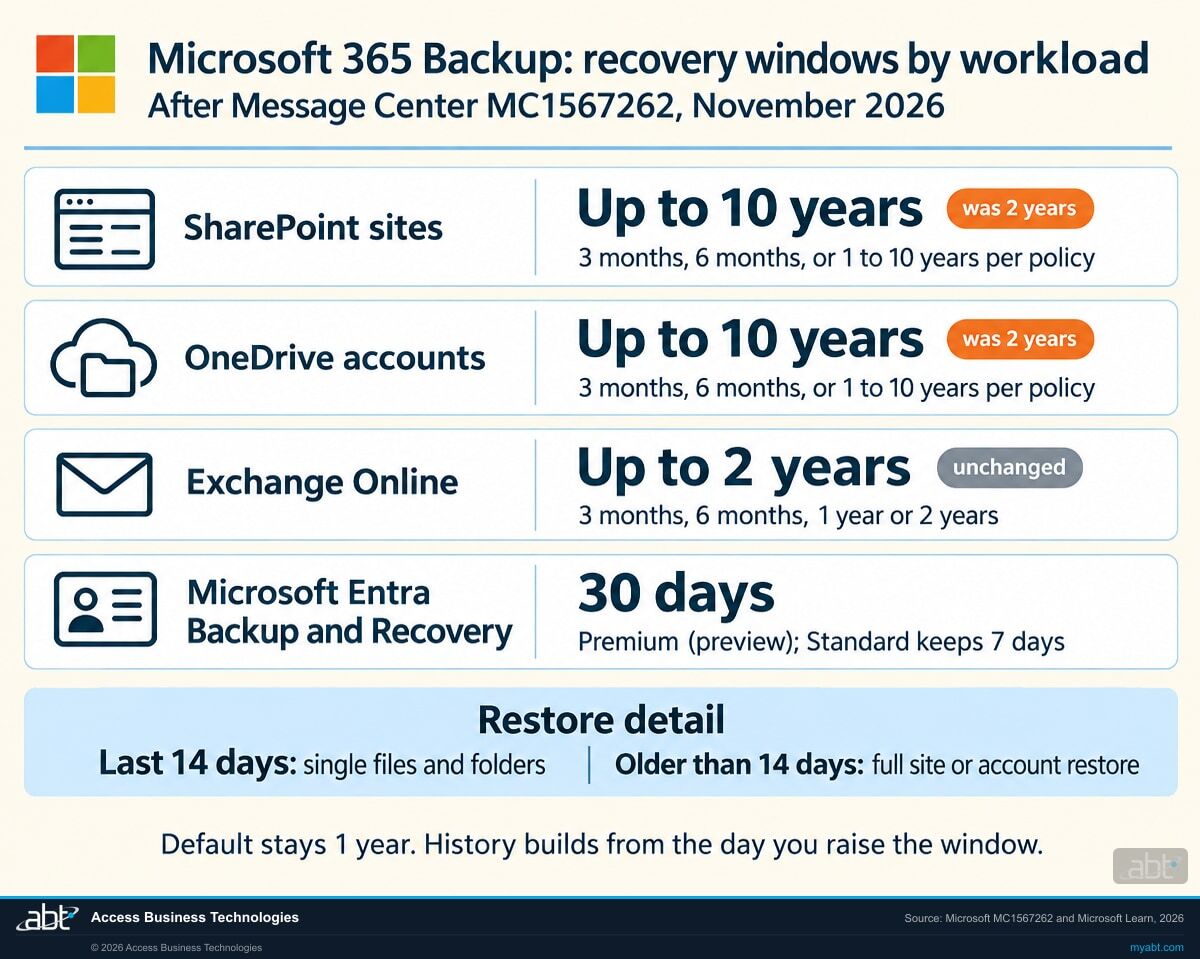
Microsoft 365 Backup recovery windows after MC1567262. SharePoint and OneDrive: 3 months, 6 months, or 1 to 10 years per policy, up from a 2 year maximum, with recovery points every 10 minutes for two weeks and weekly after that. Exchange Online: 3 months, 6 months, 1 year or 2 years, unchanged. Microsoft Entra Backup and Recovery: 30 days on Premium (preview), 7 days on Standard. Single file restores reach back 14 days; older points restore the whole site or account.
Recovery window options by workload. Sources: MC1567262 and Microsoft Learn.

How long does each Microsoft 365 workload keep backups now?

Read across each row: the window options, how often recovery points are taken, what a restore brings back, and what to check first.

Microsoft 365 Backup recovery windows and recovery points by workload, from MC1567262 and Microsoft Learn, read November 26, 2026
WorkloadRecovery window optionsRecovery pointsWhat a restore brings backWhat to check
SharePoint sites3 months, 6 months, 1 to 10 yearsEvery 10 minutes for two weeks, then weekly through the windowFiles and folders from the last 14 days; the full site after thatSites holding loan files, board material and policies
OneDrive accounts3 months, 6 months, 1 to 10 yearsEvery 10 minutes for two weeks, then weekly through the windowFiles and folders from the last 14 days; the full account after thatAccounts of departed staff and executives
Exchange mailboxes3 months, 6 months, 1 year, 2 yearsEvery 10 minutes for the prior 52 weeks, as Microsoft Learn publishes itFull mailbox, or single items found with searchShared mailboxes that hold customer correspondence
Microsoft Entra ID30 days on Premium (preview); 7 days on StandardOne snapshot every dayEntra objects and linksWhether Premium is turned on, and what it covers

Backup windows and Purview retention are separate controls

Microsoft Learn says retention and deletion policies, for example from Microsoft Purview, do not affect the backup recovery window. Purview decides how long content is kept in the live service; Microsoft 365 Backup decides how far back you can roll a site, account or mailbox. Write down which control answers which question, and set each one to your institution's own records schedule.

Microsoft's notice asks organizations to review their backup, data retention and compliance requirements before configuring longer windows. Microsoft Learn's backup policy guidance covers each setting.

Know how far back every Microsoft 365 Backup policy can restore, and who can shorten it.

ABT reviews each policy with your team, matches its window to the content it protects, and walks through a test restore. The security assessment is free.

Request the free assessment

How do you set a longer Microsoft 365 Backup recovery window?

List the policies, match each one to the records it protects, model the cost, set the window, guard against a shortened window, then document it and test a restore. The steps below follow that order.

1
Settings › Microsoft 365 Backup

List every backup policy

Open Microsoft 365 Backup in the Microsoft 365 admin center and list each SharePoint, OneDrive and Exchange policy with its current window. Policies created before November 2026 sit at one year unless someone changed them. Note which sites, accounts and mailboxes each policy holds, since each one belongs to a single policy.

2
Records owner and IT

Match each policy to the records it protects

For each policy, write down the content inside it, such as loan file sites, board sites or departed staff OneDrives, and the recovery need for that content. Your records schedule and counsel decide how long a record must be kept; the backup window decides how far back you can roll it.

3
Azure subscription › Cost

Check the cost model before you raise a window

Microsoft 365 Backup bills per GiB of protected content through pay-as-you-go Azure billing. Deleted and versioned content keeps counting until it expires at the end of the window, so a longer window keeps more of it. Model the growth with your finance team and agree on the windows before anyone edits a policy.

4
Backup Settings › Update policy

Set the window on each active policy

Open an active SharePoint or OneDrive policy, choose a window of up to 10 years, and select Update policy. The increase applies immediately and history builds forward from that day. A policy that is paused or has a run in progress has to finish or resume first.

5
Roles and notifications

Guard against a shortened window

Shortening a window, or moving a site into a policy with a shorter one, deletes older recovery points after 30 days. Review every role that can manage backup: Global Administrator, Microsoft 365 Backup Administrator, SharePoint Administrator, Exchange Administrator and Microsoft Entra Backup Administrator. Keep each to the fewest people, and make sure the multi-admin email notification reaches people who would spot a harmful change.

6
Restore › Test

Document the settings and test a restore

Update your internal documentation with each policy, its window and the reason for it, as Microsoft recommends. Then restore a test site or account to a new location and confirm the content comes back. Repeat the test once a year so the restore path stays known.
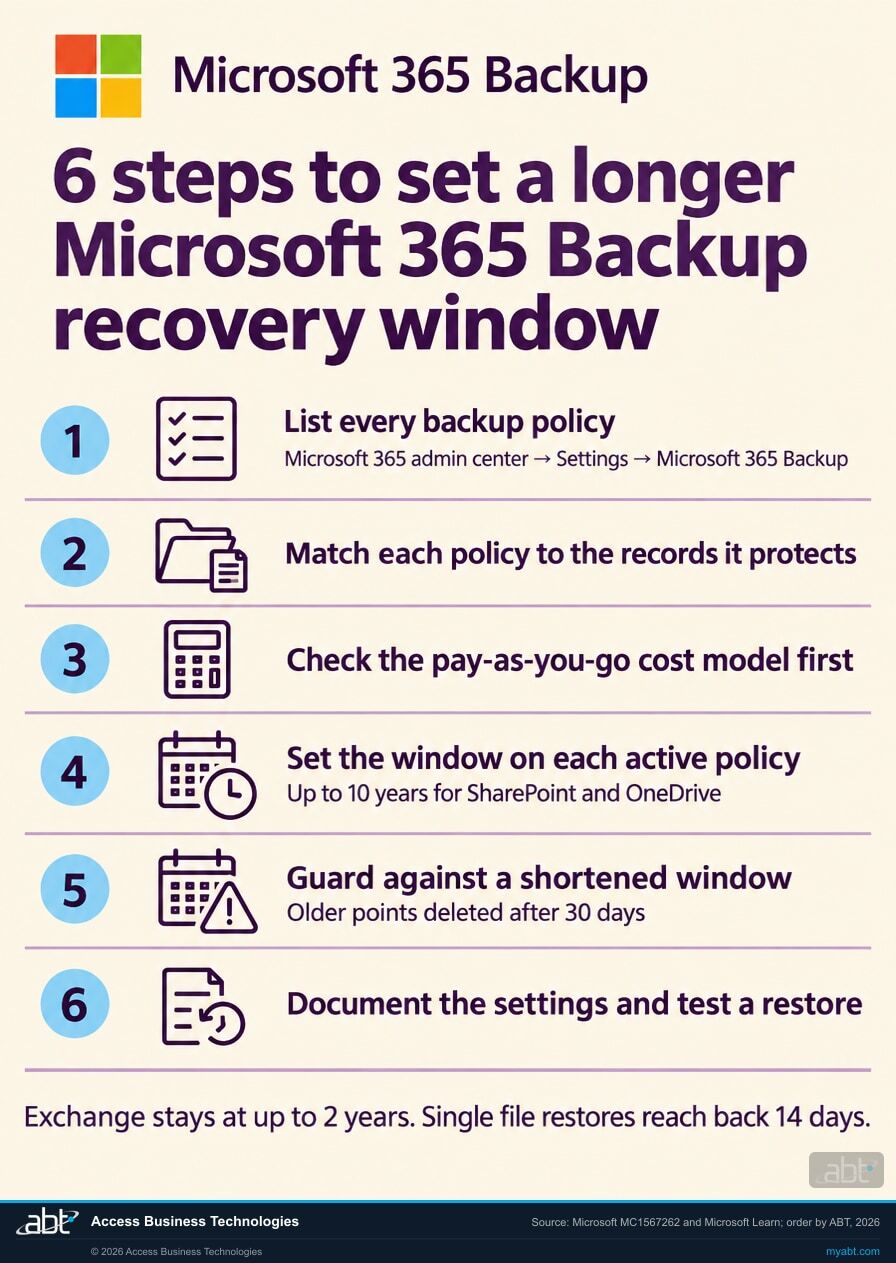
Six steps to set a longer Microsoft 365 Backup recovery window: list every backup policy in the Microsoft 365 admin center, match each policy to the records it protects, check the pay-as-you-go cost model, set the window on each active policy, guard against a shortened window that deletes older points after 30 days, and document the settings and test a restore.
The six steps on one page. Sources: MC1567262 and Microsoft Learn; the order is ABT's recommendation.

Which content in a financial institution needs the longest recovery window?

The content someone may ask you to roll back years from now. These six places are worth reviewing first.

Loan file and closing sites

SharePoint sites that hold loan files, closing packages and servicing records are the clearest case for a window longer than one year. Put them in a policy of their own so their window can differ from everyday sites.

Board and committee sites

Board minutes, committee packets and policy approvals are often asked for long after the meeting. A separate policy for those sites keeps their window independent of the rest.

Departed staff OneDrives

The OneDrive of a former loan officer or executive can hold the only copy of working files. Check how the backup is kept once the user leaves Microsoft Entra ID, and confirm the current behavior in Microsoft Learn.

Shared mailboxes

Shared mailboxes for loan operations, member services or wires hold customer correspondence. Exchange backup tops out at two years, so plan longer needs through retention and archiving.

Removed items in the Backup tool

A site or account removed from a policy keeps its last window, sits under Removed items until that window ends, and is still billed. Review the list so removed content is a choice, and its cost is known.

Microsoft Entra objects

Users, groups and policies in Microsoft Entra ID have their own backup: 30 days on Premium (preview) and 7 days on Standard. Recovery after an identity change depends on catching it inside that window.

Why should a financial institution review its backup windows now?

Productivity. When a loan officer or auditor asks for a site as it looked three years ago, a restore that works saves days of searching through email and file shares. Setting the window now means that request can be answered in the years ahead, because history starts building from the day the window goes up.

Security. Microsoft 365 Backup stores SharePoint, OneDrive and Exchange backups on append-only storage, so old versions cannot be overwritten. The weak point is the setting itself: an account with backup admin rights can shorten a window, and the 30-day grace period is the time you have to catch it. Fewer people in those roles and a notification list that reaches the right inboxes give you the best chance to catch it inside those 30 days.

Governance. Backup windows and Purview retention answer different questions, and examiners and auditors may ask about both. A written list of each policy, its window, the reason for it and the date of the last test restore is easy to show to an IT steering committee, an auditor or an examiner.

What if the damage is found late?

In this short video, ABT looks at a study where AI agents given real access caused damage that took time to surface. Damage found late is the case for a recovery window long enough to reach back to a recovery point from before it started.

What does ABT check in a Microsoft 365 Backup review?

ABT is a Tier 1 Microsoft Cloud Solution Provider serving more than 750 financial institutions. It manages Microsoft 365 tenants and hosts Azure environments for credit unions, banks, and mortgage companies.

A free security assessment focused on your Microsoft 365 Backup settings

We work through your tenant with your team and hand back what each backup policy protects, how far back it reaches, and who can change it.

  • Policy inventory: every SharePoint, OneDrive and Exchange backup policy, the content inside it and its current recovery window
  • Window recommendation: a suggested window for each policy, matched to the records it protects and your own records schedule
  • Who can shorten it: the accounts holding each role that can manage backup, and whether the multi-admin notification reaches the right people
  • Cost view: how a longer window changes protected storage under the pay-as-you-go model, so finance sees it first
  • Test restore: a restore of a test site or account to a new location, run with your team, with the steps written down
  • Your findings in writing: yours to keep, ready for your IT steering committee or board

ABT also operates M365 Guardian, its managed security service for credit unions, banks, and mortgage companies. Learn about M365 Guardian

More on Microsoft 365 backup for financial institutions

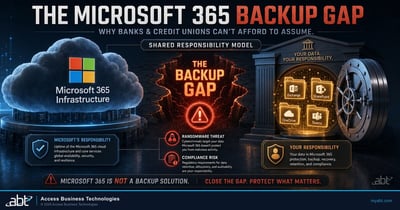
The Microsoft 365 Backup Gap: What Banks and Credit Unions Get by Default

The Microsoft 365 Backup Gap: What Banks and Credit Unions Get by Default

What Microsoft 365 protects on its own and where a backup plan has to start.

Read the article
Your Microsoft 365 Backup Belongs in a Backup Tenant You Own

Your Microsoft 365 Backup Belongs in a Backup Tenant You Own

Why a separate tenant you control keeps backups out of reach of the account that took the production tenant.

Read the article
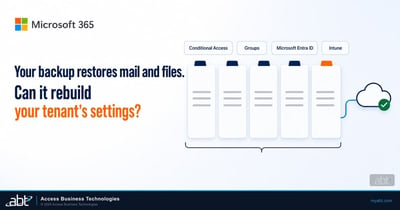
Microsoft 365 Settings Backup: Can You Rebuild Your Tenant?

Microsoft 365 Settings Backup: Can You Rebuild Your Tenant?

Backing up the configuration, policies and settings that a content backup leaves behind.

Read the article

Microsoft 365 Backup recovery windows: common questions

Microsoft 365 Backup now lets administrators set recovery windows of up to 10 years for SharePoint sites and OneDrive accounts. The previous maximum was two years. Microsoft announced the change in Message Center post MC1567262 on November 24, 2026, and lists it as generally available worldwide now.
Three months, six months, or any whole number of years from 1 through 10. The window is set on each backup policy, so different policies in the same tenant can keep different windows.
No. Exchange backup policies still support 3 months, 6 months, 1 year or 2 years. Microsoft Learn lists 10-minute recovery points for the prior 52 weeks for Exchange, with full mailbox restores or granular item restores using search.
They stay at the one-year default. Microsoft says existing policies and artifacts default to one year, and a longer window has to be configured on each policy that needs it.
Only if a recovery point from that time still exists. Microsoft says a longer recovery window does not make 10 years of backup history available immediately. Raising the window keeps future recovery points longer; it creates no older points and brings back none that already expired. A file that old comes back by restoring the full site or account from an available recovery point, then retrieving the file from the restored copy.
Microsoft Learn says granular file and folder restores in OneDrive and SharePoint use recovery points from the most recent 14 days. Recovery points older than 14 days support a full account or site restore, even with a longer recovery window. For SharePoint and OneDrive, recovery points run every 10 minutes for two weeks, then weekly through the window.
Increasing a window applies immediately. Decreasing one is destructive: recovery points older than the new window are deleted after a 30-day grace period. Moving a site or account into a policy with a shorter window counts as a reduction. A window also cannot be changed while the policy is paused or a run is in progress.
In the Microsoft 365 admin center, go to Settings, then Microsoft 365 Backup. Set the recovery window on the Backup Settings page of a new SharePoint or OneDrive policy, or open an existing active policy and update its window, then select Create policy or Update policy.
No. Microsoft Learn says retention and deletion policies, for example from Purview, do not affect the backup recovery window, which stays isolated from those policies. Purview retention and Microsoft 365 Backup answer different questions, so document each one separately.
Microsoft 365 Backup is pay-as-you-go, billed per GiB of protected content through an Azure subscription. Deleted and versioned content, such as items in the second-stage recycle bin and deleted or versioned mailbox items, keeps counting until it expires from backups at the end of the window. A longer window keeps more of that content, so model the cost before raising it.
Microsoft Learn says that when a user is deleted from Microsoft Entra ID, the backup of their OneDrive or mailbox is retained for one year from the date the backup was created. That FAQ was updated November 4, 2026, before the longer windows arrived, so confirm the current behavior in Microsoft Learn before relying on it for a departed user.
Microsoft Entra Backup and Recovery Premium, in public preview through Microsoft 365 Backup, keeps up to 30 days of daily backups. The Standard plan included with Microsoft Entra ID P1 or P2 keeps up to seven days. The longer SharePoint and OneDrive windows do not change either one.
ABT reviews every backup policy in your tenant: what each one protects, its recovery window, who can change or shorten it, and who gets notified when someone does. ABT also walks your team through a test restore and hands back written findings. ABT is a Tier 1 Microsoft Cloud Solution Provider serving more than 750 financial institutions.

Where the facts on this page come from

Each window, limit and setting above comes from these sources, listed with the claims each one supports.

  • Microsoft 365 Message Center, MC1567262, "Microsoft 365 Backup: Up to 10-year recovery windows for SharePoint and OneDrive," published November 24, 2026, in the Microsoft 365 admin center Message Center. Source for the new window options, the previous two-year maximum, the unchanged Exchange options, the one-year default, general availability, the admin center path, the note that history is not immediately available, and Microsoft's recommendations.
  • Microsoft Learn, Create, view, and edit backup policies in Microsoft 365 Backup. Source for how increases and decreases apply, the 30-day grace period, moves between policies, paused policies, policy limits and removed items.
  • Microsoft Learn, Overview of Microsoft 365 Backup. Source for recovery point frequency, restore granularity, Exchange item restore, the Entra Backup and Recovery windows, append-only storage, the multi-admin notification and the separation from Purview retention.
  • Microsoft Learn, Microsoft 365 Backup FAQ. Source for the 14-day limit on file and folder restores and the handling of users deleted from Microsoft Entra ID.
  • Microsoft Learn, Microsoft 365 Backup pricing. Source for the pay-as-you-go model and the treatment of deleted and versioned content.
  • Microsoft Learn, Set up Microsoft 365 Backup. Source for the Azure subscription requirement and the admin roles that manage backup.
  • The order of the six steps, the six places to review first and the test restore advice are ABT's recommendations; everything else on this list is from Microsoft.

How far back can your Microsoft 365 backups reach?
Set the window before you need it.

The work starts with a read-only review of your backup policies and the roles that manage them. The assessment ends with a written review you keep: each policy, its window, who can change it, and the steps of a test restore your team approves and runs with us.

Tell us a little about your environment and we will come back with what we would check first.

Tier 1 Microsoft CSP 750+ financial institutions SOC 2 Type II Attested

What should we look at? Optional.

Recovery window per policy
Restore test
Who can shorten a window
Backup cost model

Encrypted. Private.

Thank you. That is with us.

An ABT specialist will be in touch shortly. If a particular site, policy or restore is what you are thinking about, say so in your reply and we will start there.

Trusted by 750+ of the Nation's Leading Lenders, Banks & Credit Unions.

TIER 1 MICROSOFT CSP
SOC 2 TYPE II ATTESTED
ZERO TRUST
NIST CSF ALIGNED
FFIEC
GLBA / FTC SAFEGUARDS
NCUA / FDIC
CFPB / GSE AUDIT READY
750+ INSTITUTIONS
SINCE 1999