


Exchange Server SE or Exchange Online?
The in-place upgrade is narrower than it sounds.
Microsoft says you can upgrade Exchange Server 2019 to Subscription Edition in place, and for some organizations that is exactly true and genuinely low risk. For everyone else, including every organization still hosting mailboxes on Exchange 2016, Microsoft’s own documentation says you are standing up a new server and moving every mailbox. Once that is the work either way, the question changes.
- Who actually qualifies for the in-place upgrade, in Microsoft’s words
- What Exchange Server SE obliges you to keep paying for, continuously
- The second deadline in 2027 that most coverage leaves out
What happens to Exchange Server 2016 and 2019 after October 2026?
Security updates stop, and Microsoft has now said in writing that nothing follows them.
Exchange Server 2016 and Exchange Server 2019 left support on October 14, 2025. Microsoft then created two paid Extended Security Update periods, and the second one ends with October 2026. In July 2026 the Exchange team addressed the question directly, because customers kept asking whether a third period would appear the way the second one had.
“There will be no further extension of Exchange 2016/2019 ESU program timeline. Once October 2026 ends, there will be no further updates for Exchange 2016/2019, even if you currently have a Period 2 ESU.”
Microsoft Exchange Team Blog, July 20, 2026
That sentence is worth reading twice, because the second half answers the workaround. Holding a Period 2 Extended Security Update does not buy time past October 2026. The updates end for everyone in the same month.
Your servers keep running afterward. Mail keeps flowing. What changes is that the vendor has stopped issuing fixes for the software, which moves the exposure onto your own compensating controls and onto whatever your examiners, auditors, and insurers expect you to say about it. For a credit union, a bank, or a mortgage company, an internet-facing mail server with no remaining patch path is a question you will be asked rather than a question you get to skip.
Microsoft names two supported destinations: Exchange Server Subscription Edition on-premises, or Exchange Online inside Microsoft 365. This page is about choosing between them honestly, including the cases where staying on-premises is the right answer.
Is the in-place upgrade to Exchange Server SE actually available to you?
It is a real and genuinely low-risk path, and it has three conditions attached that decide whether you are in it.
The headline that travelled furthest about Exchange Server SE is that you can upgrade to it in place, like installing a cumulative update, rather than migrating. That is accurate, and Microsoft is not overselling it. The in-place upgrade is described as “identical to installing a CU”, and Exchange SE RTM carries no new features to destabilize anything. In Microsoft’s own words it is “a branding update that introduces new lifecycle and support policies”, with no changes to server roles, editions, or prerequisites.
The part that travelled less far is who it applies to. Microsoft Learn states the boundary in one sentence.
“Legacy upgrades are necessary when moving from Exchange Server 2016 to Exchange Server 2019 or to Exchange Server SE, as well as when switching to new hardware or a newer version of Windows Server.”
Microsoft Learn, Upgrading to Exchange Server Subscription Edition
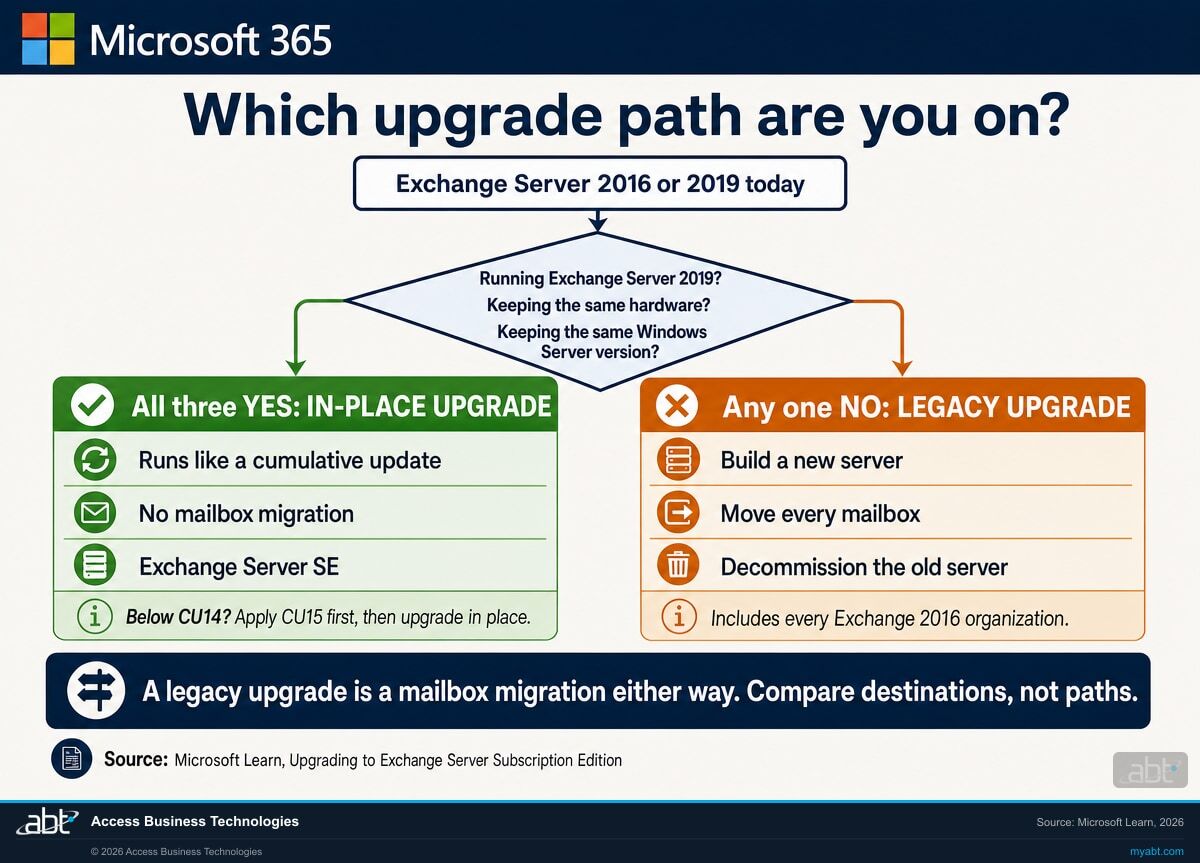
Read as a checklist, that gives three conditions. You qualify for the in-place upgrade only if all three hold.
You are on Exchange Server 2019
Microsoft: “Exchange Server SE supports an in-place upgrade from Exchange Server 2019 Cumulative Update (CU) 14 or 15.” The cumulative update level is the starting build for the upgrade, not a gate on whether you get one: Microsoft routes Exchange 2019 at CU13 or earlier to “Update to Exchange Server 2019 CU15, and then in-place upgrade to Exchange Server SE”, and applying a cumulative update is ordinary maintenance rather than a migration. Exchange 2016 has no in-place path at any build.
You are keeping the same hardware
Moving to new hardware is named in the same sentence as a trigger for a legacy upgrade. If the box is old enough that you were going to replace it during this project anyway, the in-place path is not the one you are on.
You are keeping the same version of Windows Server
Moving to a newer Windows Server is the third trigger, and there is no way around it by upgrading the operating system underneath. Microsoft: “Upgrades of the underlying Windows OS on an Exchange Server are not supported and will remain unsupported.” A newer Windows Server means a new server build.
Worth stating plainly so nobody over-reads this: Windows Server 2019 itself is still supported until January 9, 2029. Nothing forces you off it. This condition is about choosing to move to a newer Windows Server, not about being pushed off the current one.
If all three hold, Exchange Server SE is a straightforward upgrade and this page is not trying to talk you out of it. Move to the current cumulative update, run Setup, and you are on a supported version. That is a good outcome and it is available.
If any one of them does not hold, keep reading, because the shape of your project just changed.
What does a legacy upgrade to Exchange Server SE actually involve?
Microsoft describes it in one sentence, and the description is the reason this page exists.
“This method involves transitioning to a new major version of Exchange Server by adding the newer server to the organization, migrating all mailboxes and resources from existing servers to the new servers, and then uninstalling the previous servers.”
Microsoft Learn, describing a legacy upgrade
Stand up a new server. Move every mailbox. Decommission the old one. That is a mailbox migration project with a server build in front of it.
Compare that to what a move to Exchange Online asks of you: move every mailbox. The mailbox migration is common to both. What differs is everything on either side of it, and on the on-premises path you also design, license, build, secure, and then keep patching a mail server that faces the internet.
This is the honest pivot in the decision, and it is why so much of the published guidance feels like it is answering a different question than the one you have. Most of it compares an in-place upgrade against a cloud migration, which is a fair comparison for an Exchange 2019 shop staying on its hardware. If you are on Exchange 2016, that comparison was never yours. Yours is a migration against a migration, and at that point the question is not which path is less work. It is which destination you want to be running in five years.
Microsoft’s own current guidance for organizations in this position is to skip the intermediate hop entirely: “you should not be installing new Exchange 2019 servers into your organization as a part of your upgrade to Exchange SE” because both 2016 and 2019 are already out of support, and “It is a best practice to migrate directly to Exchange SE.” If you find older advice telling Exchange 2016 shops to move to Exchange 2019 first, it predates the October 2025 end of support and Microsoft has moved past it.
What does Exchange Server SE require you to keep paying for?
The word Subscription in the product name is doing real work, and it is not about the server phoning home.
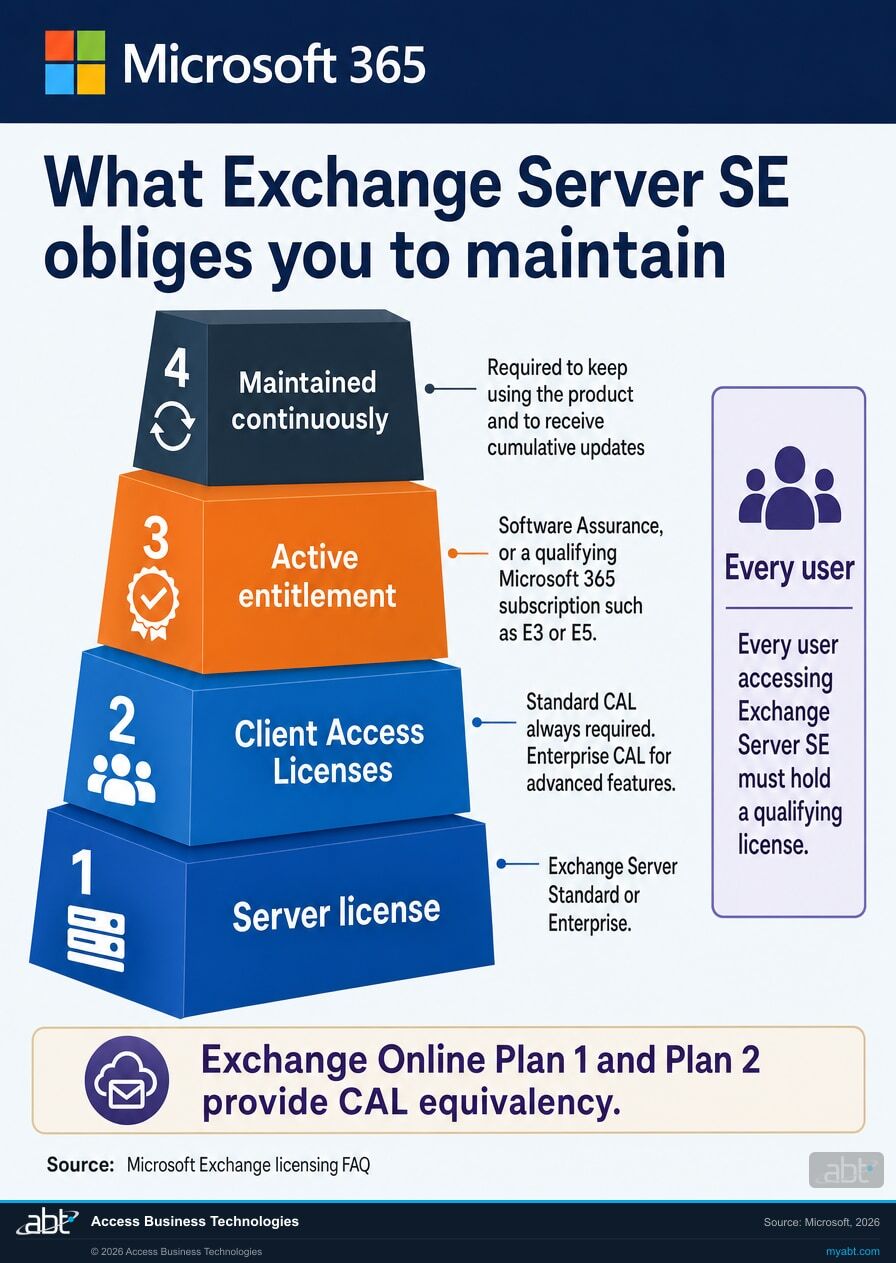
Exchange Server SE is licensed on what Microsoft calls an entitlement-based model, and the obligation is continuous rather than one-time.
“Customers must maintain an active qualifying entitlement to install, run, and stay current with Exchange Server SE. That entitlement can come from one of the following: Active Software Assurance (SA) on existing Exchange Server Standard or Enterprise licenses. A qualifying Microsoft 365 subscription (such as Microsoft 365 E3 or E5) acquired through an Enterprise Agreement and including on-premises server-use rights.”
Microsoft, Exchange licensing FAQ
Read that second bullet carefully, because on its own it is narrower than Microsoft’s actual position and the correction sits a few lines further down the same page: “Extended Use Rights provide licenses to run on-premises Exchange Server SE, depending on your licensing program. They are not limited to Enterprise Agreements or Enterprise Agreement Subscriptions. Other programs such as Open License and Open Value may also include these rights.” Microsoft’s instruction is to check the Product Terms for your own program rather than assume, and which program you buy under is exactly the sort of thing organizations are unsure about. Establishing it is part of the assessment below.
Client Access Licenses sit on top of that, and they carry the same condition. Microsoft: a Standard CAL “is always required”, an Enterprise CAL is an add-on “required for advanced features”, and “CALs must also be covered by active SA or by an equivalent qualifying Microsoft 365 subscription.” Letting any of it lapse has a stated consequence: “Maintaining active SA or a qualifying subscription is required to continue using Exchange Server SE and to receive ongoing cumulative updates.”
There is no partial-coverage version of this, and Microsoft closed that door explicitly rather than leaving it to interpretation.
“Important: Extended Use Rights apply only to users licensed with qualifying Microsoft 365 subscriptions. For example, you can’t license a single E3/E5 user and then run Exchange Server SE for additional unlicensed users. Every user accessing Exchange Server SE must have a qualifying license.”
Microsoft, Exchange licensing FAQ
Now put that beside one more line from the same Microsoft page, because the two of them together are the part almost nobody prices out before choosing.
“Exchange Online Plan 1 and Plan 2 licenses provide Client Access License (CAL) equivalency for Exchange Server SE on-premises servers. This means users licensed with Exchange Online Plan 1 or Plan 2 can access Exchange Server SE without needing separate CALs.”
Microsoft, Exchange licensing FAQ
Two different requirements are in play there and it is worth keeping them apart, because conflating them is how licensing plans go wrong. CAL equivalency answers only the CLIENT side: an Exchange Online Plan 1 or Plan 2 license means that user does not also need a separate CAL. It does not, on its own, give you the right to install and run the server. That right is the separate SERVER entitlement above, satisfied by active Software Assurance or by a qualifying Microsoft 365 subscription carrying on-premises server-use rights.
Where the two meet is the route worth noticing. Microsoft 365 E3 and E5 are named by Microsoft as qualifying for the server entitlement, and they also include a cloud mailbox. So an organization taking that route is buying, for every user, a subscription that already contains the thing it is choosing to run on-premises instead. That is a legitimate way to be compliant and plenty of organizations will choose it, often because they already hold the licenses. It is simply worth going in with your eyes open: on that route the cloud mailbox is not what you are avoiding by staying on-premises, it is part of what you are buying in order to stay there.
The other route, Software Assurance on Exchange Server licenses and CALs, avoids that overlap and is often the better arithmetic for an organization with no appetite for Microsoft 365 subscriptions. Which one lands cheaper depends entirely on what you already own, how many users you have, and which CAL tier your feature set actually needs.
There are no prices on this page. Microsoft’s licensing FAQ states that “Pricing for Exchange Server SE and related licenses is not published directly in the FAQ” and refers you to your Microsoft account representative or official Microsoft licensing resources. Your actual number depends on your agreement, so a figure quoted on any vendor page is an estimate against somebody else’s terms, and it goes stale quietly. Working out the real number against your actual license position is the first thing ABT does in the assessment below.
Exchange Server SE and Exchange Online, compared on what actually differs
Both are supported destinations. They differ in what stays your job.
| What you are deciding | Exchange Server SE | Exchange Online |
|---|---|---|
| Getting there from Exchange Server 2019, same hardware and Windows Server version | In-place upgrade, run like a cumulative update. Below CU14, apply CU15 first | Mailbox migration |
| Getting there from Exchange 2016, or onto new hardware or a newer Windows Server | New server build, then move every mailbox, then decommission | Mailbox migration |
| Who patches the mail server | You do, on a continuing cumulative update cadence | Microsoft does, as part of the service |
| License obligation | Server license plus CALs, all of it covered by active Software Assurance or a qualifying Microsoft 365 subscription, maintained continuously | Per-user subscription |
| What happens if the license obligation lapses | Microsoft states that maintaining it is required to continue using the product and to receive cumulative updates | Service access follows the subscription |
| Support model | Modern Lifecycle Policy, which means staying current is the condition of staying supported | Continuously serviced |
| Published end-of-support date to plan around | None published today, listed as In Support | None |
| A mail server you own, run, and secure | Yes | No |
| Deadline in H1 CY 2027 to decommission older Exchange servers | Yes, Exchange SE CU2 Setup blocks coexistence with 2016 and 2019 | Resolved by finishing the migration |
Every row here is drawn from Microsoft documentation checked on August 22, 2026, and listed with its source further down this page. Microsoft revises these pages. Treat any date or rule here as correct on the date it was checked, and worth confirming against your own agreement before you commit budget to it.
You have about ten weeks to make this a project instead of an incident
ABT will map every Exchange server you run, tell you which upgrade path Microsoft’s rules actually put you on, and price both destinations against the licenses you already hold. Free, in writing, within one business day.
Do you still need an Exchange server on-premises for hybrid management?
This is the reason most often given for keeping a server, and Microsoft has answered it directly.
For years the practical blocker to fully leaving on-premises Exchange was recipient management. If your identities sync from Active Directory, certain mailbox attributes were managed from an Exchange server, so organizations kept one running purely to hold the management tools. Microsoft addressed this alongside the SE release.
“you will be able to use PowerShell and the Exchange Management Tools to manage your recipients without the need for a running Exchange Server, thereby obviating the need for any Hybrid licenses.”
Microsoft Exchange Team Blog
That removes the most common reason for the last server. It does not remove every reason, and the same Microsoft passage is careful about the boundary: the free hybrid license “is for the purposes of recipient management only. If you host mailboxes, need an Edge Transport or SMTP relay server on-premises, you still need an Exchange Server license.”
So the honest version is that the hybrid server is no longer automatic. If yours exists only to manage recipients, Microsoft says you can retire it. If it also relays mail from a line-of-business application, a scanner fleet, or a loan origination system, that requirement is real and it needs designing rather than assuming, because those relay paths are usually older than anyone still working there.
One more change worth knowing if you are counting on the free hybrid license: it now carries a maintenance condition. Microsoft notes that “unlike previous versions, you will need to either purchase SA for this license to get Exchange Server updates or have a cloud subscription license that satisfies the requirements.” The license is still free. Keeping it patched is not unconditional.
The 2027 deadline that most coverage leaves out
Satisfying October 2026 by standing an SE server beside your old one does not finish the project.
Exchange versions have historically been able to coexist in one organization, including unsupported ones. Microsoft is ending that, on a published schedule, and the second step lands in the first half of 2027.
Exchange Server SE CU1 arrives in the second half of calendar year 2026 and changes nothing about coexistence. Exchange Server SE CU2, in the first half of calendar year 2027, is the one to diary. If you find coverage giving different dates for these two releases, check its age: Microsoft revised this exact timeline on May 22, 2026, noting at the top of the page that it had “Updated the Exchange SE CU1 and CU2 timelines”, so anything written before that may still carry the older schedule. The dates below are read from Microsoft’s own release table as it stands today. Microsoft’s release table records it as: “No coexistence with Exchange 2013, Exchange 2016, or Exchange 2019 (installation blocked by CU2 Setup).” The prose is blunter still.
“to install Exchange SE CU2 (or later) you will have to first decommission and remove all older versions of Exchange Server from your organization.”
Microsoft Exchange Team Blog
Consider what that means for a common plan. An organization on Exchange 2016 stands up an Exchange SE server in October 2026, moves the mailboxes it has time to move, and leaves the old server running for the awkward remainder: the shared mailboxes nobody owns, the public folders, the application that authenticates against it. October is satisfied. Then CU2 arrives, Setup refuses to install while Exchange 2016 is still in the organization, and the choice becomes finishing the decommission under time pressure or declining a cumulative update on the product whose entire support model is built on staying current.
This is not an argument against Exchange Server SE. It is an argument for scoping the decommission as part of the project rather than as a tidy-up afterward, and it applies to the on-premises path specifically. A migration to Exchange Online resolves it as a side effect, because finishing the migration is the decommission.
Which door fits your organization?
There is a real case for each. The wrong answer is choosing before you know which upgrade path Microsoft’s rules put you on.
- You run Exchange Server 2019 on hardware and a Windows Server version you are keeping. The in-place upgrade is genuinely low risk and you should take it, applying CU15 first if you are below CU14.
- A regulatory, contractual, or data-residency position of yours specifically requires mail to stay on infrastructure you control, and it is written down somewhere you can show an examiner.
- You have an on-premises mail flow dependency that has been assessed and cannot be re-pointed, rather than one that has been assumed.
- You hold Software Assurance on Exchange Server licenses and CALs already, so the entitlement obligation is a renewal rather than a new purchase.
- You have the people to patch an internet-facing mail server on a continuing cadence, and that capacity is committed rather than hoped for.
- You are on Exchange 2016, or you are changing hardware or Windows Server version. You are doing a mailbox migration either way, so compare destinations rather than paths.
- Your route to the SE entitlement would be licensing every user with Microsoft 365 E3 or E5, which means buying cloud mailboxes in order to keep running your own server.
- Your last on-premises server exists for recipient management, which Microsoft now says the management tools handle without a running server.
- Patching capacity is the constraint. Moving the mail platform moves that obligation to Microsoft, and gives your team back the time it spends on it.
- You want the 2027 coexistence deadline resolved as a consequence of finishing rather than as a second project.
The decision that goes wrong most often is not choosing the on-premises path. It is choosing either path in the belief that the in-place upgrade is available, discovering in the build week that Exchange 2016 or a hardware refresh puts you on the legacy path, and then running a mailbox migration on a compressed timeline into a destination nobody re-examined.
Establishing which path you are on takes an inventory, not an opinion, and it is worth doing before October rather than during it.
A free migration plan, and the migration itself free with your licensing
- The inventory. Every Exchange server you run, its version and cumulative update level, the Windows Server version underneath it, and which of Microsoft’s two upgrade paths each one is actually on.
- The license position. What you hold today, whether Software Assurance is active on it, which licensing program you buy under, and what each destination would require. Microsoft’s own guidance is to check the Product Terms for your program rather than assume, and this is the arithmetic that decides the cost question.
- The dependency map. What still relays mail through Exchange, which applications authenticate against it, and what has to be re-pointed before a server can be decommissioned. This is the part that surprises people.
- A recommendation with the reasoning shown. Including a recommendation to stay on-premises where that is the right answer, with what it commits you to.
- The migration, done by ABT. Free when your Microsoft licensing comes with us. Scope and term are agreed in writing before you sign anything.
ABT is a Tier-1 Microsoft Cloud Solution Provider. We manage Microsoft 365 tenants for credit unions, banks, and mortgage companies, and we host Azure environments for the workloads that stay yours to run. The assessment is read-only and carries no obligation.
ABT also operates M365 Guardian, its managed security service for credit unions, banks, and mortgage companies.
Where the facts on this page come from
These are the Microsoft documents behind the load-bearing facts on this page. Each was read directly on August 22, 2026 and is linked so you can check the wording yourself.
End of support, October 14, 2025
Microsoft Lifecycle, Exchange Server 2016 and Exchange Server 2019. Both give an end-of-support date of October 14, 2025, shown in Pacific Time; the Exchange Team Blog support table states the last supported day as October 14, 2025.
No Extended Security Updates past October 2026
Microsoft Exchange Team Blog, Reminder: Exchange 2016 and 2019 ESU Program Ends in October 2026, posted July 20, 2026.
In-place upgrade starts from 2019 CU14 or CU15
Microsoft Learn, Upgrading to Exchange Server Subscription Edition (SE), page metadata date 2025-07-01, read 2026-08-22. Corroborated in the Exchange Team Blog, which also routes Exchange 2019 below CU14 to CU15 first.
Legacy upgrade triggers, and what one involves
Microsoft Learn, the same page. The definition quoted on this page is Microsoft’s own wording, not a paraphrase.
No in-place Windows Server upgrade under Exchange
Microsoft Exchange Team Blog, Upgrading your organization from current versions to Exchange Server SE, updated 2026-05-22.
Entitlement model, CALs, and CAL equivalency
Microsoft, Exchange Online and Exchange Server licensing FAQ, including its statement that SE pricing is not published in that FAQ.
Exchange SE CU2 coexistence block, H1 CY 2027
Microsoft Exchange Team Blog, the release table and the decommission instruction that accompanies it. That page records “Update 5/22/2026: Updated the Exchange SE CU1 and CU2 timelines”, which is why coverage published earlier may disagree.
Modern Lifecycle Policy and current support state
Microsoft Lifecycle, Exchange Server Subscription Edition. Start date 2025-07-01, retirement date listed as In Support.
Quotations on this page are reproduced word for word from the documents above rather than paraphrased, so you can search for them in the original. Where Microsoft documents a licensing requirement but not a runtime behavior, this page states the requirement and stops there.
Related reading
Exchange Web Services Retires
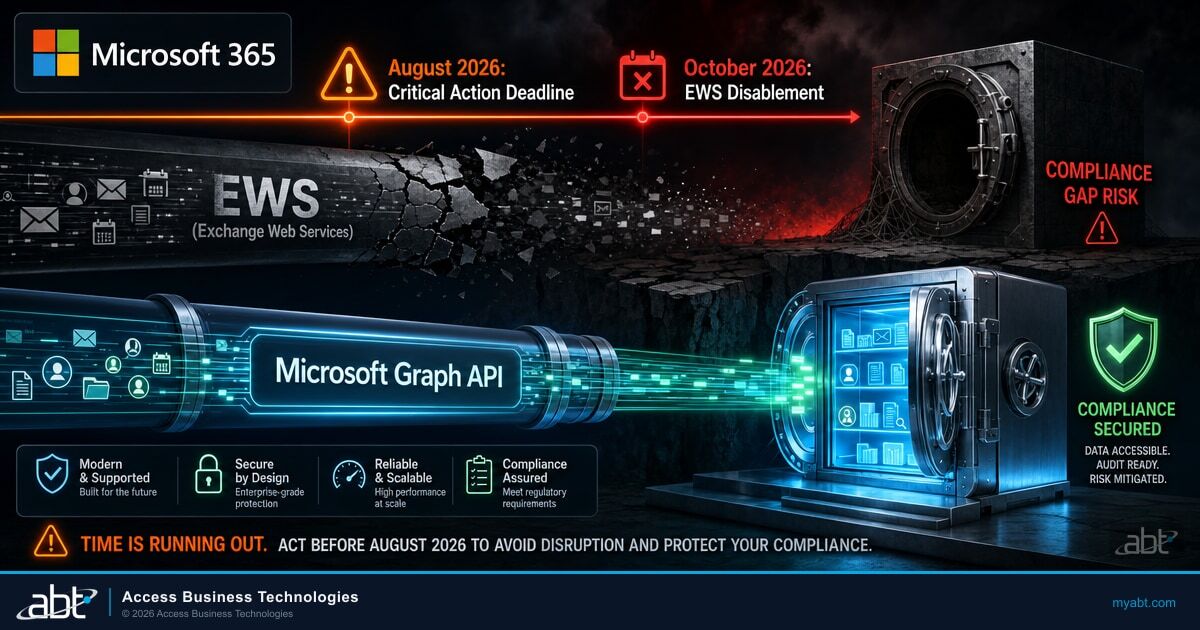
A second Exchange deadline running on its own clock, and the tenant setting that decides whether it touches you.
Tenant-to-Tenant Migration for Credit Union and Bank Mergers
What moving every mailbox actually takes when the deadline is a merger close rather than a lifecycle date.
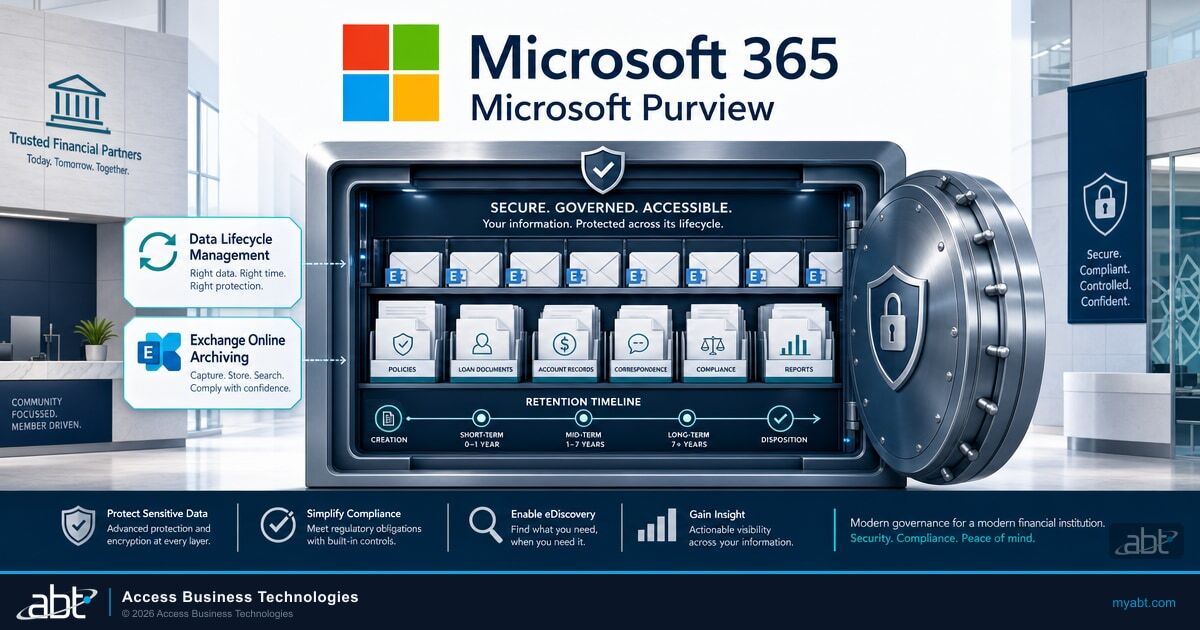
Microsoft 365 Data Retention for Financial Institutions
Where your mail has to live and for how long, which is a question worth settling before you choose where it runs.
Exchange Server SE and Exchange Online, answered
Which upgrade path
are you actually on?
Tell us what you run on Exchange and ABT will map it: every server and its build, which of Microsoft’s two upgrade paths it is on, what each destination costs against the licenses you already hold, and what still relays mail through it.
