


DocumentGuardian User Guide
Everything you need to send and receive files securely with DocumentGuardian, ABT's encrypted file transfer service for credit unions, community banks, and mortgage companies. Your recipients need no account and no login. Every file is encrypted, scanned for malware, hosted on Microsoft Azure in the United States, and audit-logged.
What DocumentGuardian Does
DocumentGuardian lets you send large or sensitive files to anyone, and lets anyone send files securely back to you. Here is what is working behind the scenes on every transfer.
Encrypted End to End
Every file is protected with 256-bit FIPS (AES-256) encryption, both in transit and at rest. Nothing risky is ever attached to an email. Recipients click a secure link to download.
Scanned and Audit-Logged
Every upload is automatically scanned for malware and malicious content before delivery, and all activity is audit-logged. Infected files are removed before anyone can download them.
No Account for Recipients
The people you exchange files with never create an account, set a password, or install anything. They click a secure link and they are done. Removing that friction is the whole point, especially around closings.
Azure-Hosted, Auto-Purged
Files are stored on Microsoft Azure in United States data centers. Maximum file size is 200 MB on the Professional plan and 500 MB on the Advanced plan. Files are retained 30 days (Professional) or 90 days (Advanced), then automatically and securely deleted.
Your Personal Secure Send Link
Your Secure Send Link is a permanent web address that lets anyone send files to you securely, with no account or setup on their end. Put it in your email signature, on a business card, or anywhere you would share your email.
There are two formats you can share. The email-address based link is friendly and easy to read. The random-string link cannot be guessed, so it is the better choice for anything posted publicly. You can carry both formats at the same time.
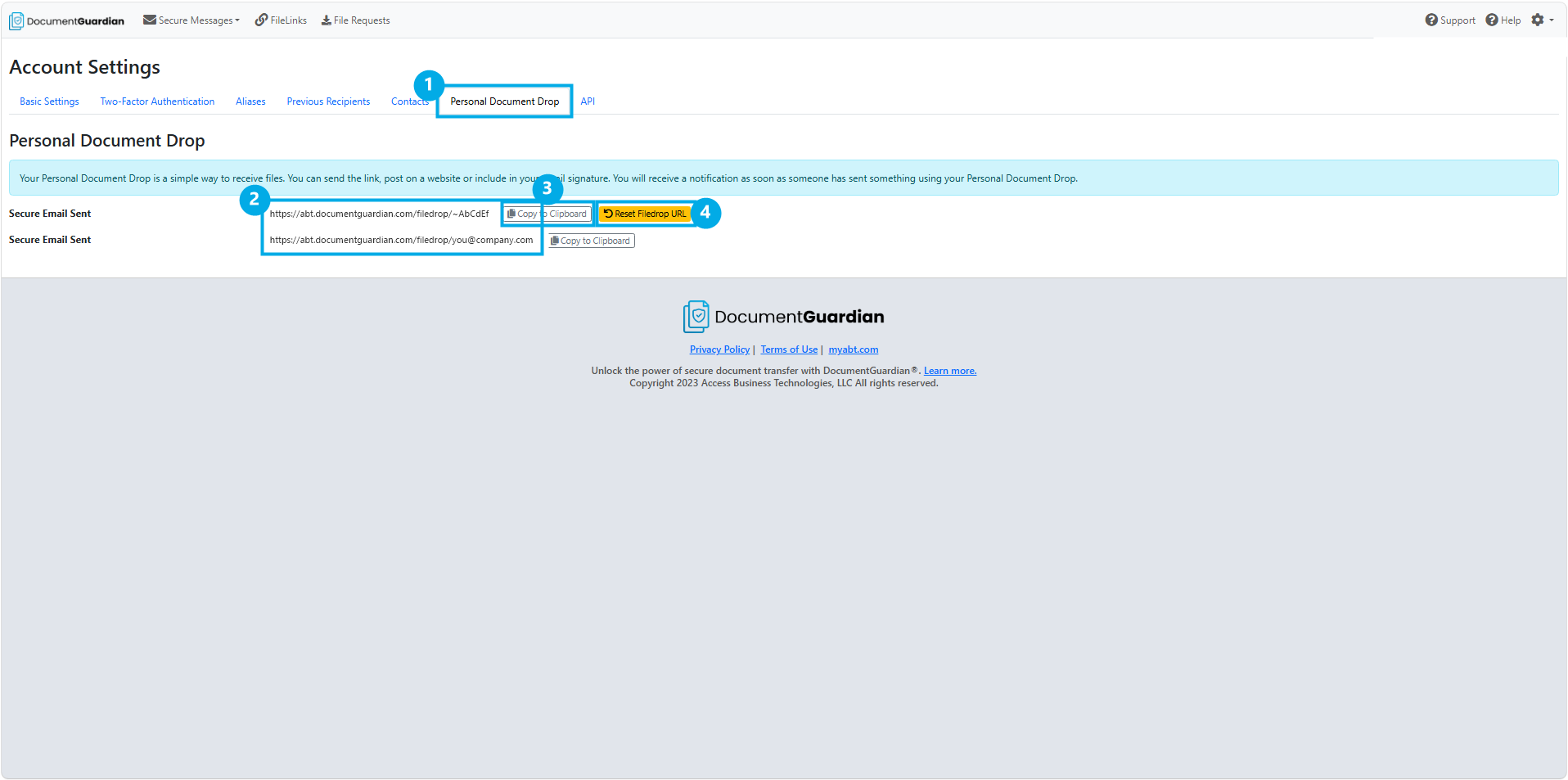
- Find your link. Sign in to DocumentGuardian, open Account Settings, and choose Personal Document Drop. That section is your Secure Send Link: both address formats are listed there, each with a Copy to Clipboard button.
- Choose the right format. Use the friendly, readable link for people who already know you. Use the random-string link, which cannot be guessed, for anything you post publicly.
- Share it anywhere. Paste it into your email signature, your website, or your contact details. Anyone who has it can send files to you securely.
- Reset it if it is ever exposed. In the Personal Document Drop section, click Reset Filedrop URL. The old link stops working right away, a new random address is generated for you, and your email-based link is unaffected. A reset cannot be undone.
Put Your Secure Send Link in Your Email Signature
This is the number one way to use DocumentGuardian. Once your Secure Send Link is in your signature, anyone who emails you can click it and send files back securely, with no account needed. There are three ways to set it up.
ABT Smart Email Signatures
If your institution uses ABT Smart Email Signatures, we build your Secure Send Link right into your managed signature for you, across every employee and every device. Nothing to paste or maintain.
Outlook Desktop
Add your link yourself in the Outlook desktop signature editor:
- Copy your Secure Send Link from Account Settings > Personal Document Drop in DocumentGuardian (the random-string link is best for external recipients).
- In Outlook, go to File, then Options, then Mail, then Signatures.
- Add a short invite line and paste the link, for example: Need to send me a secure file? Use this link.
- Select the link text and use Insert Link to make it clickable, then Save.
Outlook on the Web
Add your link in Outlook on the web (Microsoft 365):
- Copy your Secure Send Link from Account Settings > Personal Document Drop in DocumentGuardian.
- Open Settings, then Mail, then Compose and reply, then Email signature.
- Type a short invite line and paste your link, then use the link button to make it clickable.
- Save. Every new message now carries your secure link.
Need a Hand Getting Set Up?
Whether you are adding your Secure Send Link to a signature, installing the Outlook add-in, or rolling DocumentGuardian out across your team, ABT can walk you through it. We support credit unions, community banks, and mortgage companies every day.
Request Setup Help →Send a Secure Document
Sending a secure document works a lot like sending regular email, with security controls added. Your recipient gets a secure link to download the files directly, with nothing risky attached to the message.
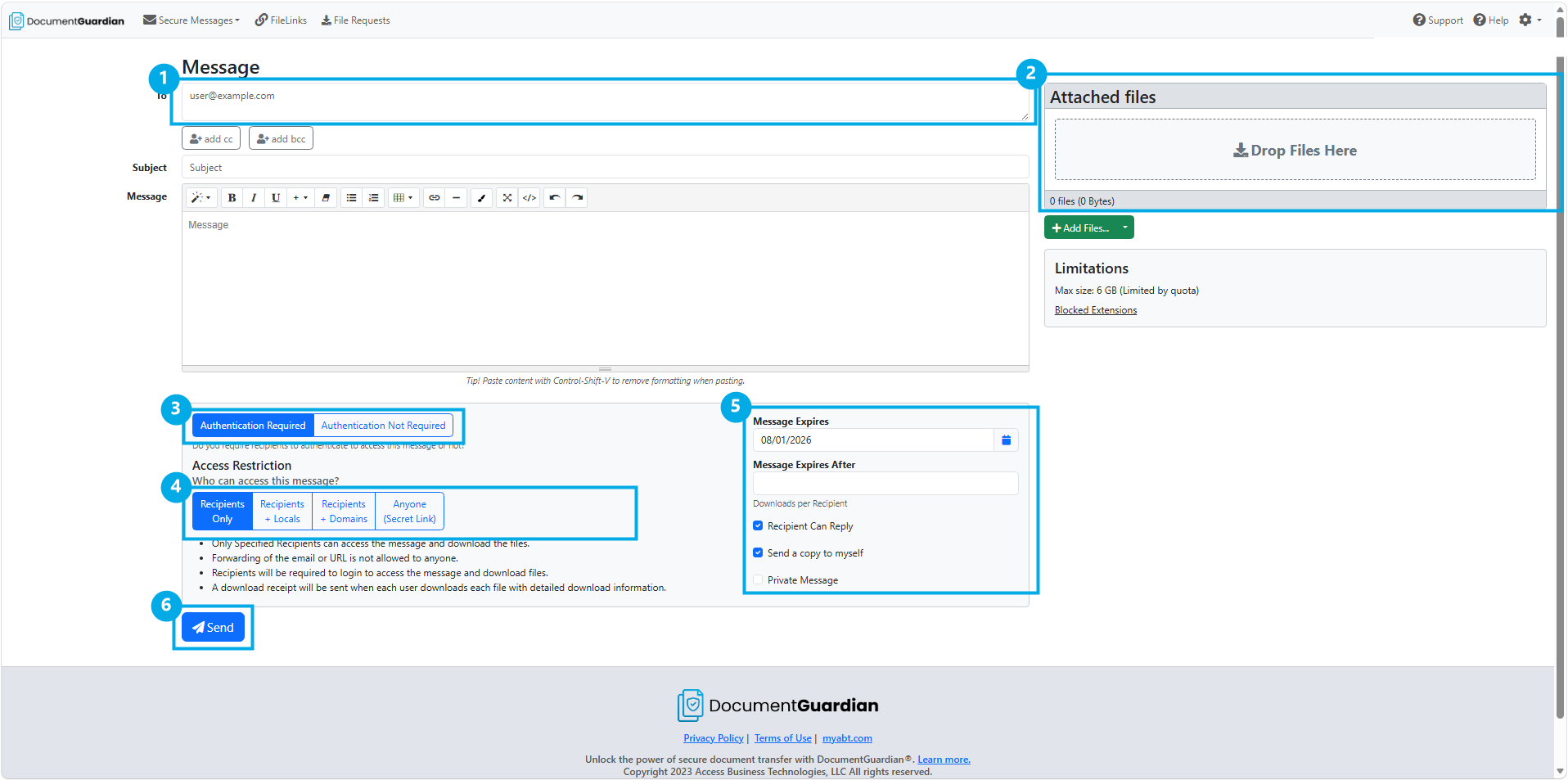
- Start a new secure message. When you sign in to DocumentGuardian you land on a new message, ready to go. You can also click Secure Messages in the top menu at any time.
- Add your recipients. Enter the To, CC, and BCC addresses, just like an email.
- Write your message. Add a subject line and a message body.
- Attach your files. Add files, or drag them in, up to your plan maximum of 200 MB (Professional) or 500 MB (Advanced). You can also re-send files you have uploaded before.
- Set your send options and send. Choose from the options below, then send.
- Access restriction. Choose who can access the message: Recipients Only, Recipients + Locals (their colleagues), Recipients + Domains (anyone at their domain), or Anyone (Secret Link).
- Authentication required. Recipients confirm their identity before they can download. This is always on when you choose Recipients Only.
- Message expires. Set an auto-delete date. The default follows your plan.
- Downloads per recipient. Cap how many times each recipient can download.
- Send a copy to yourself. Keep a copy of what you sent.
- Private message. Send your message body securely rather than inside the notification email, with read receipts. This requires authentication.
- Recipient can reply. Let your recipient reply to you securely inside DocumentGuardian.
Receive Documents
When someone sends you files through your Secure Send Link, or answers a file request, DocumentGuardian brings them to you safely and lets you know they have arrived.
- Someone uploads to you. They use your personal Secure Send Link, or respond to a file request you sent.
- You get an email notification. DocumentGuardian emails you as soon as files arrive.
- The files land in your DocumentGuardian inbox. They appear as a secure message addressed to you.
- Open and download. Click the download link. Each file shows its name, size, and SHA-256 checksum so you can confirm it arrived intact.
- Download anything you want to keep. Files are retained 30 days (Professional) or 90 days (Advanced), then automatically purged. Deletions cannot be restored, so save what you need before the window ends.
Use DocumentGuardian From Outlook
With the DocumentGuardian add-in, you can send files securely without leaving Outlook, on both the desktop app and Outlook on the web. Your administrator or ABT installs the add-in for you. The first time you use it, sign in with your DocumentGuardian server address and the same username and password you use for the web app.
On the Desktop App
A DocumentGuardian ribbon appears when you compose a message. From it you can:
- Secure Attach a single file securely
- Attach Folder to send a whole folder
- Secure Attach All to force every attachment secure
- Send a File Request or a Private Message
- Select Existing Files you have uploaded before
Per-message controls match the web app: authentication, private message, who can download, download limit, and expiration.
On Outlook on the Web
In Outlook on the web (Microsoft 365), DocumentGuardian appears in your installed add-ins when you compose a message.
- Click Attachment Upload on the compose screen.
- Sign in to your DocumentGuardian server the first time.
- The Attach Secure Files panel opens so you can add files and send securely.
Both add-ins are installed for you by ABT or your administrator, so there is nothing to configure yourself beyond signing in once.
File Requests, Share Links, Expiration, and File Integrity
A few more everyday tools round out DocumentGuardian: file requests, FileLinks for sending a single file out, expiration controls, and a checksum you can use to confirm a file arrived intact.
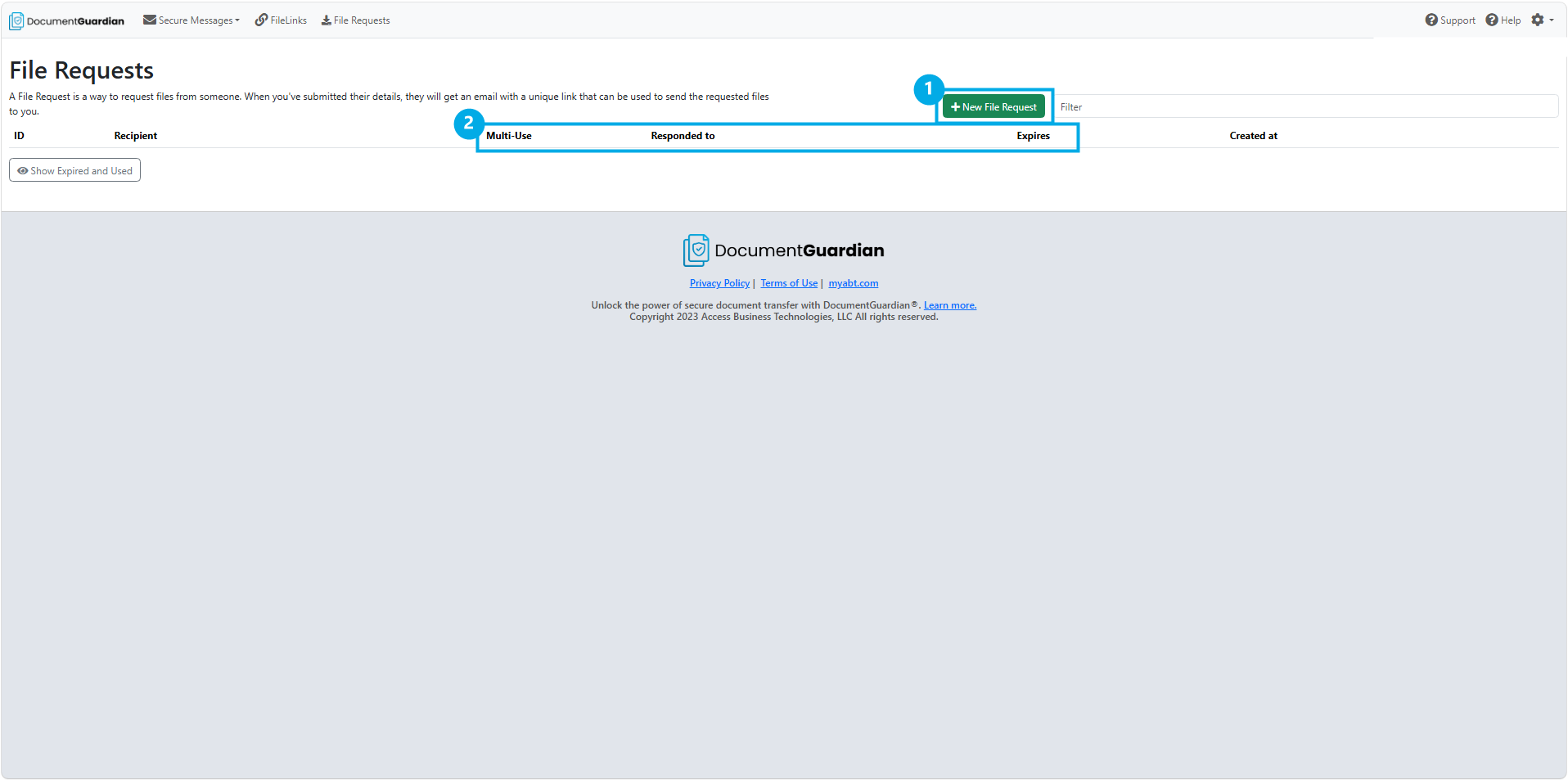
Use a file request when you need documents from someone who has not sent them yet. Choose File Requests in the top menu, then New File Request, fill it out, and send. The recipient gets a unique upload link by email, clicks it, and sends files straight back to you, with no account on their side. A standard file request is single-use and expires once it has been answered, and there is a multi-use option when you need to collect files more than once. For an ongoing way to receive files, share your personal Secure Send Link instead.
- Choose FileLinks in the top menu, click New FileLink, then select or upload a file.
- Set an expiration, download confirmations, a sign-in requirement, and an optional password.
- Copy the link to your clipboard and share it. The recipient sees the file's name, size, and SHA-256 checksum, plus a Download button.
- You can edit the expiry, authentication, or password later, and see who downloaded the file.
Attached files carry an expiry and are automatically deleted after it, following your plan's retention of 30 days (Professional) or 90 days (Advanced). There is a short grace period after expiry where recipients lose access but you, the owner, can re-send. Re-sending extends that copy only. The original message still expires on its schedule. Deleted files cannot be restored.
The maximum file size is 200 MB (Professional) or 500 MB (Advanced), shown in the compose area. Your organization may block certain file types by policy, and you are told at upload if a file is not allowed. Every file is scanned for malware, and infected files are removed before anyone can download them.
Each file shows a SHA-256 checksum. Your recipient can compare it against the file they downloaded to confirm it arrived exactly as you sent it, with no changes along the way.
Want the Full Product Overview?
This guide covers day-to-day use. For plans, security details, and how DocumentGuardian fits your institution's compliance posture, see the product page.
DocumentGuardian for Financial Institutions
See how DocumentGuardian gives credit unions, community banks, and mortgage companies encrypted file exchange with no recipient login, 256-bit FIPS encryption, Azure-hosted storage, and support for GLBA Safeguards Rule compliance.
See the DocumentGuardian product page →DocumentGuardian FAQ
Ready to Roll Out
Secure File Transfer?
See how DocumentGuardian gives your team encrypted file exchange with no recipient login, and let ABT handle setup across your institution.
